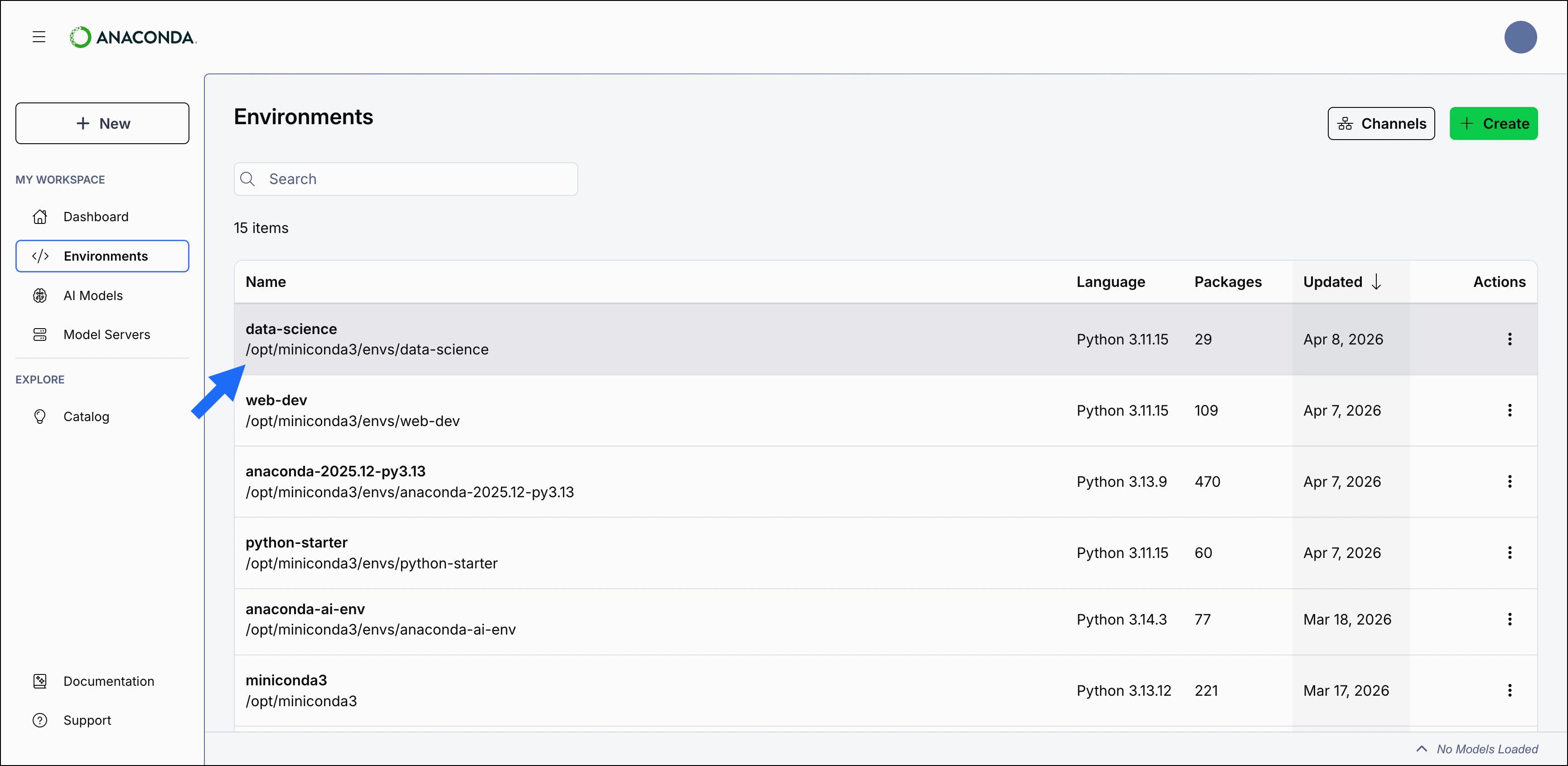
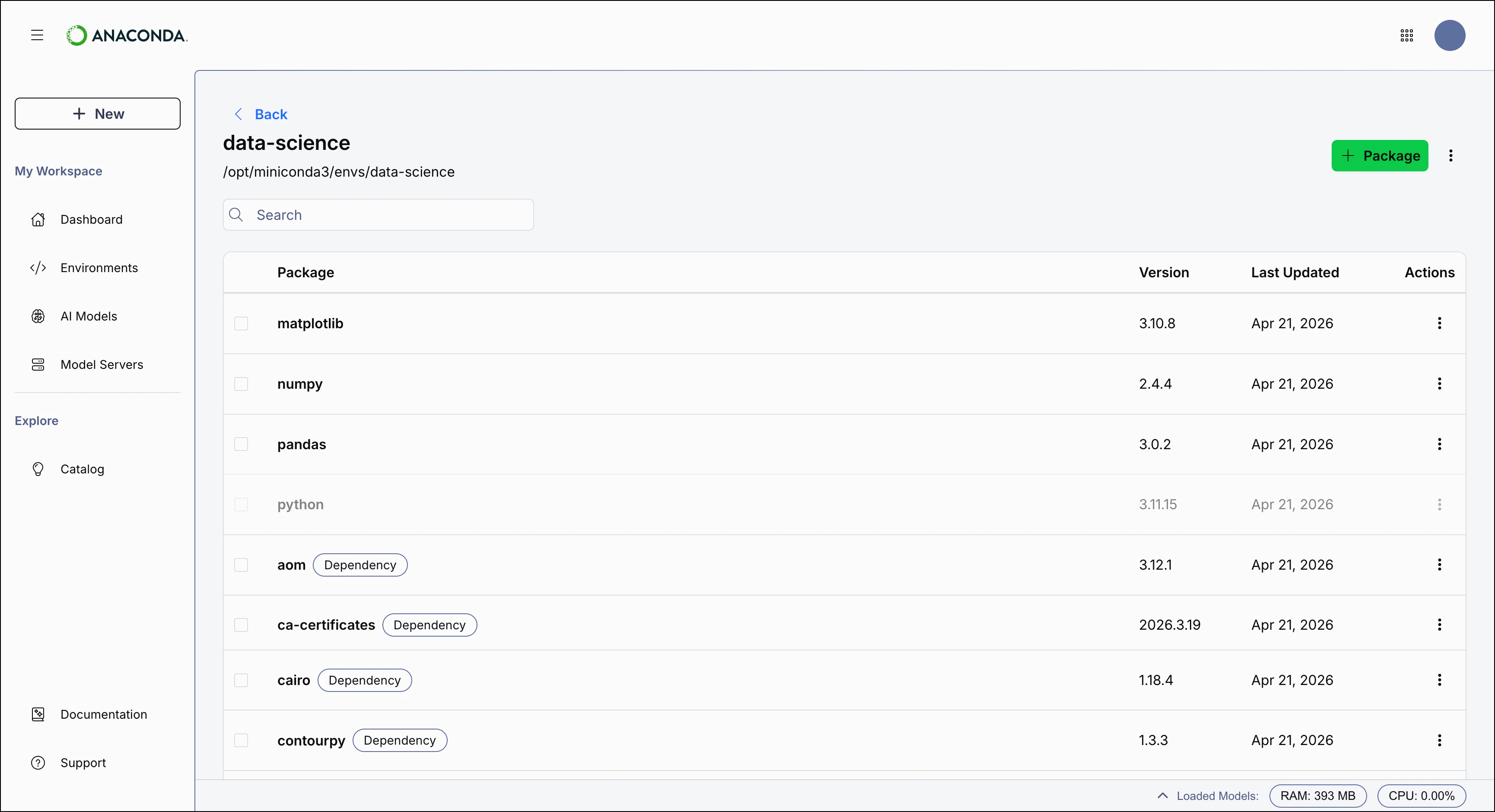
Packages are managed at the environment level. To manage an environment’s packages, navigate to the Environments page in the left navigation, then select the environment’s name from the table to open its details page. From the environment’s details page, you can view the its packages, dependencies, and channels.
User-installed packages appear in black text at the top of the package table. Their dependencies appear below with a Dependency label. Dependencies and the Python version are managed automatically to ensure compatibility in Desktop.
The package table includes the following columns. Select a column header to sort the table by that column.
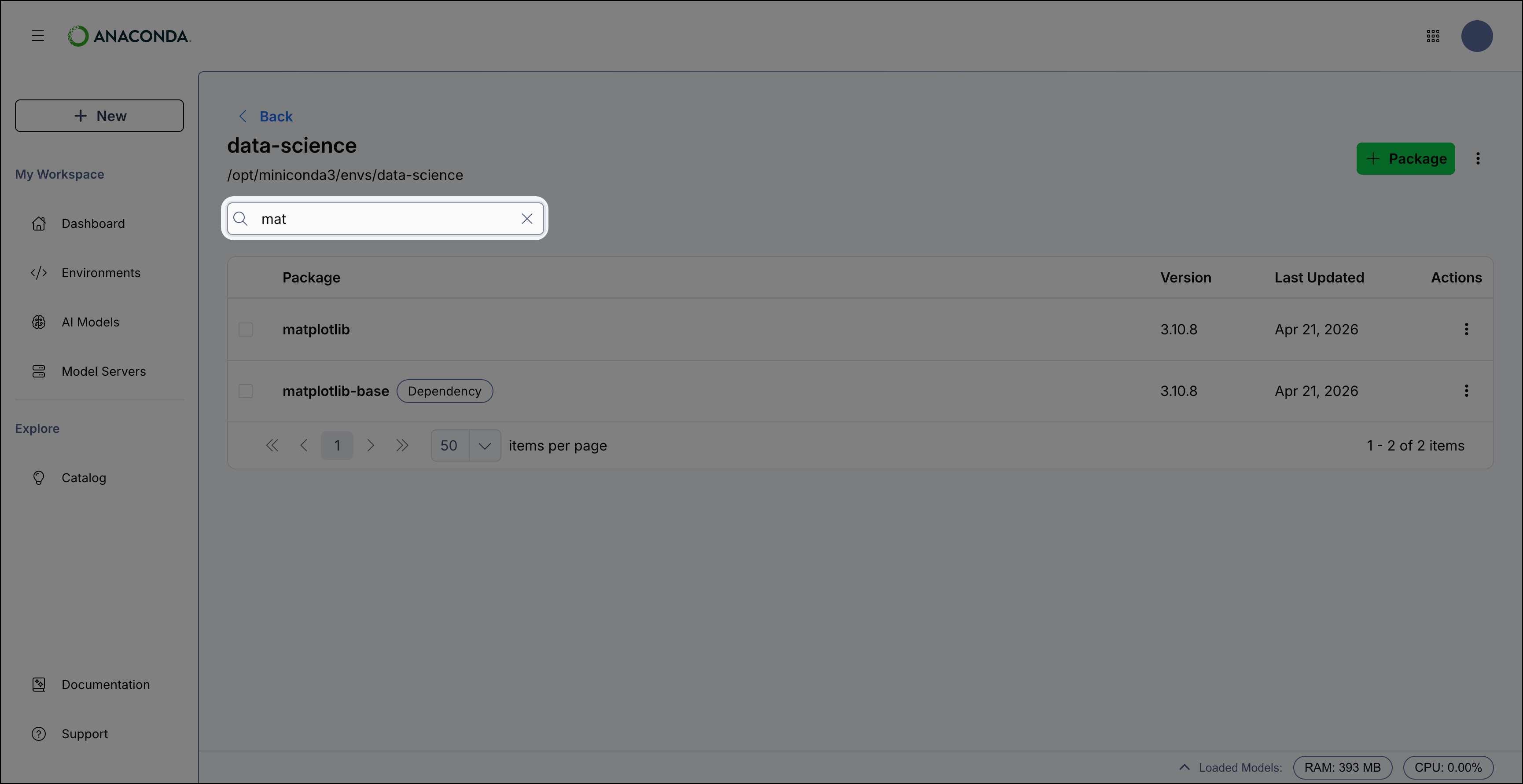
Use the Search box to locate a specific package by name. Enter all (or part of) the package’s name to filter the list to display only packages that contain the .
If you can’t find a package you’re looking for, check that the package name is spelled correctly and that the package is available in one of your channels.
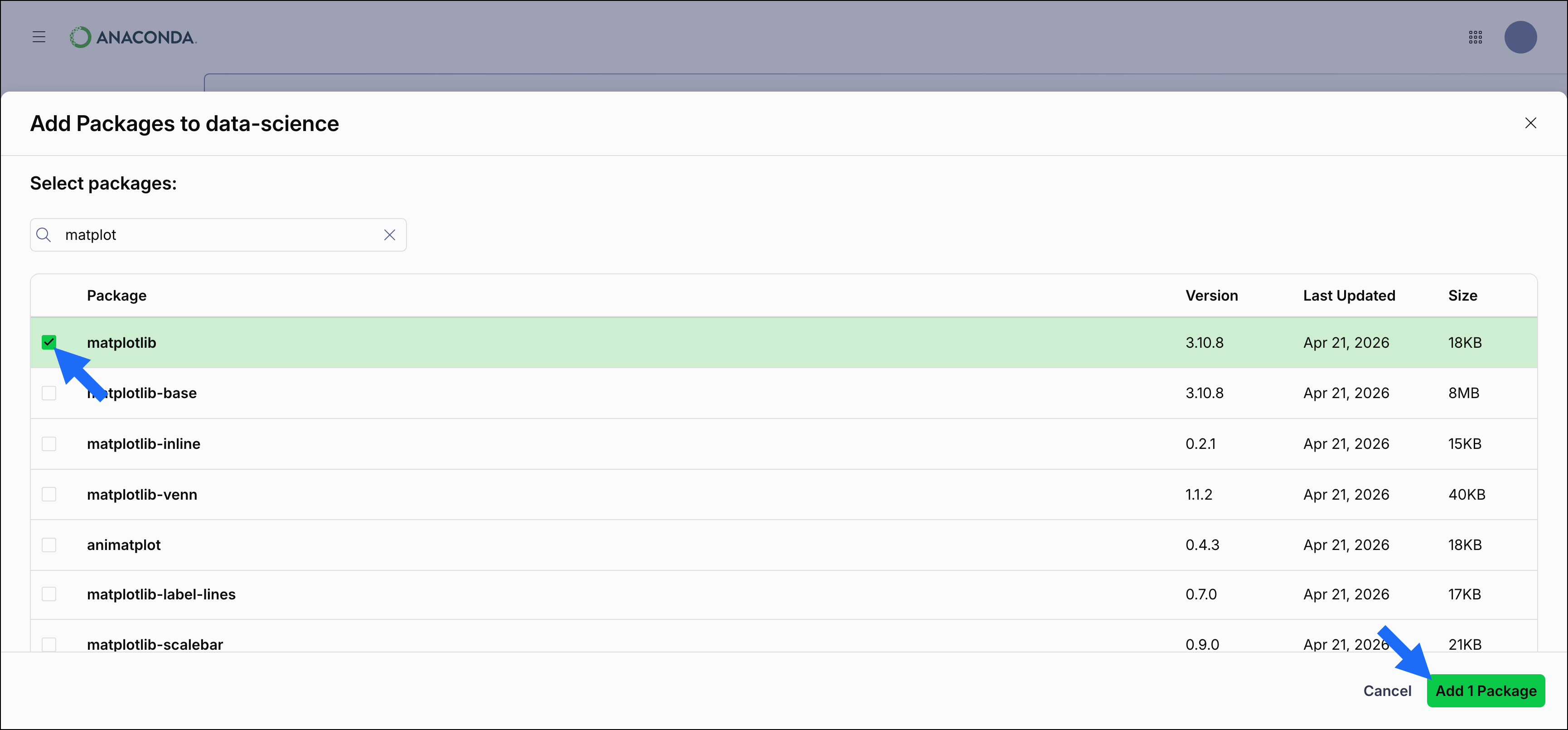
Use the Search box to find the package you want to install.
Select the checkbox beside the package you want to install.
Select Add Package to install the package.
After selecting Add Package, a dialog appears that lists the package you want to install and all dependencies of that package that also need to be installed. Select Apply Changes to confirm the installation.The package and its dependencies are installed in the environment.
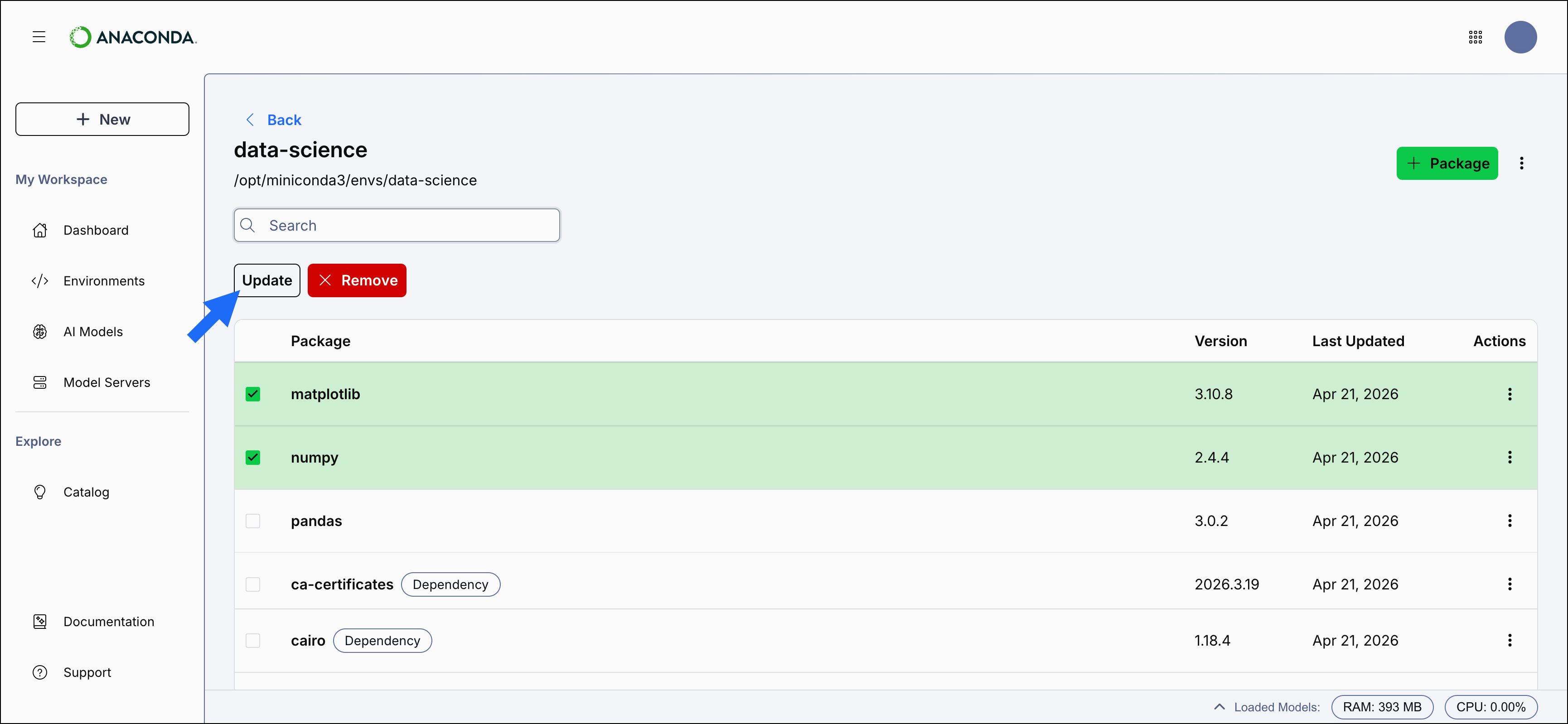
To update packages, select the checkbox beside the packages you want to update and select the Update button at the top of the package table.
You can also update a package by selecting Actions in the package row and selecting Update.
After selecting Update, a dialog appears that lists the packages you want to update and all dependencies of those packages that also need to be updated. Select Apply Changes to confirm the update.The packages are updated to the latest compatible versions.
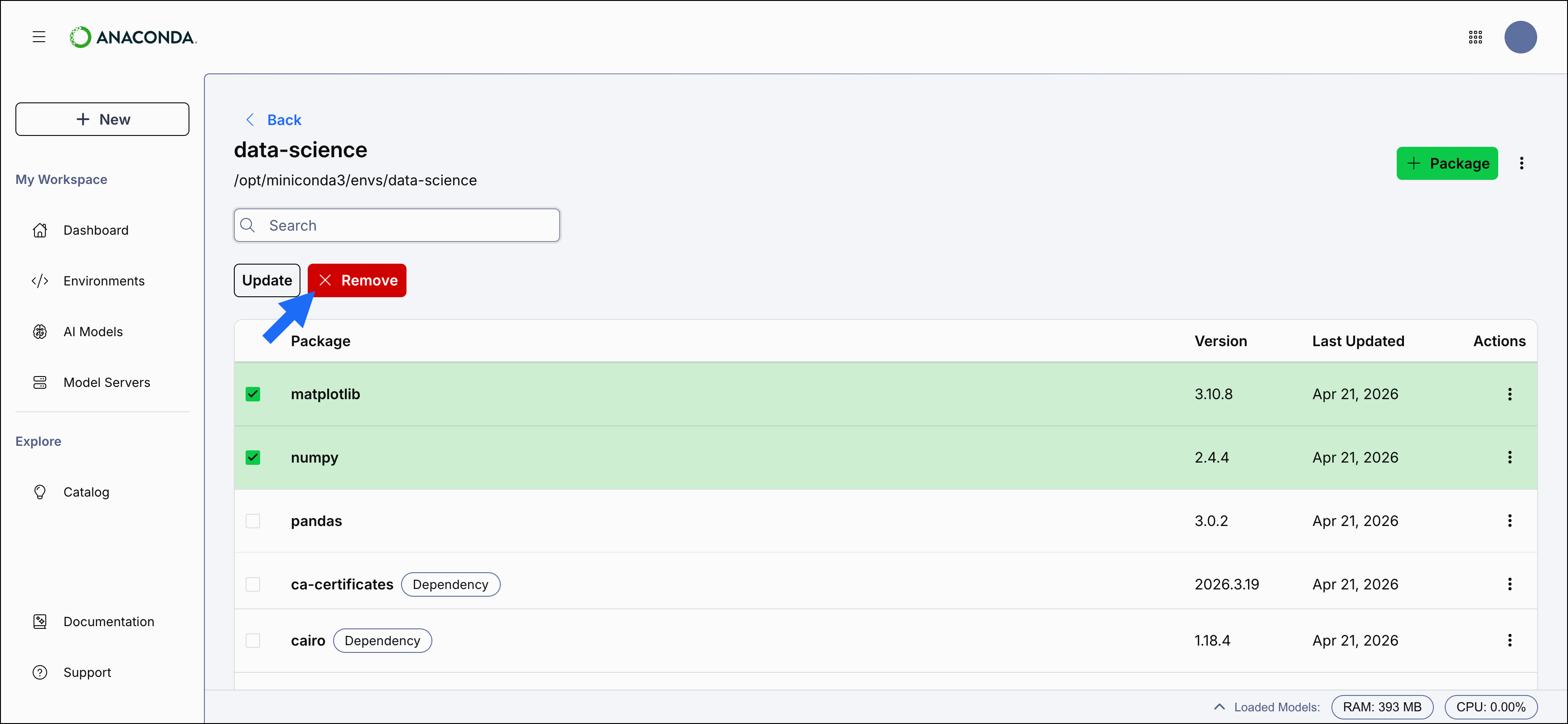
To remove packages, select the checkbox beside the packages you want to remove and select the Remove button at the top of the package table.
You can also remove a package by selecting Actions in the package row and selecting Remove.
After selecting Remove, a dialog appears that lists the packages you want to remove and all dependencies of those packages that also need to be removed. Select Apply Changes to confirm the removal.The packages are removed from the environment.
Desktop provides a convenient graphical interface for managing conda environments, channels, and packages. If you’re comfortable working with Anaconda Prompt (Terminal on macOS/ Linux) at the command line, you can access additional, advanced management features with conda. To learn more, see Package management in the Working with conda section.