

The Application Catalog is a collection of applications that can be installed into your environments and launched from Anaconda Desktop. To view the Application Catalog, select Catalog, then select the Applications tab:Documentation Index
Fetch the complete documentation index at: https://anaconda.com/docs/llms.txt
Use this file to discover all available pages before exploring further.
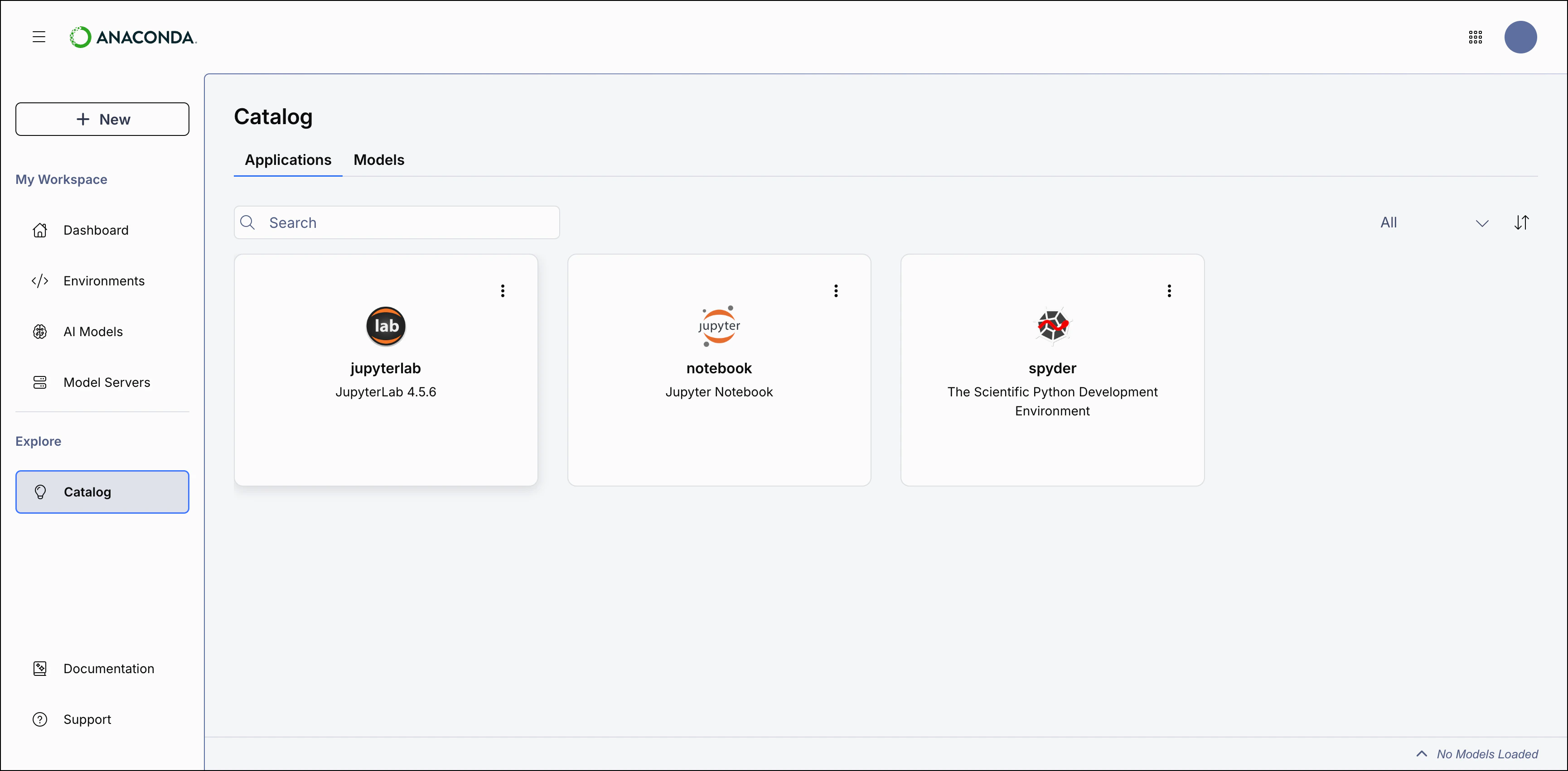
Available applications
The following applications are available in Anaconda Desktop:Application-environment relationship
You must install applications into environments before you can launch them from Desktop. Separating applications into environments lets you run different versions of the same application for different projects, or configure applications differently depending on your needs. Applications in Anaconda Desktop are conda packages, which means you can also install them as packages into an existing environment. When you install an application for the first time from the Application Catalog or Dashboard, Anaconda Desktop automatically creates a new environment containing that application and all its dependencies. If the application is already installed in other environments, you can choose which environment to launch it from.Viewing applications
The Applications tab displays a list of all available applications in the Application Catalog. Use the dropdown to switch between Installed and Uninstalled applications: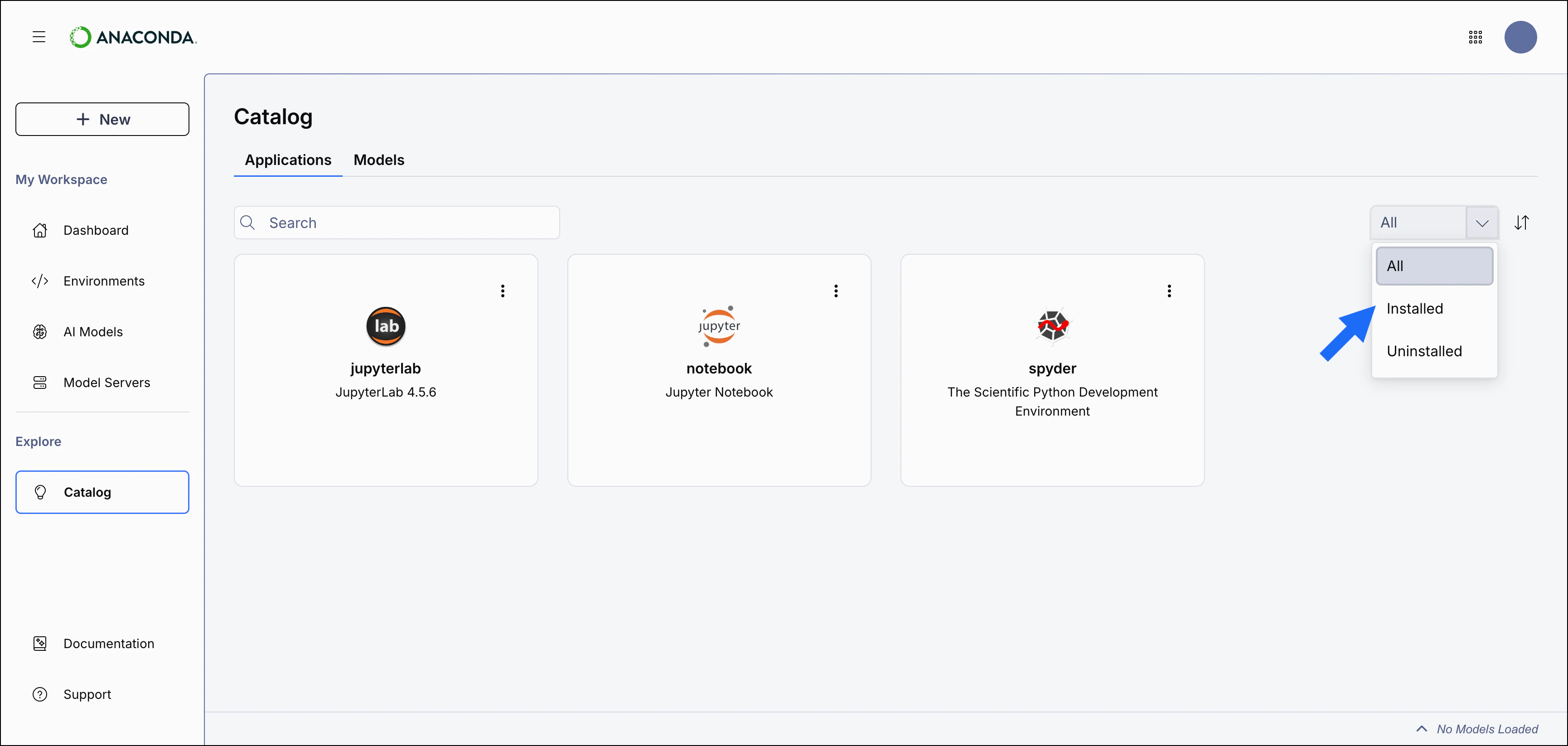
Installing an application
From the Application Catalog, select Install on an application’s card to install it in a dedicated environment. The newly created environment is automatically set as the default environment for the application. The default environment is used to launch the application when you select its card.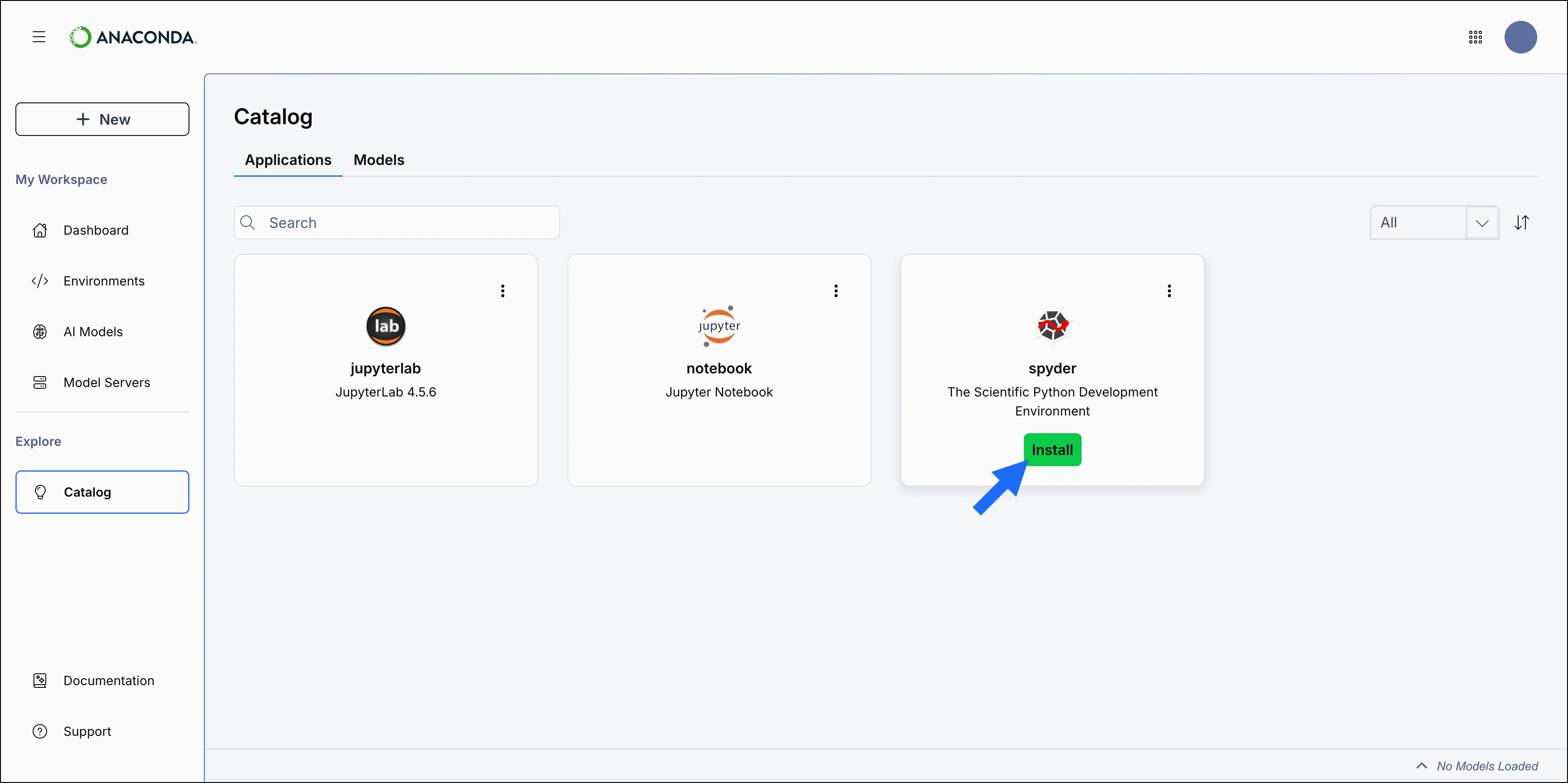
Launching an application
To launch an application:- Select anywhere on an installed application’s card to launch the application from its default environment.
- To select a different environment, select the Actions button, select Select Environment to choose the environment, then select Launch.
Updating an application
An Update button is displayed for applications that have updates available. To update the application:- Select Update on the application’s card. Alternatively, select Update in the Actions menu.
- Select the environment to update the application in.
- Select Update again to confirm.
Uninstalling an application
To uninstall an application:- Select the Actions button.
-
Select Uninstall.
 If the application is installed in multiple environments, you’ll be prompted to select the environment to uninstall the application from.
 - Select Uninstall again to confirm.