

The Chat feature of Anaconda Desktop enables users to interact with a locally downloaded model. The chat interface is mainly intended to provide you with a space to evaluate how different models handle specific tasks and scenarios. If the model you are using isn’t responding to your test prompts in a helpful way, try a different model. Once you see some success with a particular model, you can load it into an API server and test your own applications against it to see how the model handles your users’ input.Documentation Index
Fetch the complete documentation index at: https://anaconda.com/docs/llms.txt
Use this file to discover all available pages before exploring further.
Loading a model
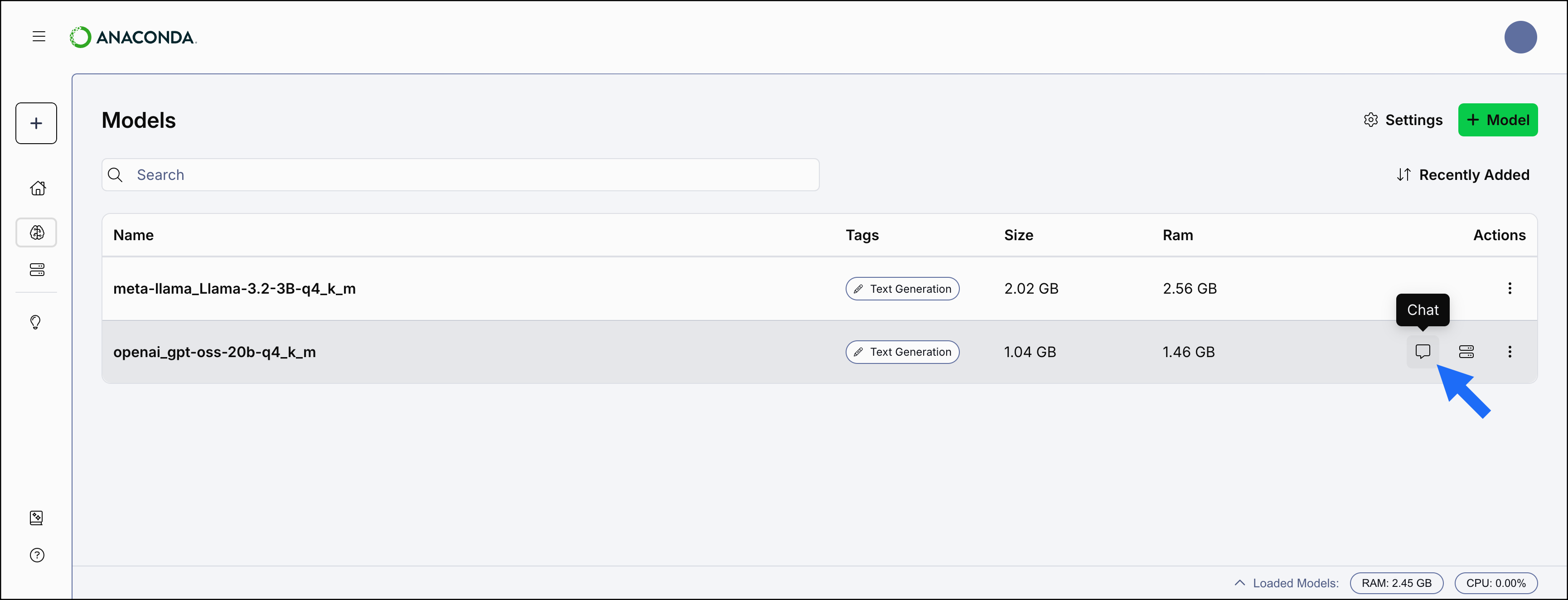
Load a model you’ve downloaded into the chat interface to interact with it. To load a model:- Navigate to the AI Models page.
-
Hover over the model you’d like to chat with and select Chat.
Changing a model
To load a different model to interact with, select the new model from the Model dropdown on the Model Chat page.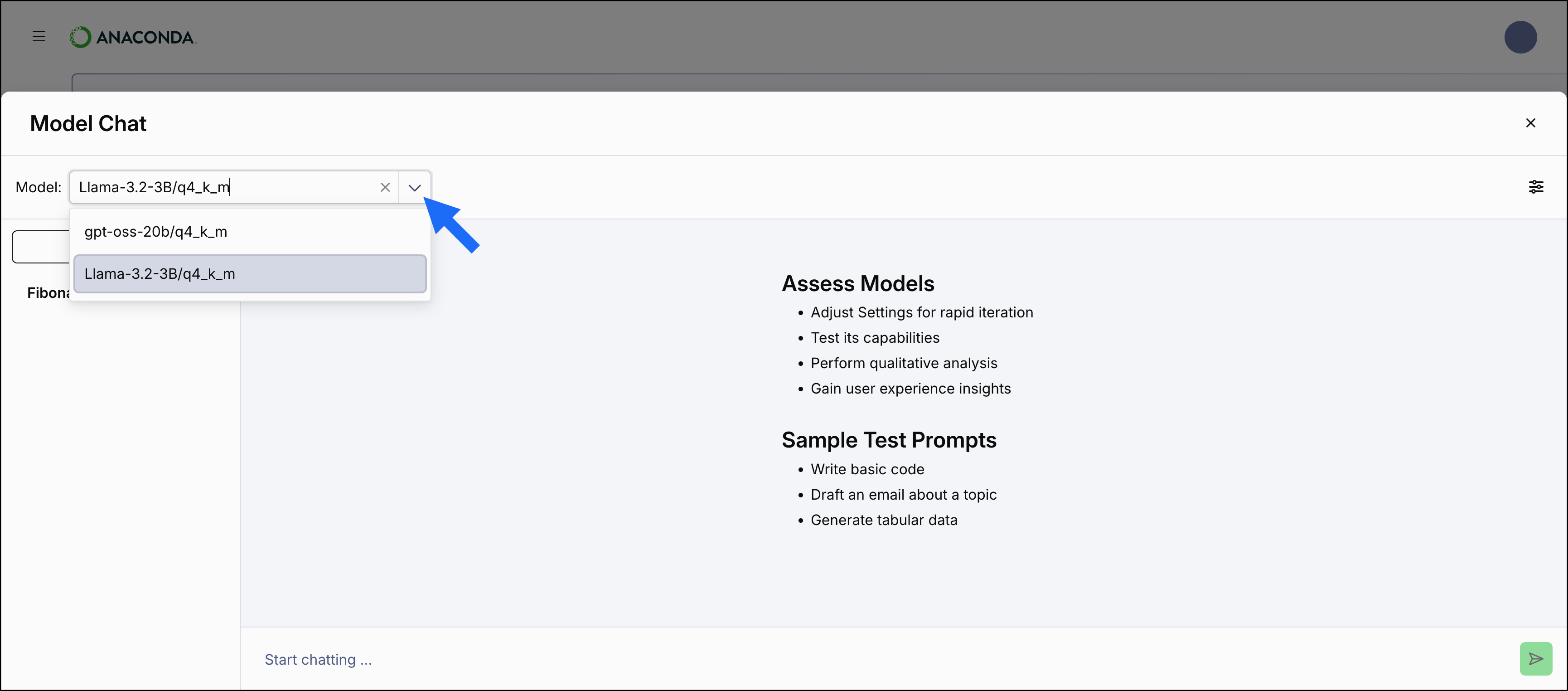
Starting a new chat
All chats are initially created as New Chat<#>, but are topically renamed based on your initial prompt to the model.
To start a new chat:
- From the Model Chat page, select Chat.
- If necessary, load a model into the chat interface.
- Enter a prompt to chat with the model.
Stopping a response
Sometimes a model can start generating a lengthy and off-topic response to a prompt. To stop the model from generating its response, select Stop in the prompt field.Editing a prompt
You can edit your most recent prompt to change the model’s response:- From the Model Chat page, select the actions dropdown in your most recent prompt.
- Select Edit.
- Edit the prompt, then press Enter (Windows)/Return (Mac).
Regenerating a prompt
To ask the model to generate a new response to your most recent prompt:- From the Model Chat page, select the actions dropdown in your most recent prompt.
- Select Regenerate.
Renaming a chat
You can provide a specific name to a chat at any time. To rename a chat:- From the Model Chat page, open a chat’s actions dropdown and select Rename.
-
Enter a name for your chat.
Chat names over 21 characters are truncated.
Deleting a chat
To delete a chat:- From the Model Chat page, open a chat’s actions dropdown and select Delete.
- Select Delete Chat.
Chat settings
Chat settings allow you to fine tune how the model responds during user interactions. Once you have loaded a model, select Settings to open the chat settings.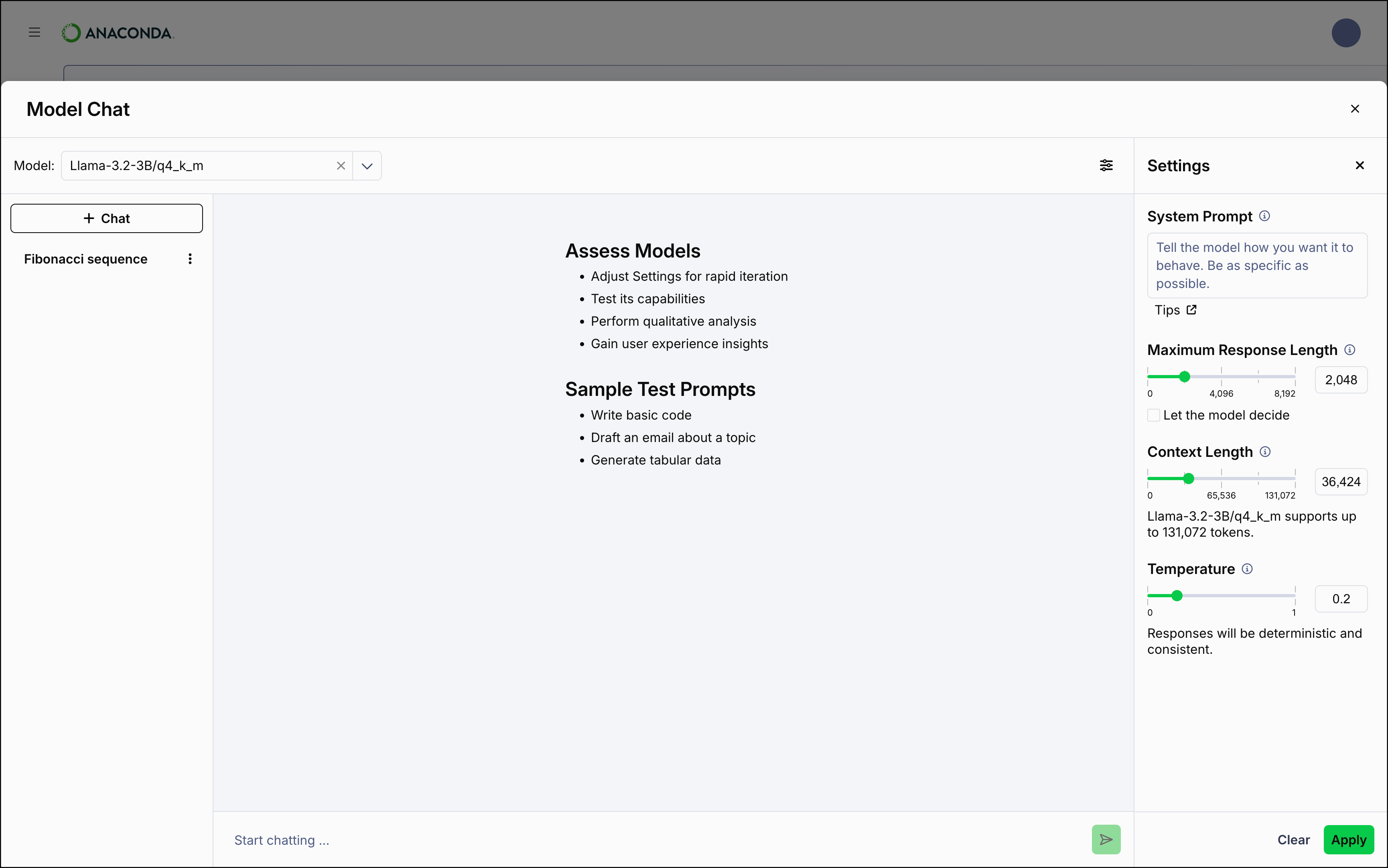
Different models have different values for context length.
Select the Let the model decide checkbox to allow the model to determine when it has fulfilled the prompt request adequately.
Select Clear at the bottom of the Settings panel to return to system defaults.
Select the Let the model decide checkbox to allow the model to determine when it has fulfilled the prompt request adequately.
Select Clear at the bottom of the Settings panel to return to system defaults.