

Anaconda Desktop lets you view and prioritize channels to manage your package installations.Documentation Index
Fetch the complete documentation index at: https://anaconda.com/docs/llms.txt
Use this file to discover all available pages before exploring further.
Viewing channels
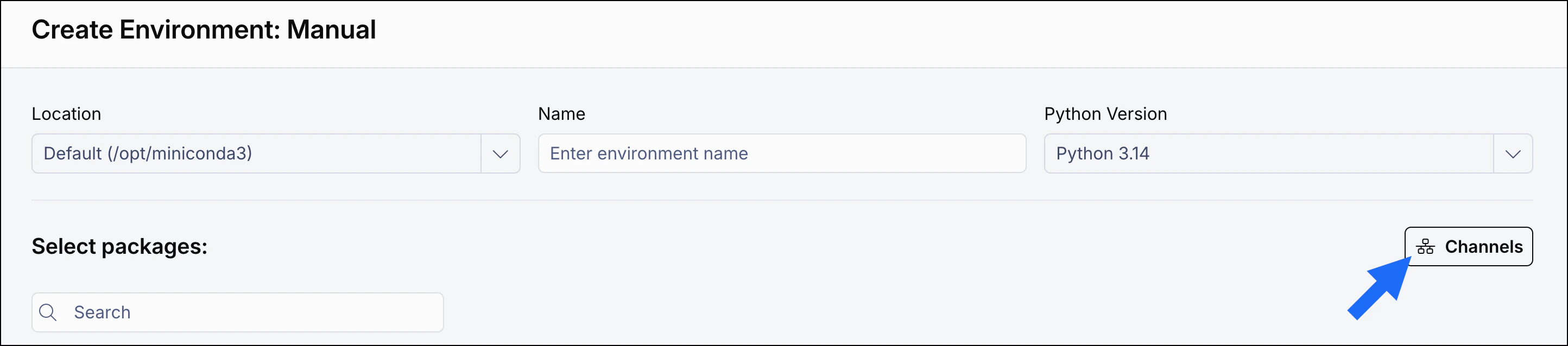
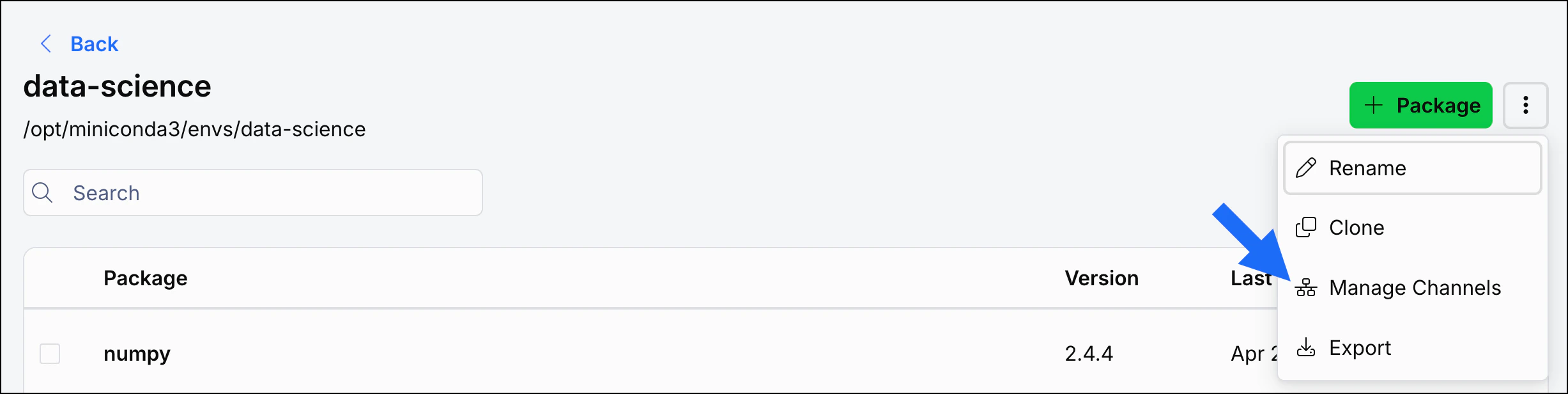
You can access channel management from multiple locations:Although you can access channel management from multiple locations, any changes you make apply to all environments, not just the one you’re currently working in.
- Environments page
- Manual environment creation page
- Environment details page
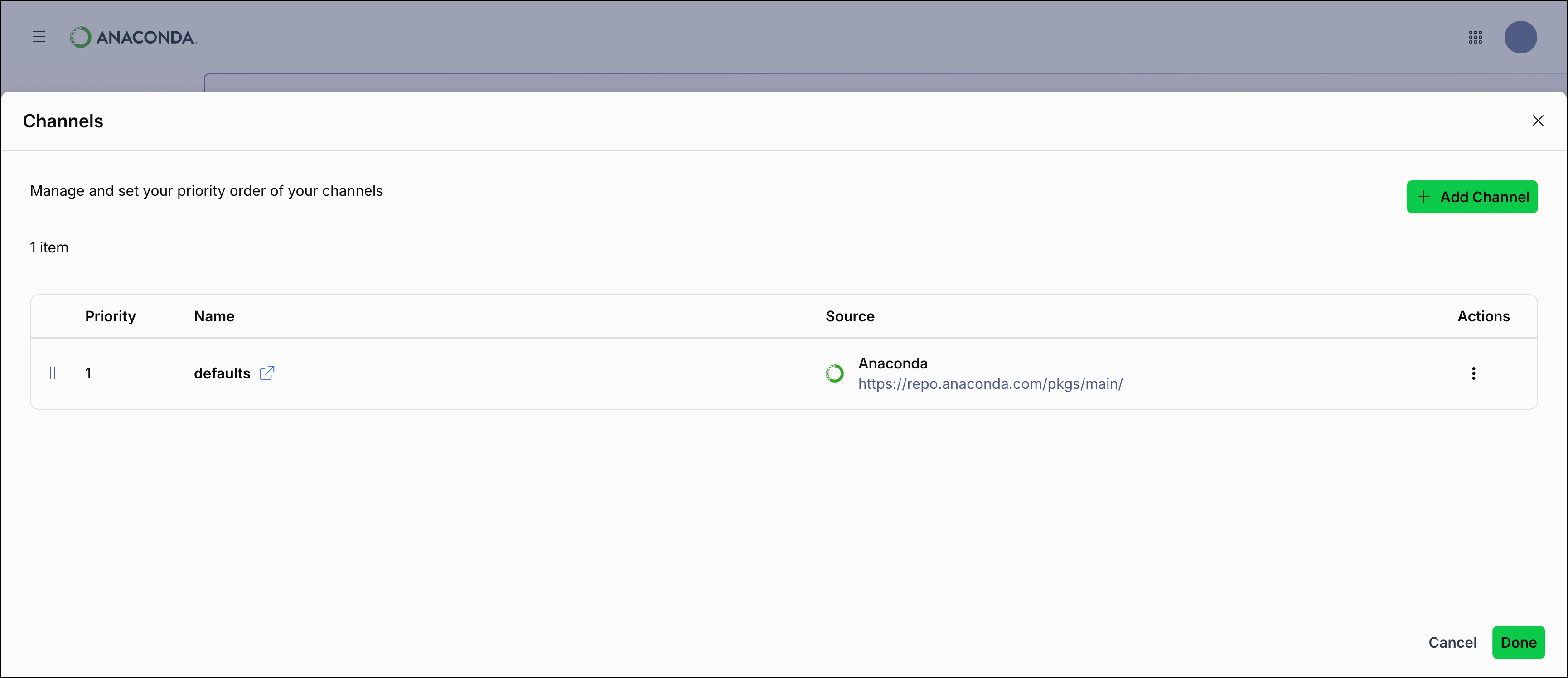
On the Environments page, select Channels:
Adding a channel
From the Channels page, select Add Channel to add a new channel to the bottom of your channels list. When managing channels in Desktop, you can refer to a channel either by its full URL or by its name. For example, let’s say you want to look for packages on the “conda-forge” channel of Anaconda.org. Either of these channel variations will look for packages in the same place:- By name:
conda-forge - By URL:
https://conda.anaconda.org/conda-forge
https://repo.anaconda.cloud/t/<TOKEN>/repo/<ORG_ID>/<CHANNEL>. For more information, see Authenticating to Anaconda in the Anaconda Platform (Cloud) guide.
Setting channel priority
Channel priority can be established by adjusting the order of the channels listed in the table. You can establish channel priority in multiple ways:- Drag and drop
Select beside a channel to drag it to a new position.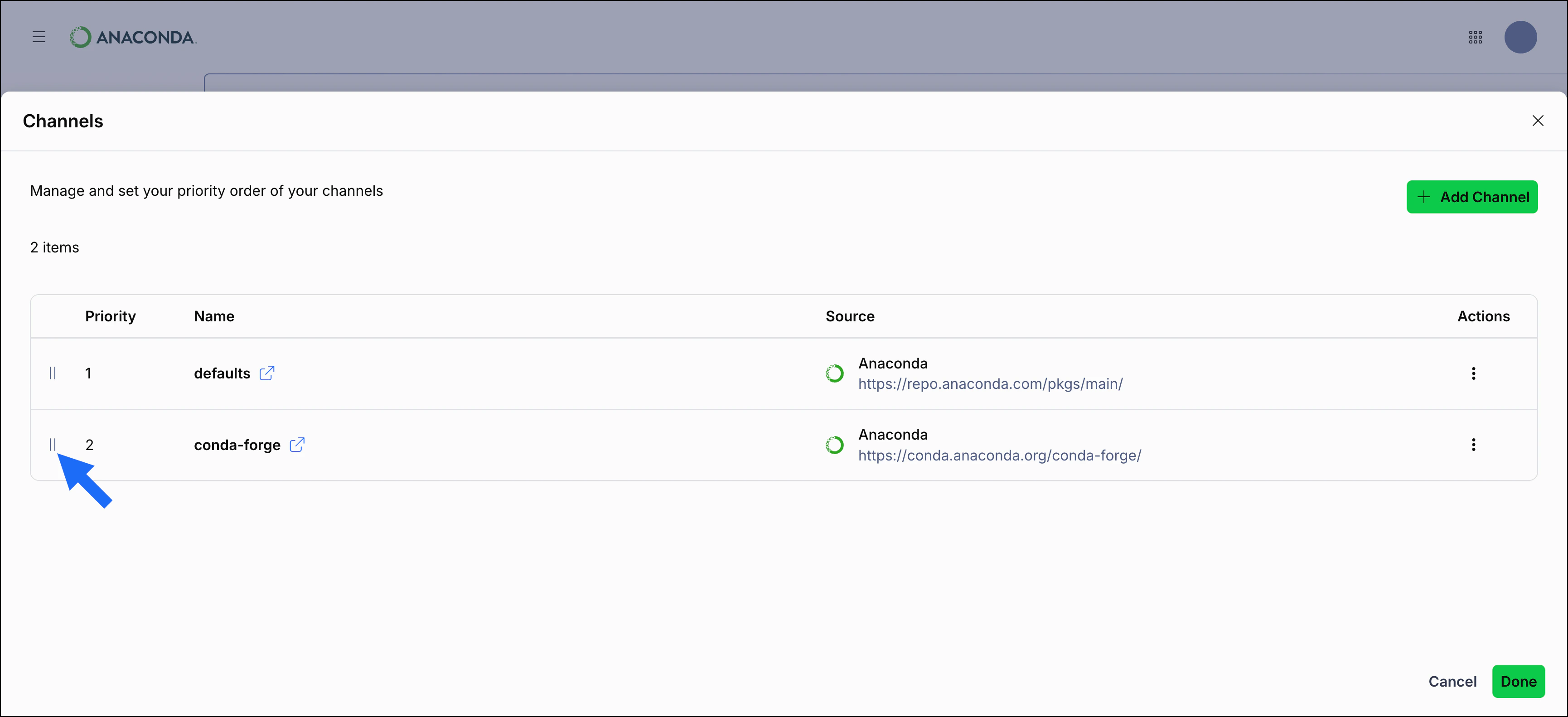
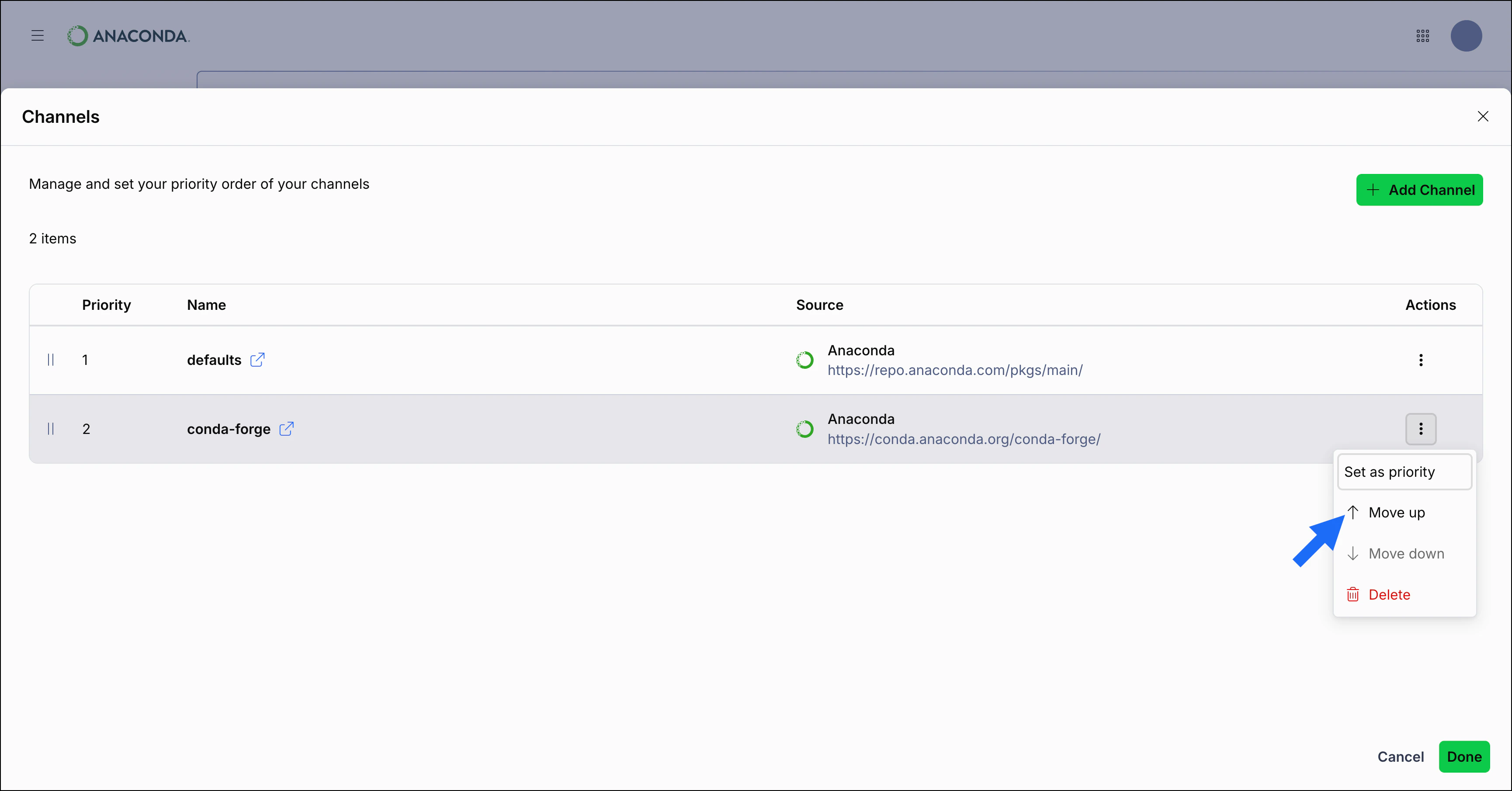
Deleting a channel
To delete a channel, select Actions on a channel row, then select Delete.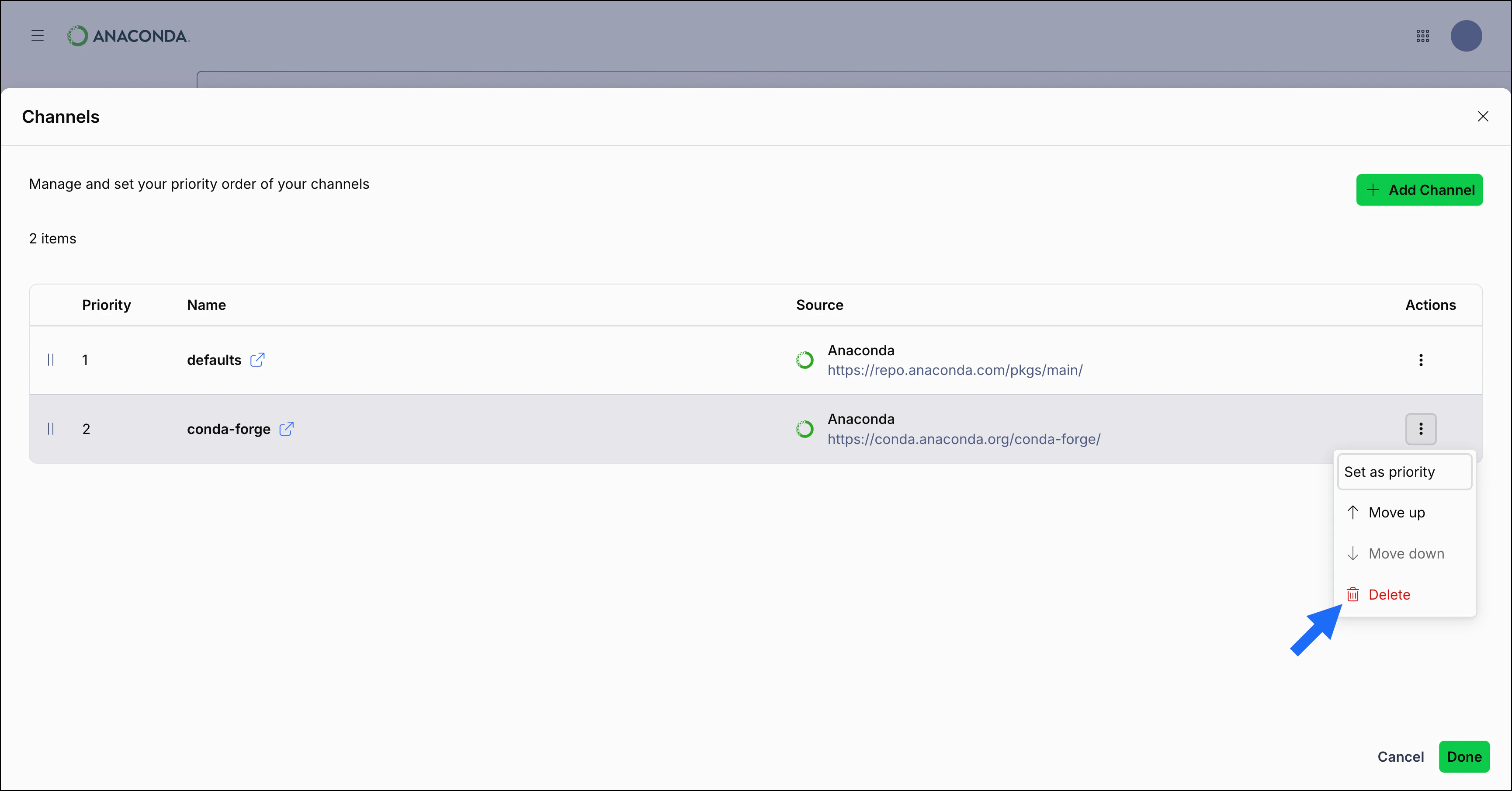
Additional resources
- For an introduction to channels, see What is a channel?
- For detailed instructions on viewing, configuring, and managing channels, see Channels.
- For more information about how channels are structured and how conda uses them, see the official conda channels documentation.
- For more information on editing your
.condarcfile, see Using the .condarc conda configuration file and Settings in the conda documentation.