

Documentation Index
Fetch the complete documentation index at: https://anaconda.com/docs/llms.txt
Use this file to discover all available pages before exploring further.
Anaconda Platform
7.0.0 is available through a limited early access program. Contact your Anaconda Technical Account Manager (TAM) if you’re interested in adopting the latest version.Searching for packages
If you want to know if a package is available in one of your , you can search for it in multiple ways.- Global search
- Channel search
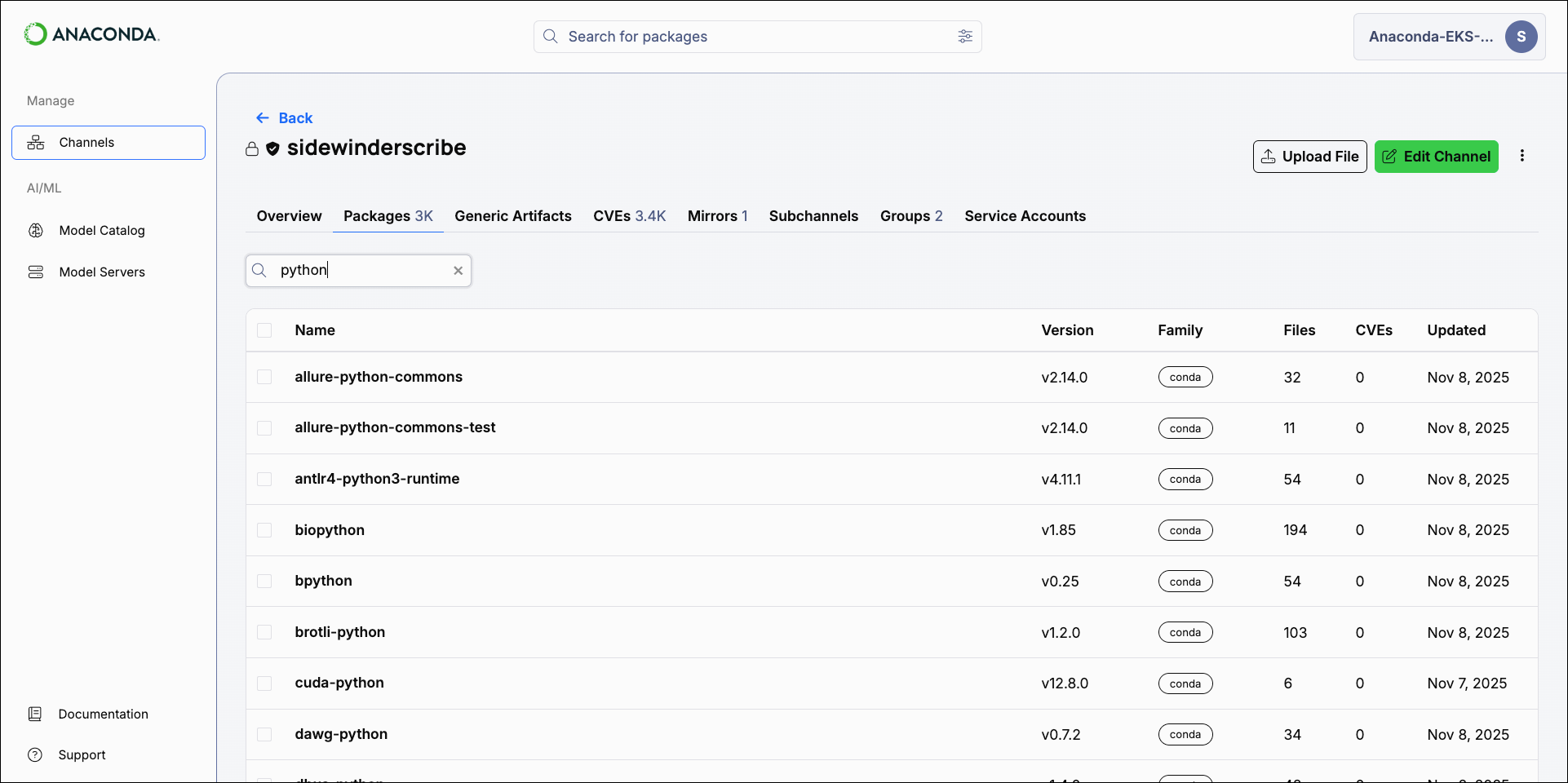
Use the global search bar at the top of the page to search for packages across all channels you have access to. Enter the package’s name into the search bar to locate it.
Viewing package details
Selecting a package displays its details. The Files tab contains general information about each package file.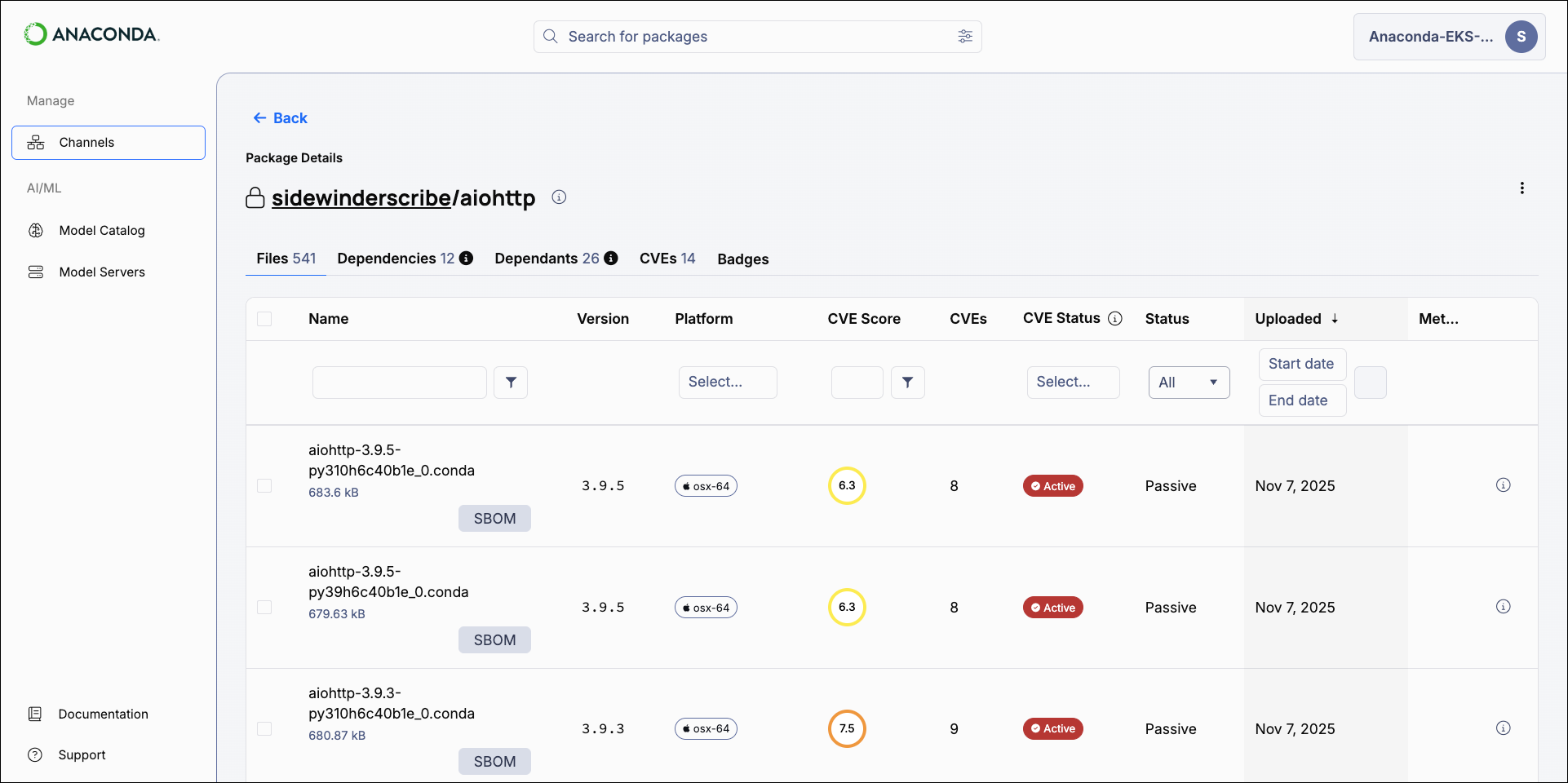
Dependencies and dependents
Dependencies are packages that a specific package requires to function properly. Dependents are packages that rely on a specific package to function properly.Package CVEs
The CVEs tab displays details regarding the package’s associated CVEs.Package badges
Package badges are a visually intuitive way to display real-time metadata about a package in other applications. Badge images can be embedded into package documentation, repository README files, websites, dashboards, and so on, and can be dynamically generated to show the following information:Embedding package badges
From a package’s details page:- Select the Badges tab.
- Open the dropdown for the badge that you want to embed.
-
Click Copy beside the language you’re working in.
To embed a badge from an authenticated or private channel, you must include a service account token at the end of the URL as indicated. The service account token must provide access to the channel the package is stored in.
- You can now take this link and embed it elsewhere.
Downloading an SBOM
- Select Channels from the left-hand navigation.
- Open the channel or subchannel that contains the package you want an SBOM for.
- Find the package you need an SBOM for.
-
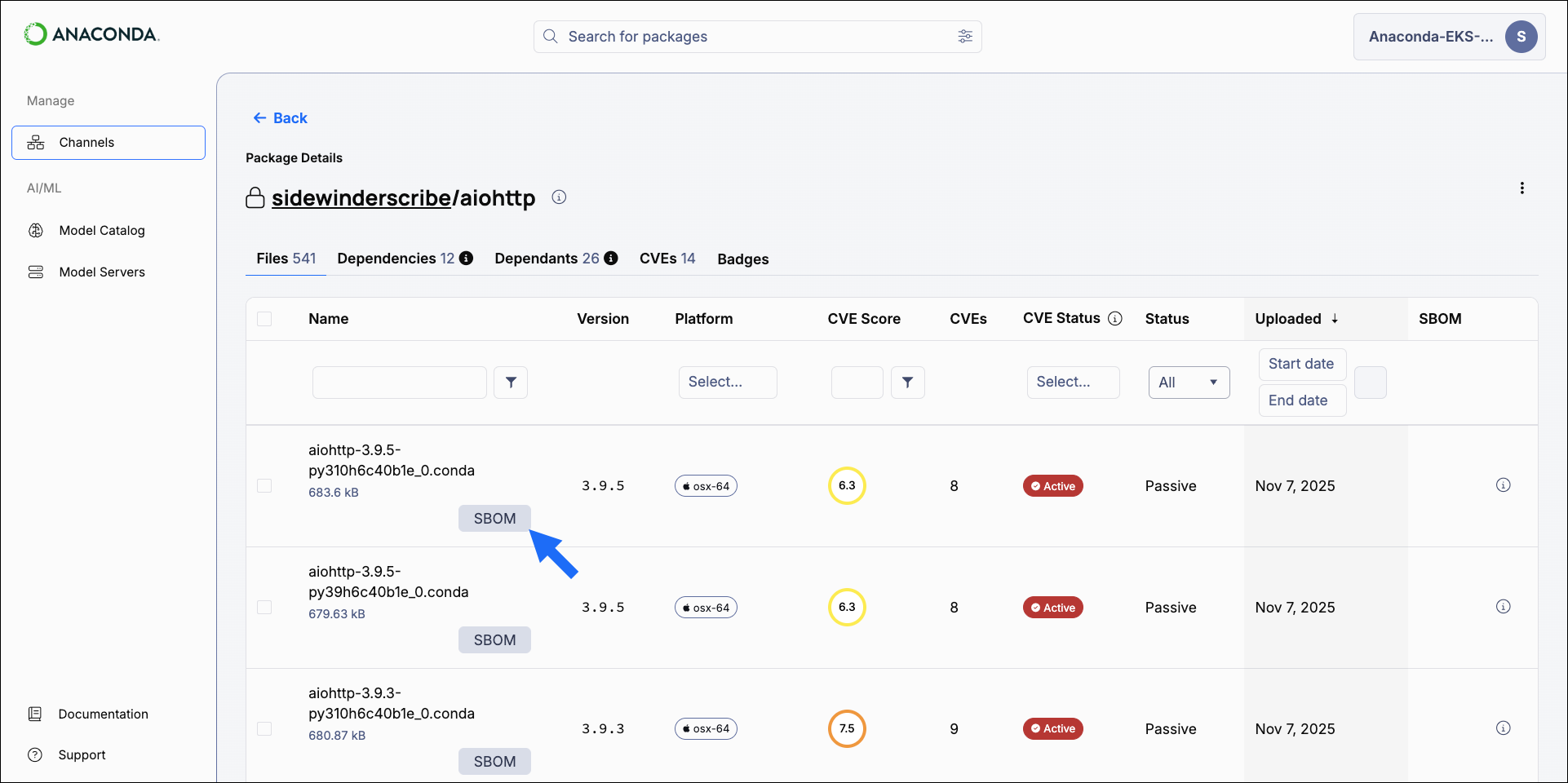
Select SBOM beside a package file to download an SBOM for that file version.
Uploading packages
Packages must be properly prepared before uploading them to a channel. The process for preparing a package for upload differs depending on the package type. Please follow the relevant guide to prepare your package for upload: Once the package is prepared, upload it to a channel.Downloading a package file
From a package’s details view, select a package file’s name to download it.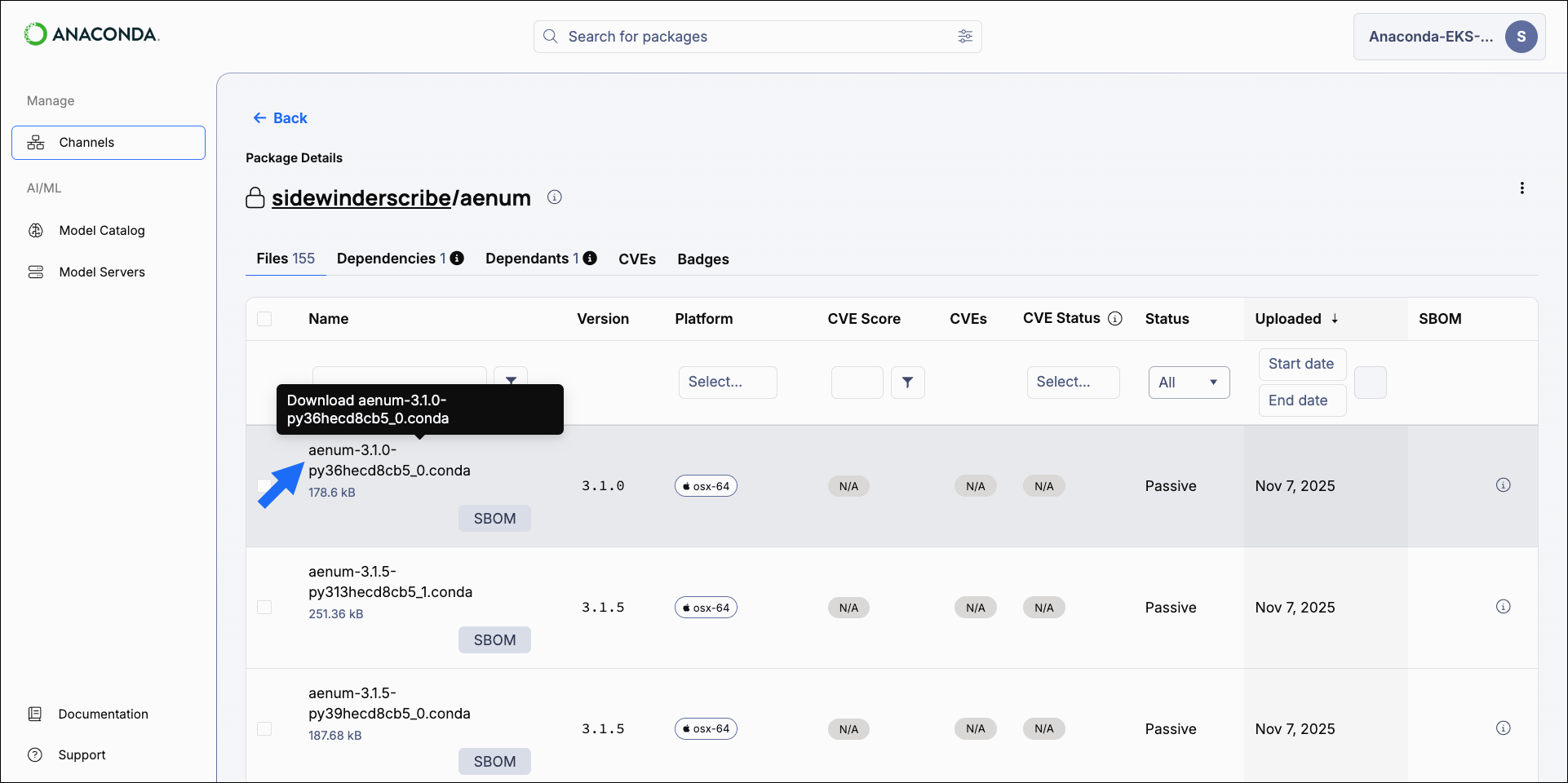
Managing packages
You can move, copy, or delete packages directly from the Packages tab of any channel, or manage the individual files within a package.- Managing packages
- Managing package files
- Select Channels from the left-hand navigation.
- Select a channel you need to manage packages for.
- Select the Packages tab.
-
Select checkboxes beside packages you want to manage. Management options appear above the table.
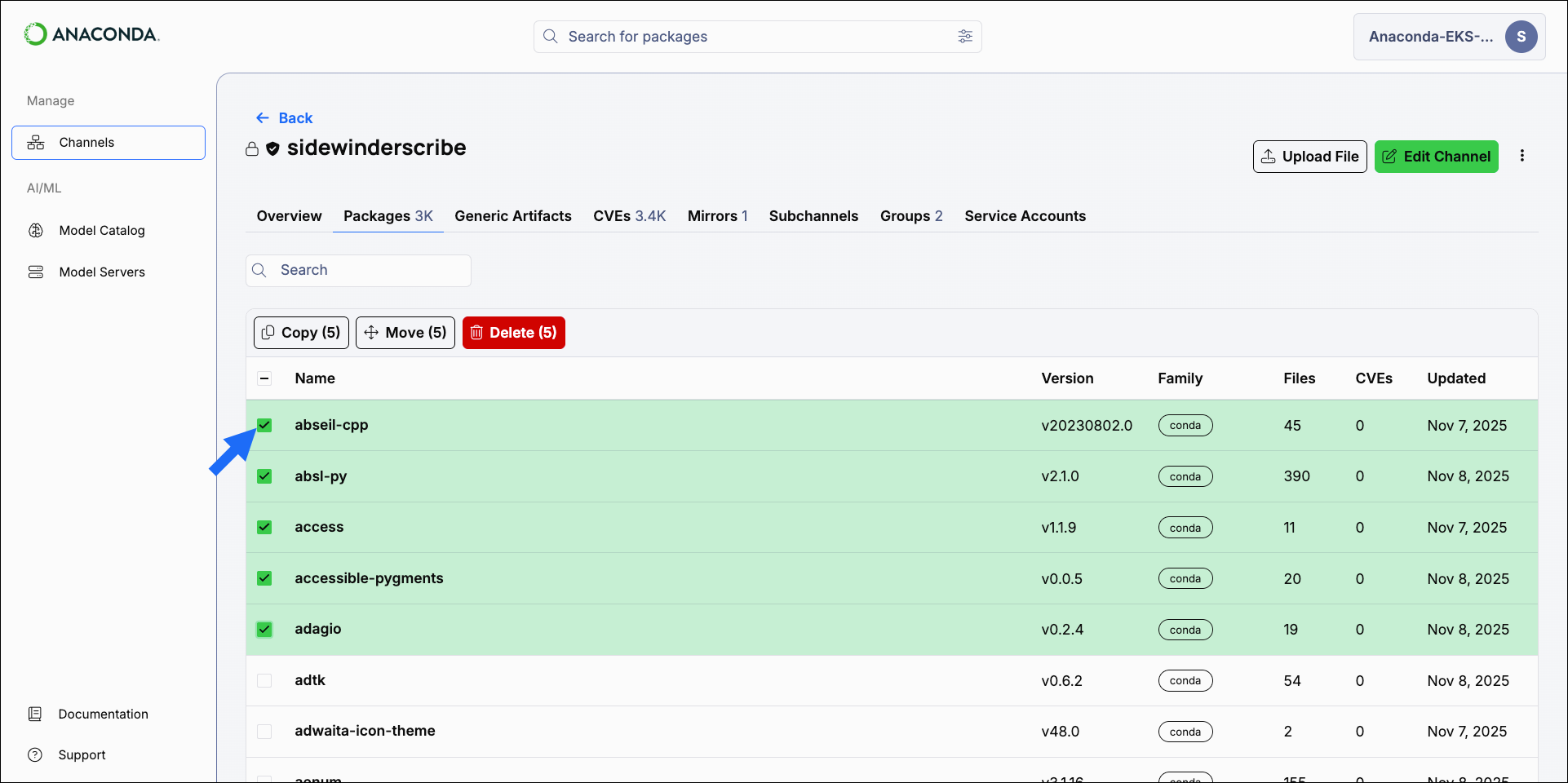
- Choose the action you want to take for the selected packages.
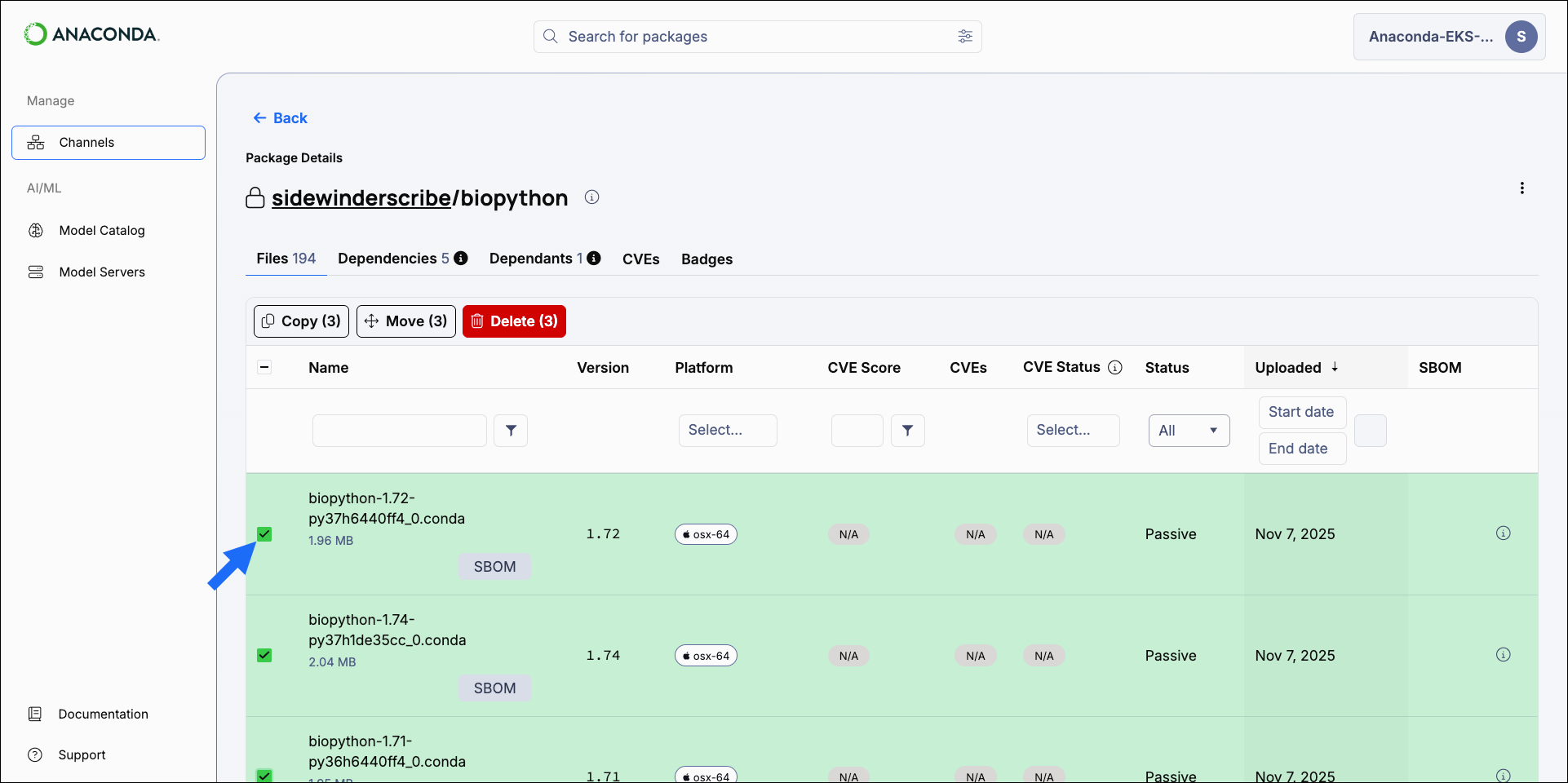
Package signatures
Anaconda’s package curation process associates packages with security signatures to ensure package integrity and authenticity. Packages in Anaconda’s repository come with a security signature: a special key value that proves that the package hasn’t been tampered with since going through Anaconda’s curation process. Files within a package that have a signature display a signed tag in the signature column. The actual signature value can be viewed at the bottom of the metadata file.You must mirror your packages using an Anaconda Platform (Cloud) channel as a source to view package signatures.
Enabling package signature verification
-
Install the necessary packages:
-
Use
conda-tokento configure access, turn on signature verification, and empty the index cache:
If no signatures are currently provided for a package (for example, if you are installing from third-party channels), the signature status message is not provided.
Example install command with signature verification enabled
Disabling conda signature verification
To turn the feature off, you can adjust your conda configuration:Package license information
Open-source licenses specify how packages can be used. While many licenses allow a broad range of usage, some are more restrictive, especially with respect to production environments. The following is a list of OSS licenses and links to further details:OSS licenses
OSS licenses
- Affero General Public License (AGPL)
- General Public License 2 (GPL2)
- General Public License 3 (GPL3)
- Lesser General Public License (LGPL)
- Berkeley Source Distribution (BSD)
- Massachusetts Institute of Technology (MIT)
- Apache
- Python Software Foundation (PSF)
- Public Domain
- Proprietary
- Other
- None
- https://opensource.org/licenses
- https://opensource.org/licenses/alphabetical
Managing packages with the CLI
If you want to manage your packages using the CLI, see Anaconda Platform CLI.Managing packages with the API
You can also use the API to perform various functions regarding package management. Access the API interface and view the API documentation by logging in as an administrator user, opening a new tab, and then navigating tohttp(s)://<FQDN>/swagger/ui, replacing <FQDN> with your Anaconda Platform fully qualified domain name.
The following is a list of available endpoints you can use to manage your packages in Anaconda Platform: