Use this file to discover all available pages before exploring further.
Anaconda Platform 7.0.0 is available through a limited early access program. Contact your Anaconda Technical Account Manager (TAM) if you’re interested in adopting the latest version.
Mirroring is the process of copying data from a source and then storing it in a new location, often on a scheduled basis. When the mirror’s source updates its contents, the mirror’s contents update to match the next time it runs. It is possible to mirror just a subset of the source’s contents as well, if the source contains more data than you need or can store. Mirroring ensures your channels are always up to date with the latest from the source.
Anaconda recommends that channels contain only one mirror each to prevent conflicts between package sources.
Visibility and management of mirroring features depend on your assigned role. Only users with Write or Manage permissions for the Channel Mirrors and/or Subchannel Mirrors can create and manage mirrors.
When creating a mirror, the recommended workflow is:
Select Channels from the left-hand navigation.
Create or select a channel to contain your mirror.
For more information about creating channels, see Creating Channels.
Open the channel actions dropdown and Freeze your channel.
For more information on freezing and unfreezing a channel, see Managing Channels.
Open the channel actions dropdown again and select Create Mirror.
Complete the Create mirror form. Configuration options differ based on the type of mirror you are creating:
Conda
Std Python
Std R
1
Mirror Name
Enter a name for your mirror. Anaconda recommends you name your mirror something descriptive for your end users.
2
Mirroring Mode
Choose whether you want your mirror to be active or passive.Active Mirroring: Downloads packages from the source channel immediately to your local server.
Some repository channels require a large amount of storage (for example, Anaconda’s public repository is 700GB, conda-forge is 3TB, and PyPI is 10TB), and as a rule, the larger the mirror, the longer the wait time for it to complete.
Passive Mirroring: Creates a metadata file listing all packages on the mirrored server. Packages are downloaded when users request them via conda install <PKG_NAME>.
Anaconda recommends establishing your mirrors as passive. Active mirrors take longer to complete than passive mirrors, but regardless of which mirroring mode you choose, the available packages are the same.
3
External Source URL
Enter the URL of the conda channel to mirror.
Anaconda recommends mirroring from our channels to ensure you have the most up-to-date and secure packages. Create mirrors for the channels that match your users’ platforms and workflows.
https://repo.anaconda.cloud/pkgs/main: Packages built for Linux and macOS systems
https://repo.anaconda.cloud/pkgs/rDeprecated: Packages built for the R programming language
https://repo.anaconda.cloud/pkgs/msys2: Packages built for Windows systems
https://repo.anaconda.cloud/repo/main-xBeta: Packages built for Linux and macOS systems, meant to be used alongside main
If your external source channel is another Anaconda Platform channel, you must use the format https://<URL>/api/repo/<CHANNEL_NAME>.If your external source channel is another Anaconda Platform channel that contains CRAN R packages, you must use the format https://<URL>/api/repo/<CHANNEL_NAME>/cran.If your external source channel is a virtual channel from Anaconda Platform (Cloud), you must use the format https://repo.anaconda.cloud/repo/t/<TOKEN>/<ORG_ID>/<CHANNEL_NAME>.If your external source channel is one of the Anaconda Channels or Community Package Channels from Anaconda Platform (Cloud), you must use the format https://repo.anaconda.cloud/t/<TOKEN>/repo/<CHANNEL_NAME>.When creating mirrors that use Anaconda Platform (Cloud) channels as the external source, replace <TOKEN> with your individual access token and <ORG_ID> with your organization ID.
4
Mirror Type
Select Conda as the mirror type. This ensures that only conda packages (.conda, .tar.bz2) will be mirrored from the external source channel. Packages in the source channel that are not conda packages are not mirrored.
5
Mirroring Frequency
Set the frequency you want your mirror to run and update your packages. The default value instructs the mirror to update on the first day of every month at midnight Coordinated Universal Time (UTC).Custom frequencies use cron expressions to determine when they run.
Mirroring large repositories can take several hours. Anaconda recommends against setting a frequency greater than Daily to avoid collisions between currently running and updating mirrors.
6
Run Now
Select this checkbox to start your mirror when you click Save & Run. If the Run Now checkbox is not selected, your changes are saved, and the mirror runs the next time its frequency configuration instructs it to do so.
7
Assign Mirror Policy
Toggle between using the policy that is applied to the channel or selecting a policy to apply to the mirror. For more information about policies, see Policies.
You cannot apply a policy to a mirror if it is already applied to the channel.Mirror policies override channel policies.
8
View Applied Policy
View details of the policy applied to the mirror.
9
Cancel/Save & Run
Select Cancel at any time to quit your mirror form completion and discard any set parameters. Select Save & Run to start your mirror.
1
Mirror Name
Enter a name for your mirror. Anaconda recommends you name your mirror something descriptive for your end users.
2
Mirroring Mode
Choose whether you want your mirror to be active or passive.Active Mirroring: Downloads packages from the source channel immediately to your local server.
Some repository channels require a large amount of storage (for example, Anaconda’s public repository is 700GB, conda-forge is 3TB, and PyPI is 10TB), and as a rule, the larger the mirror, the longer the wait time for it to complete.
Passive Mirroring: Creates a metadata file listing all packages on the mirrored server. Packages are downloaded when users request them via conda install <PKG_NAME>.
Anaconda recommends establishing your mirrors as passive. Active mirrors take longer to complete than passive mirrors, but regardless of which mirroring mode you choose, the available packages are the same.
3
External Source URL
Enter the URL of the Python package to mirror.
4
Mirror Type
Select Std Python as the mirror type. This ensures that only Python packages (.py, .pyc, .pyd, .whl, .egg, .tar.gz, for example) are mirrored from the source repository. Packages in the source channel that are not Python packages are not mirrored.
5
Mirroring Frequency
Set the frequency you want your mirror to run and update your packages. The default value instructs the mirror to update on the first day of every month at midnight Coordinated Universal Time (UTC).Custom frequencies use cron expressions to determine when they run.
Mirroring large repositories can take several hours. Anaconda recommends against setting a frequency greater than Daily to avoid collisions between currently running and updating mirrors.
6
Run Now
Select this checkbox to start your mirror when you click Save & Run. If the Run Now checkbox is not selected, your changes are saved, and the mirror runs the next time its frequency configuration instructs it to do so.
7
Mirroring Filters
Because policy filters only work for conda mirrors, Standard Python mirrors must use the Mirroring Filters section to specify which packages should be mirrored from the source channel.
8
Exclude
List packages to exclude from the mirror by name here. You can also exclude packages by using wildcards. For example, p* excludes all packages that start with the letter p.
9
Include
List exceptions to the exclusion list here. For example, if you want to include Python in your mirror, but you have used the exclusion filter p* to exclude all packages that start with the letter p, you can include Python by adding python here.
10
View Channel Filters
View details of the Mirroring Filters applied to the channel.
11
Cancel/Save & Run
Select Cancel at any time to quit your mirror form completion and discard any set parameters. Select Save & Run to start your mirror.
1
Mirror Name
Enter a name for your mirror. Anaconda recommends you name your mirror something descriptive for your end users.
2
Mirroring Mode
Choose whether you want your mirror to be active or passive.Active Mirroring: Downloads packages from the source channel immediately to your local server.
Some repository channels require a large amount of storage (for example, Anaconda’s public repository is 700GB, conda-forge is 3TB, and PyPI is 10TB), and as a rule, the larger the mirror, the longer the wait time for it to complete.
Passive Mirroring: Creates a metadata file listing all packages on the mirrored server. Packages are downloaded when users request them via conda install <PKG_NAME>.
Anaconda recommends establishing your mirrors as passive. Active mirrors take longer to complete than passive mirrors, but regardless of which mirroring mode you choose, the available packages are the same.
3
External Source URL
Enter the URL of the R package repository to mirror.
4
Mirror Type
Select “Std R” as the mirror type. This ensures that only R packages (.R, .RData, .rda, .RDS, .Rd, .Rproj, for example) are mirrored from the source repository. Packages in the source channel that are not R packages are not mirrored.
5
Mirroring Frequency
Set the frequency you want your mirror to run and update your packages. The default value instructs the mirror to update on the first day of every month at midnight Coordinated Universal Time (UTC).Custom frequencies use cron expressions to determine when mirrors run.
Mirroring large repositories can take several hours. Anaconda recommends against setting a frequency greater than Daily to avoid collisions between currently running and updating mirrors.
6
Run Now
Select this checkbox to start your mirror when you click Save & Run. If the Run Now checkbox is not selected, your changes are saved, and the mirror runs the next time its frequency configuration instructs it to do so.
7
Mirroring Filters
Because policy filters only work for conda mirrors, Standard R mirrors must use the Mirroring Filters to specify which packages should be mirrored from the source channel.
8
Exclude
List packages to exclude from the mirror by name here. You can also exclude packages by using wildcards. For example, p* excludes all packages that start with the characters p.
R packages can also be excluded by License type.
9
Include
List exceptions to the exclusion list here. For example, if you want to include the plumber package in your mirror, but you have used the exclusion filter p* to exclude all packages that start with the characters p, you can include plumber by adding plumber here.
10
View Channel Filters
View details of the Mirroring Filters applied to the channel.
11
Cancel/Save & Run
Select Cancel at any time to quit your mirror form completion and discard any set parameters. Select Save & Run to start your mirror.
Allow the mirror time to complete.
How do I know when my mirror is complete?
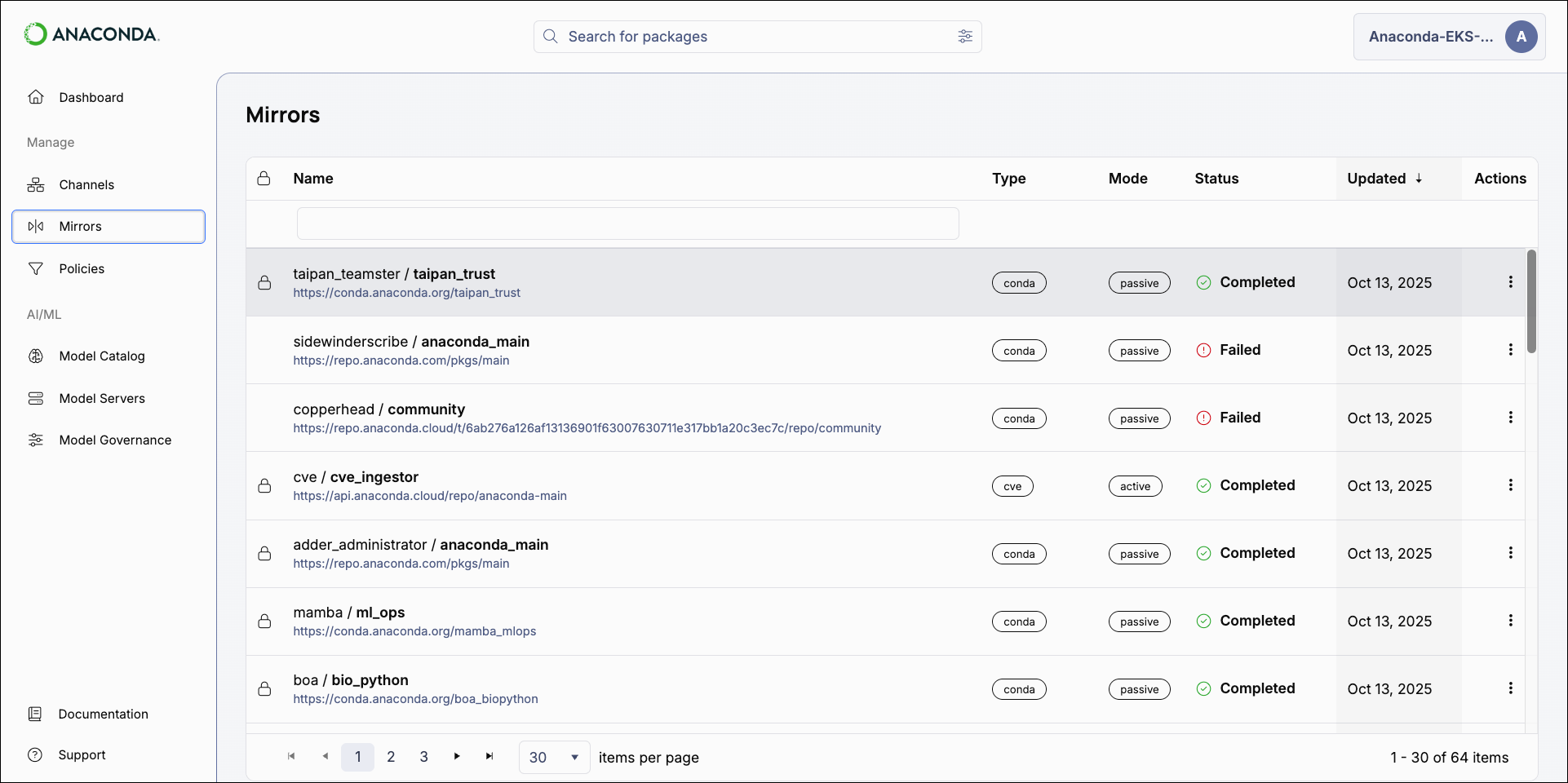
You can view the status of in-progress mirrors from the from the channel’s Mirrors tab. In-progress mirrors display which step is currently being performed with a brief description of the operation. When a mirror completes, the status updates to Completed and the date and time of completion is displayed.
Administrators can view the status of all mirrors from the Mirrors page.
Open the channel actions dropdown and Unfreeze your channel.
It can take some time for packages to appear in the Packages tab after unfreezing a channel. As a general rule, the larger the repository, the longer the wait.It is not necessary to freeze the channel again once its mirror has completed. The best practice is to freeze the channel, create your mirror, allow it to complete, then unfreeze the channel.
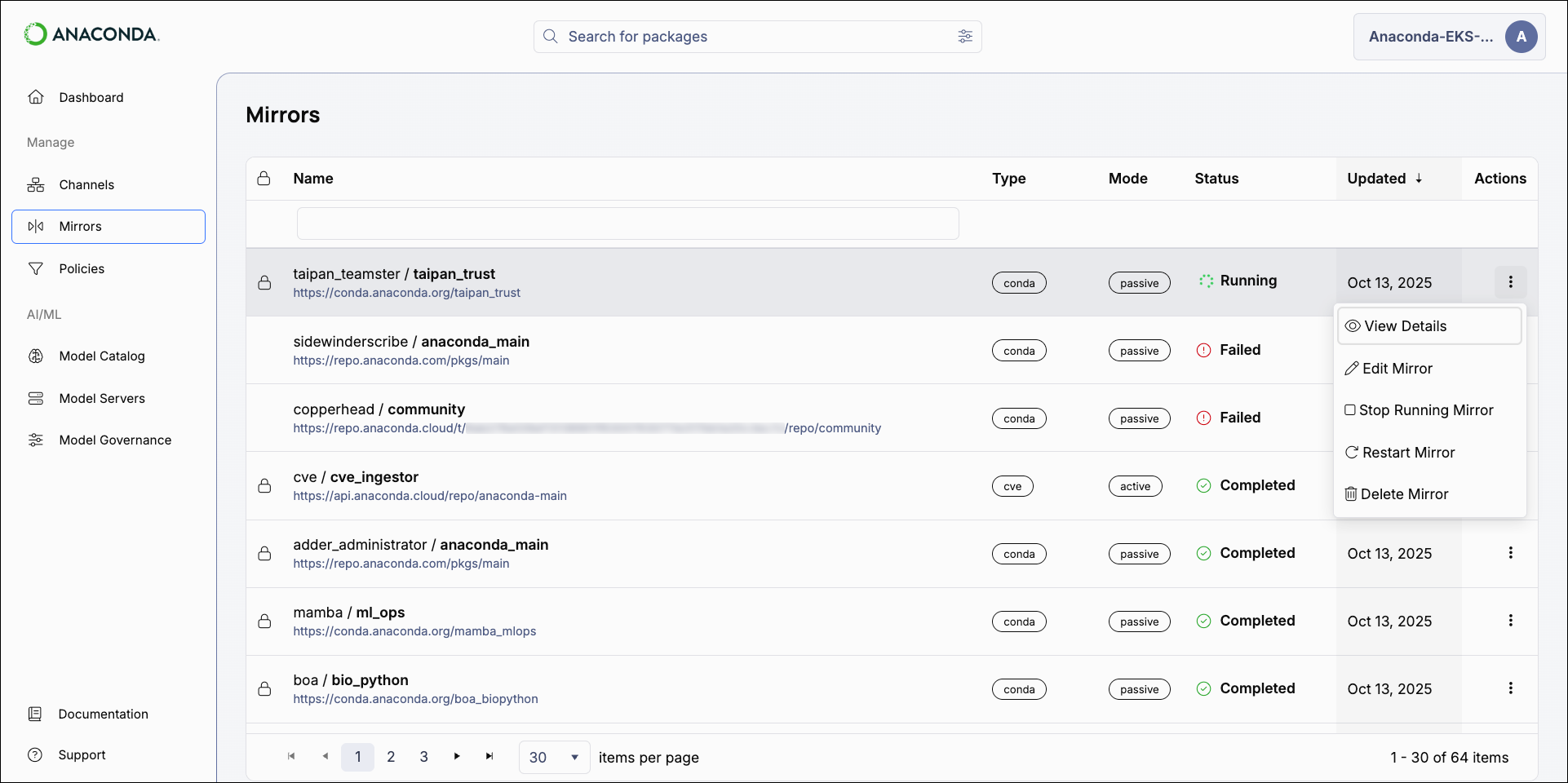
Mirror actions can also be performed from a channel’s Mirrors tab.
View Details
View information about how many packages were filtered from the source, reasons for their exclusion, and whether packages were mirrored passively or actively.
Edit Mirror
Edit a mirror’s configurations.
You cannot edit the mode of an established mirror.
Stop Running Mirror
Stop an in-progress mirror.
It can take up to 10 minutes for a mirror to fully stop. A mirror in the process of stopping will display Stopping as its mirroring status. Once it is complete, it will display Stopped as its status. Stopping a mirror does not discard the progress the mirror has made, and some packages may appear in your channel’s Packages tab.
Restart Mirror
Restart a stopped mirror.
Restarted mirrors run from the beginning of the mirroring process, not from where you stopped the run.
Delete Mirror
Delete a mirror.
Download Dependency Report
Download a dependency report (if available).A dependency report is a detailed list of all the software packages required for your specified packages to function correctly. It includes both direct dependencies (packages your specified packages require to run) and indirect dependencies (packages the dependencies require to run). A package dependency report can help you identify exactly which packages are necessary for your channel to be able to create a working environment using conda.
Dependency reports are only available for mirrors that have policies with specific configurations applied:
You must set package rules to allow packages by their names using MatchSpec protocol—a syntax for specifying package names and versions in conda
You must select the Include dependencies checkbox.



 Administrators can view the status of all mirrors from the Mirrors page.