

Opening a project session
There are multiple ways to open a session for a project:- Project grid view
- Project list view
- Within a project
- From the Projects page, click Open session within any project tile in the grid to open a session for that project.
- Once the session has been successfully created, click Return to session to open an editor session for your project.
If your session opens before your environment has finished preparing, your environment tile displays the text 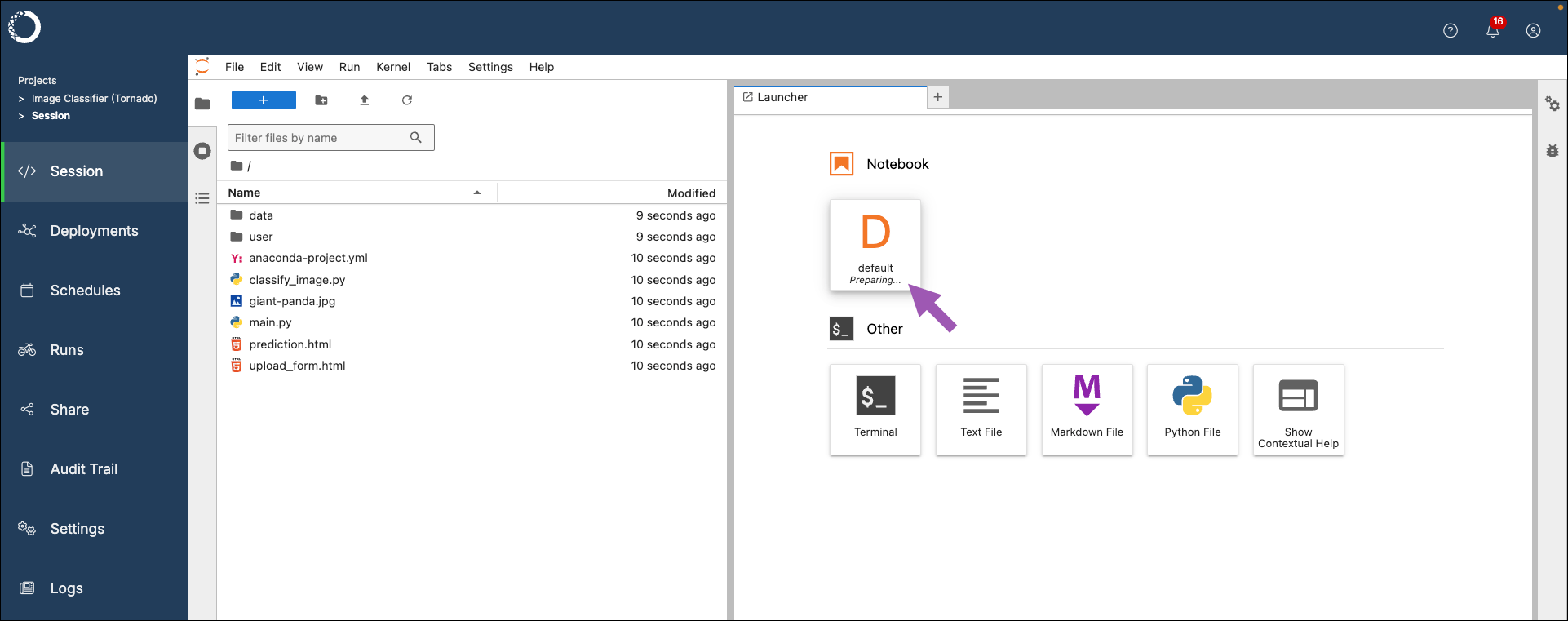
Preparing.... Allow the environment time to complete before attempting to work in a notebook.Stopping project sessions
Anaconda recommends stopping project sessions when not actively working in them as a best practice to maintain system performance and reduce costs.- From a project session, click Stop session at the top of the page.
- Click Stop.