

Configuring resource profiles via Helm chart
Workbench includes either avalues.k3s.yaml or a values.byok.*.yaml (depending on your implementation) file that overrides the default values in the top-level Helm chart. If you are performing your initial configurations, use the examples below to add the necessary resource-profiles: and gpu-profile: sections to the bottom of your file, then continue your environment preparation and installation.
Otherwise, follow the steps for Setting platform configurations using the Helm chart to add or update the resource-profiles: and gpu-profile: configurations to the bottom of your helm_values.yaml file as needed for your system setup.
Resource profile examples
Resource profile examples
Resource profiles display their
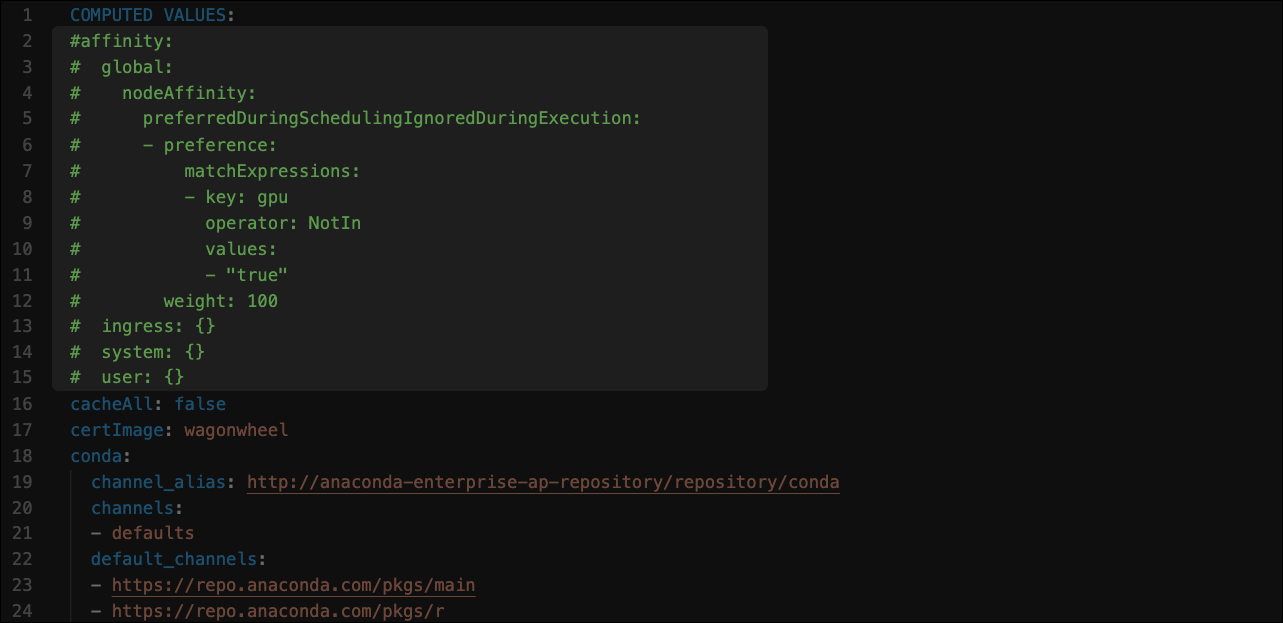
description: as their name. Profiles are listed in alphabetical order, after the default profile.affinity: configuration in the file as shown:
node_selector to your resource profile. Use node selectors when running different CPU types, such as Intel and AMD; or different GPU types, such as Tesla v100 and p100. To enable a node selector, add node_selector to the bottom of your resource profile, with the model: value matching the label you have applied to your worker node.
GPU node selector example
GPU node selector example