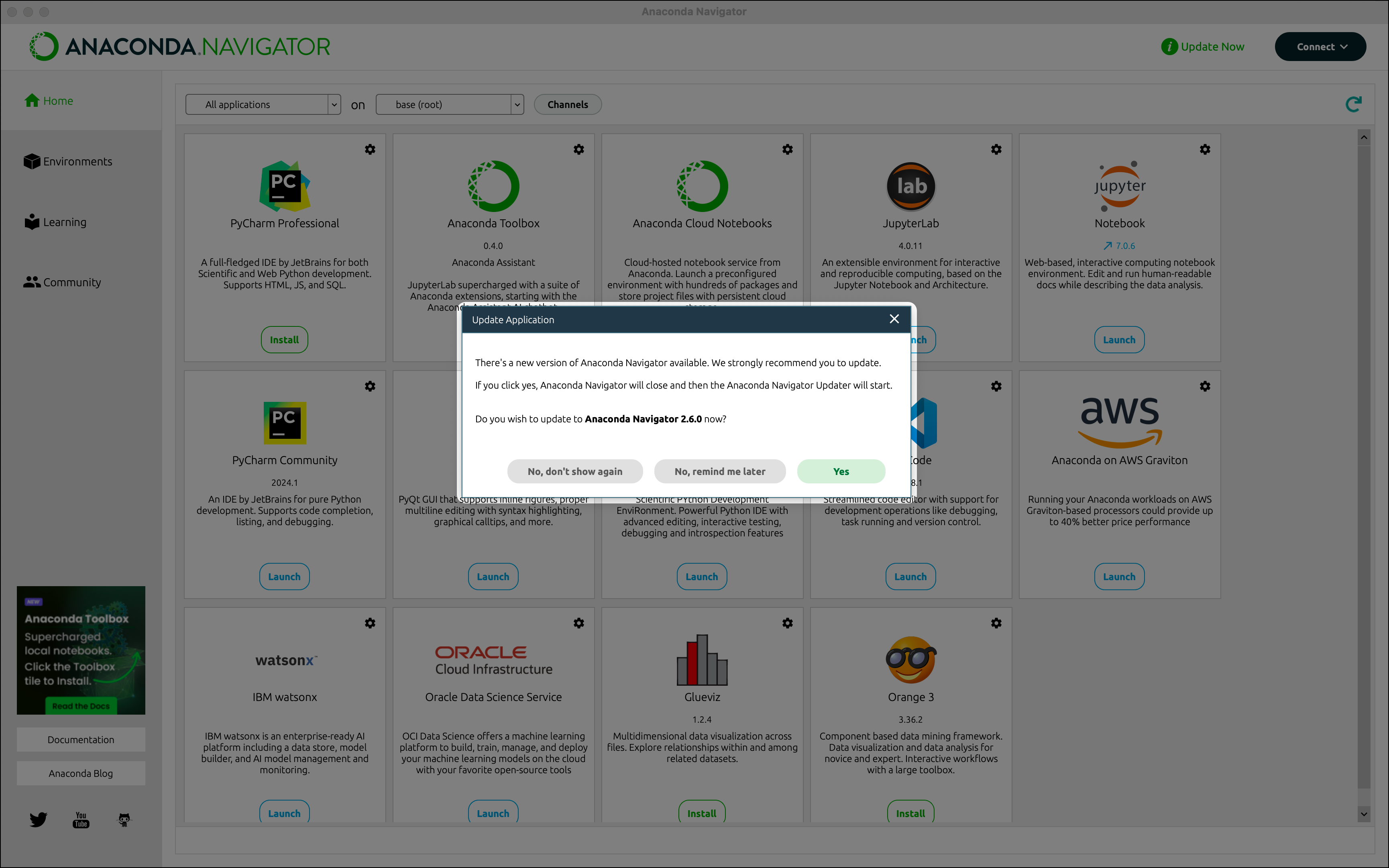
Navigator automatically checks for version updates when launched. If one is available, a popup displays that allows you to update to the newest version or keep your current version.
Anaconda recommends keeping Navigator updated to the latest version.
Manual update You can also update Navigator manually through a command line interface (CLI). This can either be done with the update or install commands:
Update command
Install command
Open Anaconda Prompt (Terminal on macOS/Linux).
If necessary, update the conda package manager
Update the anaconda-navigator package in your base environment by running the following command:
If Navigator is already up to date, your command line will display: If you see the above message, but believe Navigator should have updated, specify the exact version using the instructions in the Install command tab.
Open Anaconda Prompt (Terminal on macOS/Linux).
Search for the available versions of anaconda-navigator by running the following command:
You can also reference the Navigator release notes for the latest version number.
Install the version of anaconda-navigator you want by running the following command:
Troubleshooting