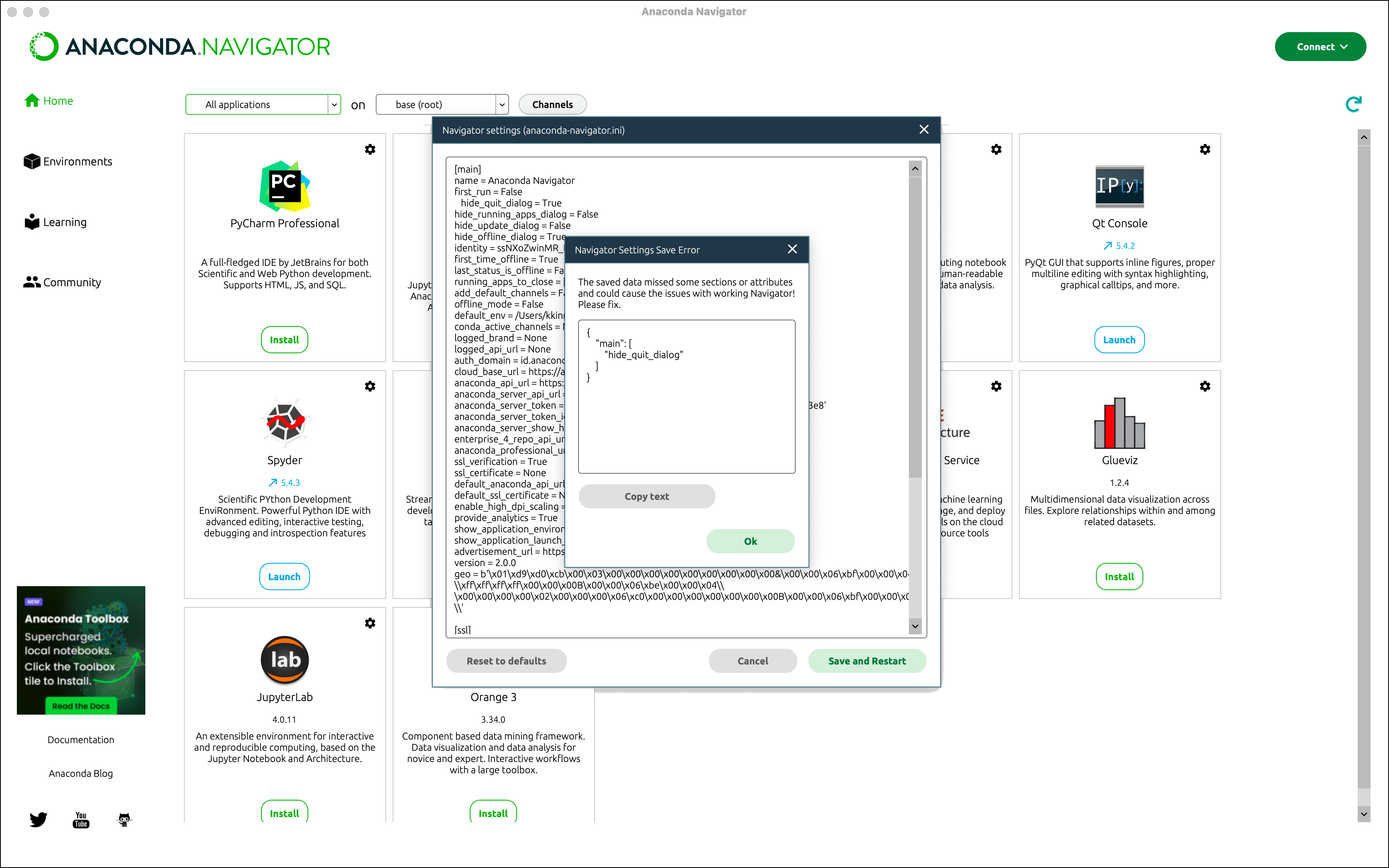
Be careful when changing values directly in the configuration files for Navigator or conda. Incorrect configuration can cause issues with these products.
Navigator Preferences dialog
Preferred text editor
In Anaconda Navigator, open the Navigator Preferences dialog.
Windows/Linux
macOS
Open the File menu and click Preferences.
Open the Anaconda Navigator or python menu and click Preferences.
Click Configure Navigator to open the anaconda-navigator.ini file or click Configure Conda to open the .condarc file within Navigator.
Edit the file to change any configurations.When you edit the Navigator and conda configuration files in Navigator, a validation tool warns you about missed requirements or incorrect formatting. The .condarc file must be a valid .yaml format file.
Click Save and Restart to save any changes to the open configuration file and restart Navigator.
Make and save your changes.The .condarc file must be a valid .yaml format file.
Close and reopen Navigator or any Anaconda Prompt or command line windows.
Open your anaconda-navigator.ini file in your text editor of choice.
Where is my anaconda-navigator.ini file?
The anaconda-navigator.ini file is created after you have opened Navigator for the first time. It is located in the navigator folder, which is inside an .anaconda folder in your Home directory. This folder is hidden on macOS and Linux and is not visible in file browsers under normal circumstances.You can view hidden files and folders using the following guidance for your operating system:
macOS
Linux
To view hidden files on macOS, use Shift+Cmd+. in your Finder.
To view hidden files on Linux, use Alt+. or Ctrl+H (depending on your file manager).
Make and save your changes.
Close and reopen Navigator or any Anaconda Prompt or command line windows.