> ## Documentation Index
> Fetch the complete documentation index at: https://anaconda.com/docs/llms.txt
> Use this file to discover all available pages before exploring further.
# Sublime Text
export const PdfDownload = ({href, children = "Download PDF"}) =>
{children}
;
Deprecated
This page is no longer maintained, and may be out of date. It will be removed on September 30, 2026. To download a PDF copy of this page for your reference, click the **Download PDF** button below.
Sublime Text is a cross-platform text editor for code, markup, and prose.
[Download and Install Sublime Text](https://www.sublimetext.com/3).
These instructions refer to Anaconda Distribution exclusively, but will also work with Miniconda.
To use your Anaconda installation with Sublime Text:
1. [Download Package control](https://packagecontrol.io/installation).
2. Open the Sublime Text command palette by pressing Ctrl+Shift+P (Windows, Linux)/Cmd+Shift+P (Mac).
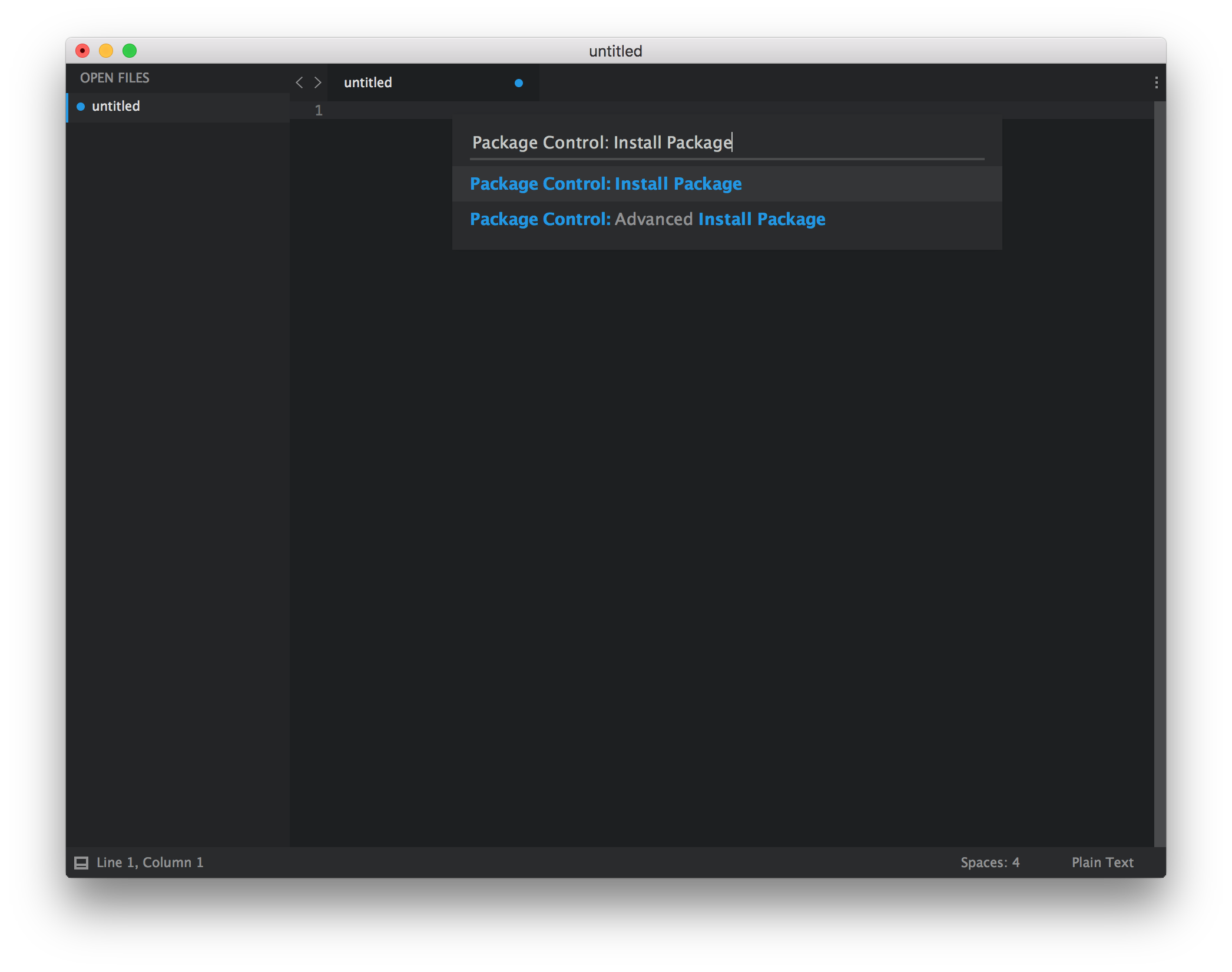
3. All Package Control commands begin with "Package Control:". Start by typing "Package".
4. Select "Package Control: Install Package".
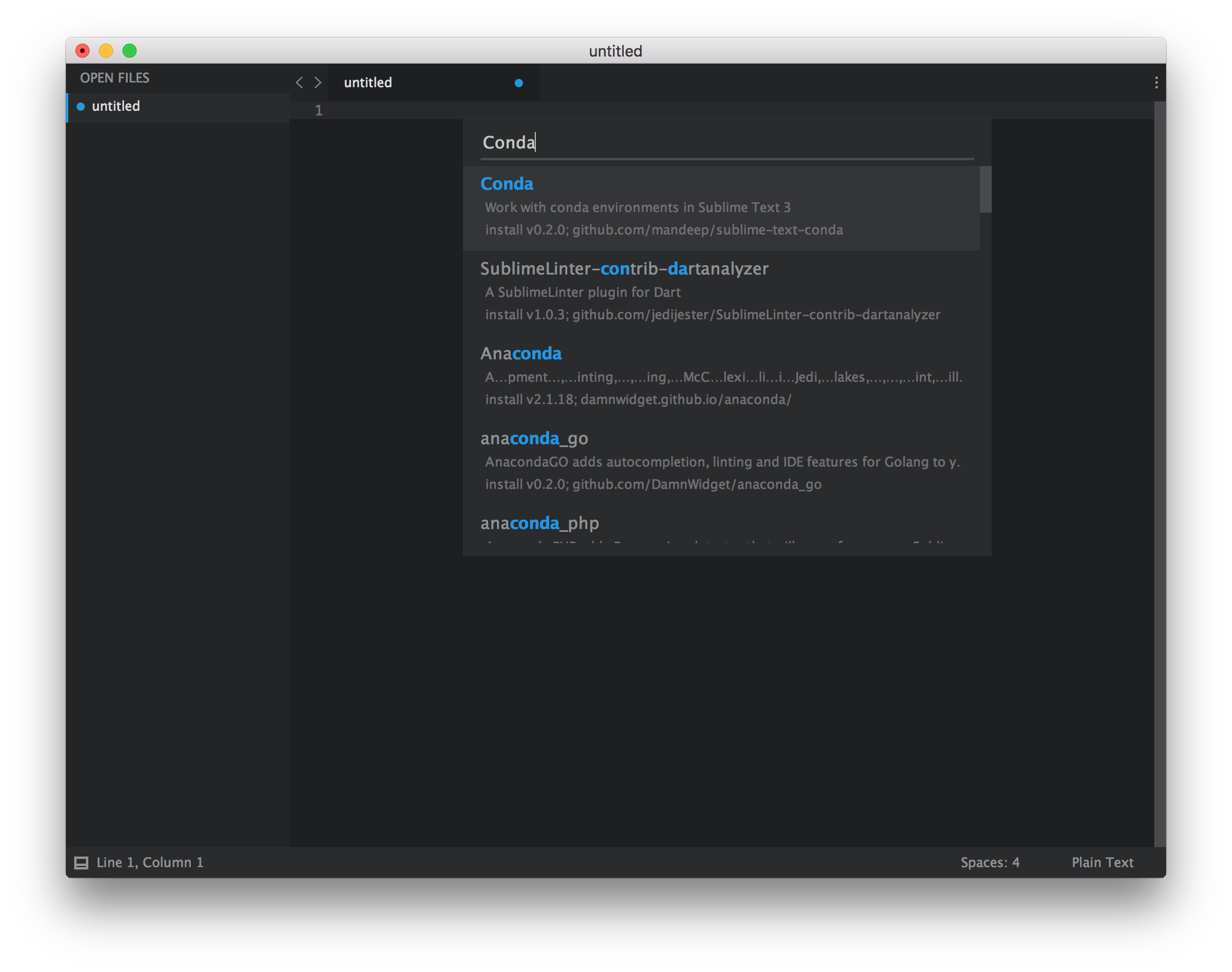
 5. Search for [conda](https://www.github.com/mandeep/sublime-text-conda) in the command palette and select the conda plugin.
When the plugin is installed, a Package Control Message will open in the Sublime Text window.
5. Search for [conda](https://www.github.com/mandeep/sublime-text-conda) in the command palette and select the conda plugin.
When the plugin is installed, a Package Control Message will open in the Sublime Text window.
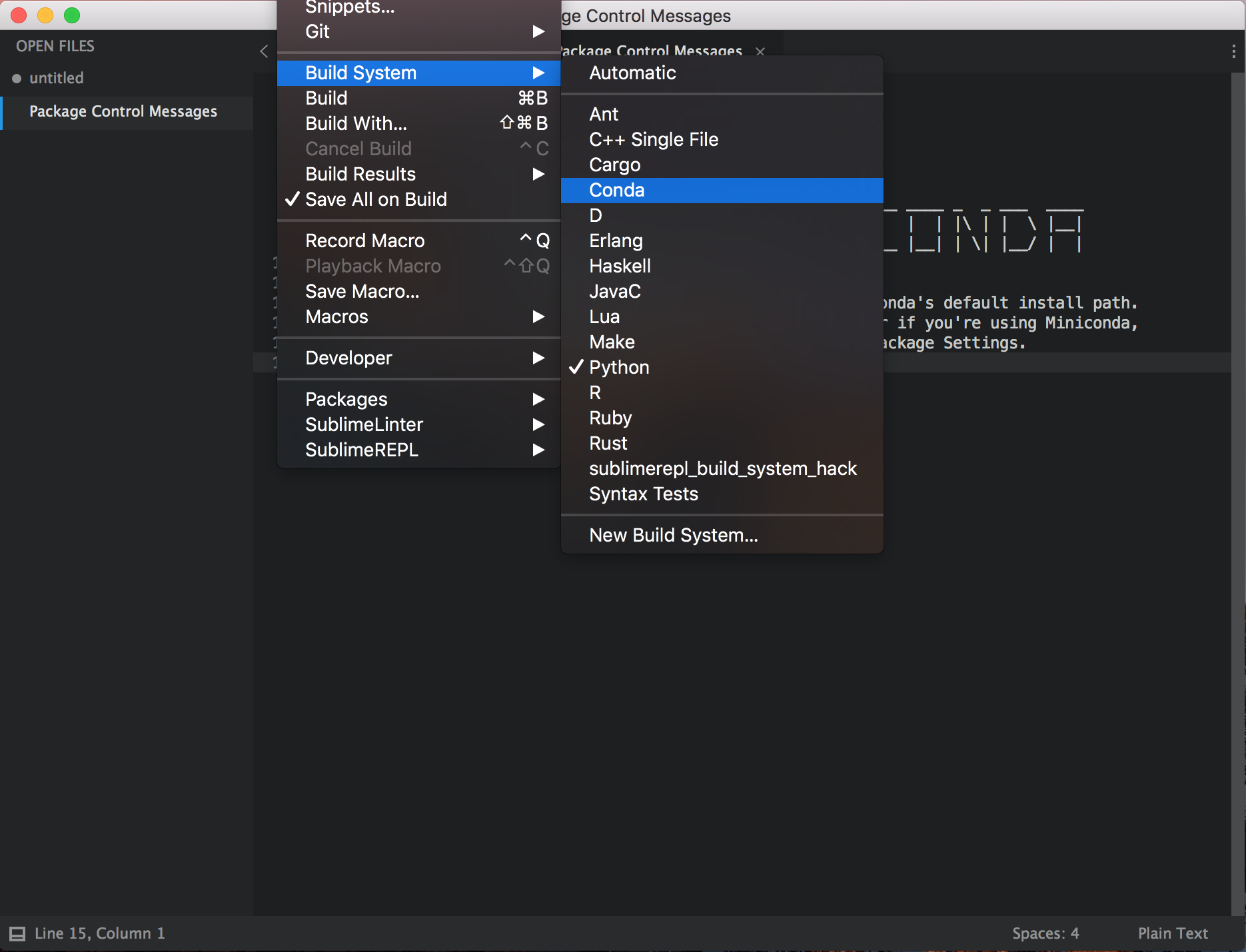
 6. Change the current Build System to conda by accessing Tools -> Build System -> Conda in the menu bar.
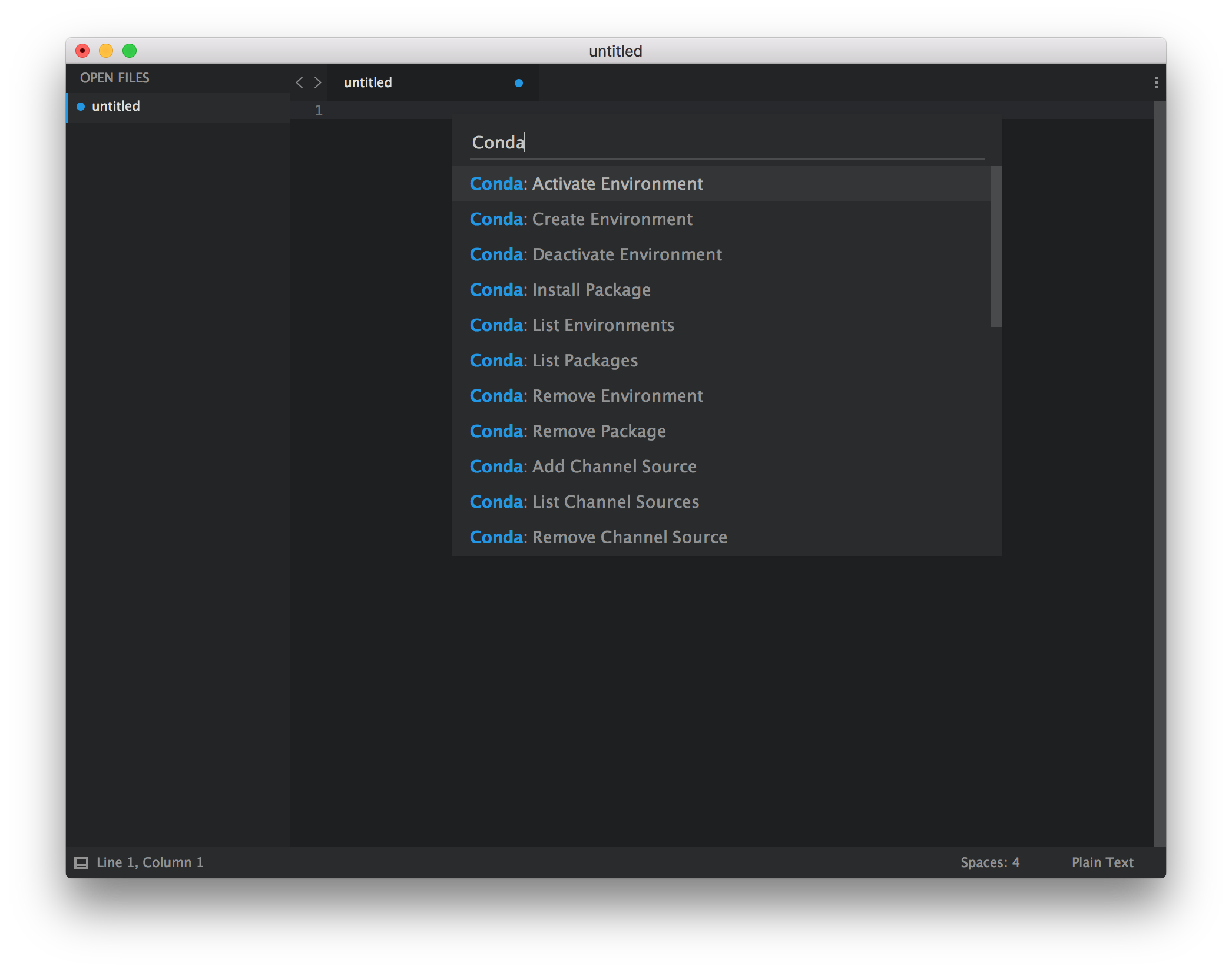
 7. Access the conda Commands with the Command Palette by searching for conda.