> ## Documentation Index
> Fetch the complete documentation index at: https://anaconda.com/docs/llms.txt
> Use this file to discover all available pages before exploring further.
# Python Tools for Visual Studio
export const PdfDownload = ({href, children = "Download PDF"}) =>
{children}
;
Deprecated
This page is no longer maintained, and may be out of date. It will be removed on September 30, 2026. To download a PDF copy of this page for your reference, click the **Download PDF** button below.
[Python Tools for Visual Studio](https://github.com/microsoft/PTVS/) is a free, open source plugin
that turns Visual Studio into a Python IDE.
If you have installed Anaconda as your default Python installation and installed PTVS, your
Visual Studio installation is already set to use Anaconda's Python interpreter in PTVS.
To verify this, create a new Python project and then check whether Anaconda
is the Python that it uses.
These instructions refer to Anaconda Distribution exclusively, but will also work with Miniconda.
To create a new Python project:
1. In the **File** menu, select New, and then select Project. The keyboard shortcut is Ctrl-Shift-N.
2. Select Python Application:
 To check which Python the project uses:
1. From the **Tools** menu, select Python Tools, and then select
Python Interactive. The keyboard shortcut is Alt+I:
To check which Python the project uses:
1. From the **Tools** menu, select Python Tools, and then select
Python Interactive. The keyboard shortcut is Alt+I:
 2. In the **Python Interactive** window, type `import sys` and then press Enter.
3. Type `sys.version` and then press Enter.
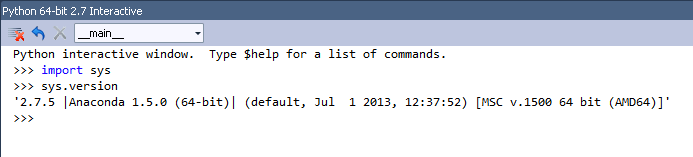
If PTVS is using Anaconda, your Anaconda Python version is displayed. In the example below, it is Anaconda 1.5.0 (64-bit):
2. In the **Python Interactive** window, type `import sys` and then press Enter.
3. Type `sys.version` and then press Enter.
If PTVS is using Anaconda, your Anaconda Python version is displayed. In the example below, it is Anaconda 1.5.0 (64-bit):
 If PTVS does not automatically discover Anaconda, see the [official PTVS
documentation](https://docs.microsoft.com/en-us/visualstudio/python/python-in-visual-studio), especially the
section on [Selecting and Installing Python Interpreters](https://docs.microsoft.com/en-us/visualstudio/python/python-environments#selecting-and-installing-python-interpreters)
and the [PTVS installation instructions](https://docs.microsoft.com/en-us/visualstudio/python/installation).
If PTVS does not automatically discover Anaconda, see the [official PTVS
documentation](https://docs.microsoft.com/en-us/visualstudio/python/python-in-visual-studio), especially the
section on [Selecting and Installing Python Interpreters](https://docs.microsoft.com/en-us/visualstudio/python/python-environments#selecting-and-installing-python-interpreters)
and the [PTVS installation instructions](https://docs.microsoft.com/en-us/visualstudio/python/installation).