> ## Documentation Index
> Fetch the complete documentation index at: https://anaconda.com/docs/llms.txt
> Use this file to discover all available pages before exploring further.
# Amazon Elastic Kubernetes Service
This guide offers recommended configurations and settings unique to AWS Elastic Kubernetes Service (EKS) in Data Science & AI Workbench. These should be used to augment the generic requirements offered on our [primary requirements page](/docs/data-science/latest/environment-prep/byok8s-prep).
## Instance types
* Minimum: `m5.2xlarge`
* Recommended: `m5.4xlarge` or larger
## Storage
EKS supports the use of both EBS and EFS storage for persistence. In theory, EBS can be employed for the `anaconda-storage` volume; but because EBS is limited to the `ReadWriteOnce` access mode, only EFS is acceptable for the `anaconda-persistence` volume. For this reason, Anaconda recommends provisioning a single volume that is large and performant enough to accommodate *both* storage requirements, to simplify management.
Please refer to the following pages for information on provisioning an EFS volume:
* [Amazon EFS CSI driver](https://docs.aws.amazon.com/eks/latest/userguide/efs-csi)
* [Working with Amazon EFS Access Points](https://docs.aws.amazon.com/efs/latest/ug/efs-access-points)
* [CreationInfo](https://docs.aws.amazon.com/efs/latest/ug/API_CreationInfo)
Anaconda recommends the following configuration parameters for this volume:
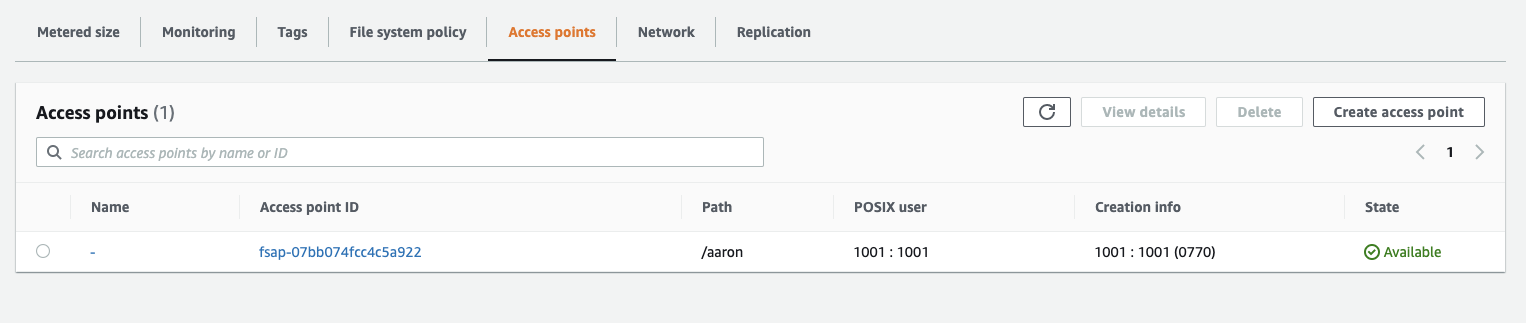
* `OwnerUid`: Anaconda recommends this be set to the same UID selected to run the Workbench containers.
* `OwnerGid`: Anaconda recommends a value of `0`, which simplifies access from Kubernetes containers whose primary group is `0` by default. If you choose a different GID, it will be necessary to incorporate that into the `PersistentVolume` specification.
* `Permissions`: `770` or `775`. It is important that the directory be group writable.
When defining the access controls for this volume, include both the EKS cluster
and the administration server, so the latter can be used to manage the volume.
You can create an EFS access point using the UID/GID defined above.
 ## Network
If you are using the Ingress controller that ships with Workbench,
*and* you are using an internal/private VPC or subnet you will need to add
annotations to the ingress service:
```sh theme={null}
kubectl edit svc/anaconda-enterprise-nginx-ingress
```
```sh theme={null}
service.beta.kubernetes.io/aws-load-balancer-internal: 0.0.0.0/0
service.beta.kubernetes.io/aws-load-balancer-internal: "true"
```
Here is an example Route53 DNS configuration to the ingress.
## Network
If you are using the Ingress controller that ships with Workbench,
*and* you are using an internal/private VPC or subnet you will need to add
annotations to the ingress service:
```sh theme={null}
kubectl edit svc/anaconda-enterprise-nginx-ingress
```
```sh theme={null}
service.beta.kubernetes.io/aws-load-balancer-internal: 0.0.0.0/0
service.beta.kubernetes.io/aws-load-balancer-internal: "true"
```
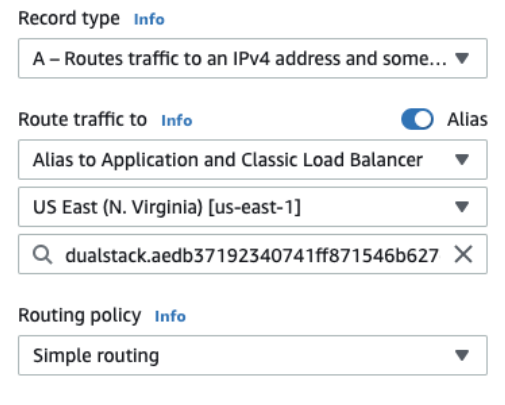
Here is an example Route53 DNS configuration to the ingress.
 ## GPU support
Please see [this AWS guide](https://docs.aws.amazon.com/eks/latest/userguide/eks-optimized-ami)
for adding GPU resources to your EKS cluster.
## GPU support
Please see [this AWS guide](https://docs.aws.amazon.com/eks/latest/userguide/eks-optimized-ami)
for adding GPU resources to your EKS cluster.