> ## Documentation Index
> Fetch the complete documentation index at: https://anaconda.com/docs/llms.txt
> Use this file to discover all available pages before exploring further.
# Project tagging
Tag projects you own to include additional options for project filtering, allowing you to efficiently locate projects when you need them.
Administrator users can manage tags for any project.
## Adding tags to a project
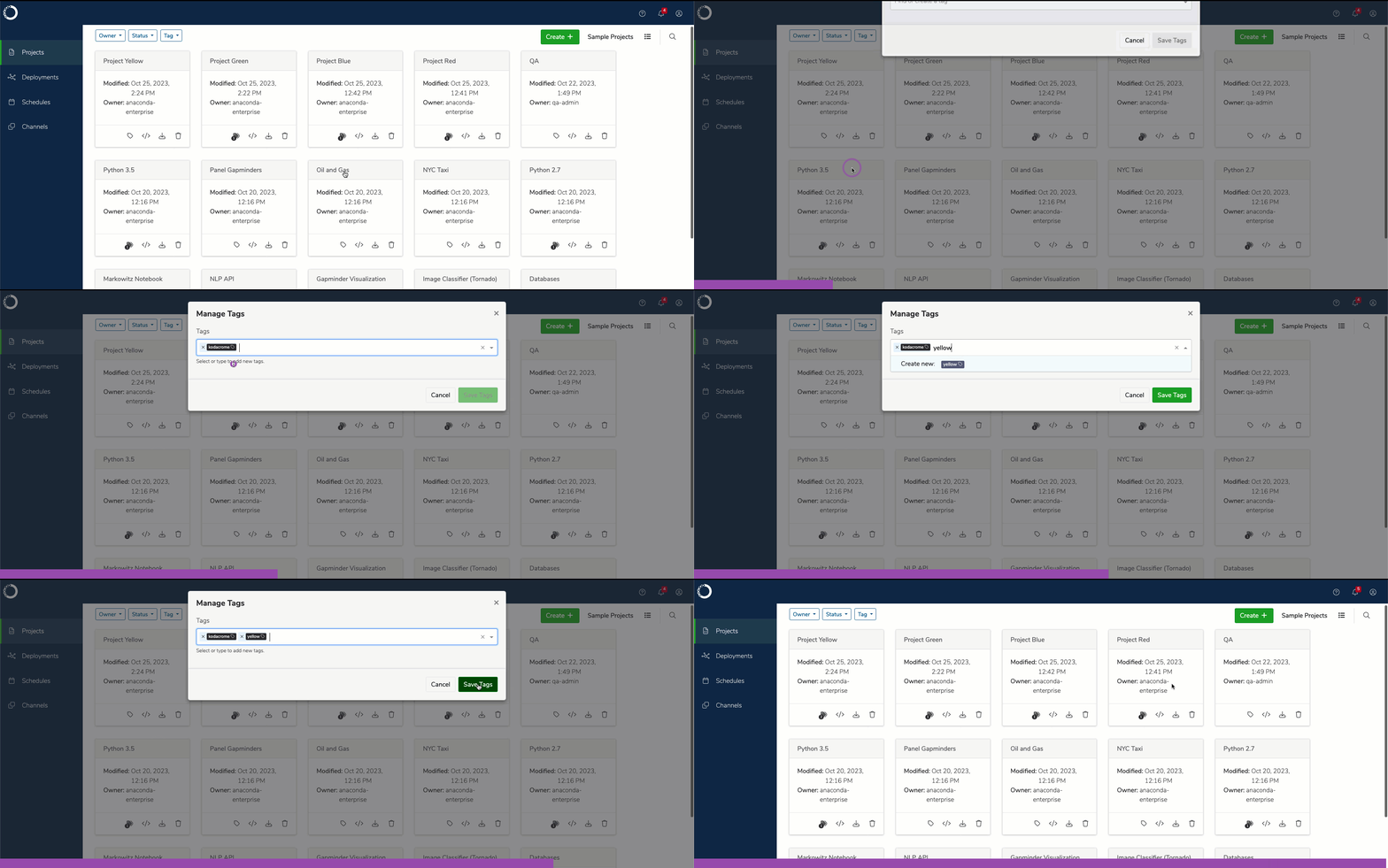
Projects can have up to four tags each. To add a tag to a project:
1. Click **Tag** to view the project’s tags.
2. Click **Manage Tags** .
3. Open the **Tags** dropdown, then select existing tags and/or enter a new tag for your project.
4. Click **Save Tags**.
 You can also add tags to a project from the project’s settings page.
## Managing tags
To manage project tags:
1. From the **Projects** page, click **Tag** to view the project’s tags.
2. Click **Manage Tags** .
3. Add or remove tags as needed.
4. Click **Save Tags**.
## Filtering tagged projects
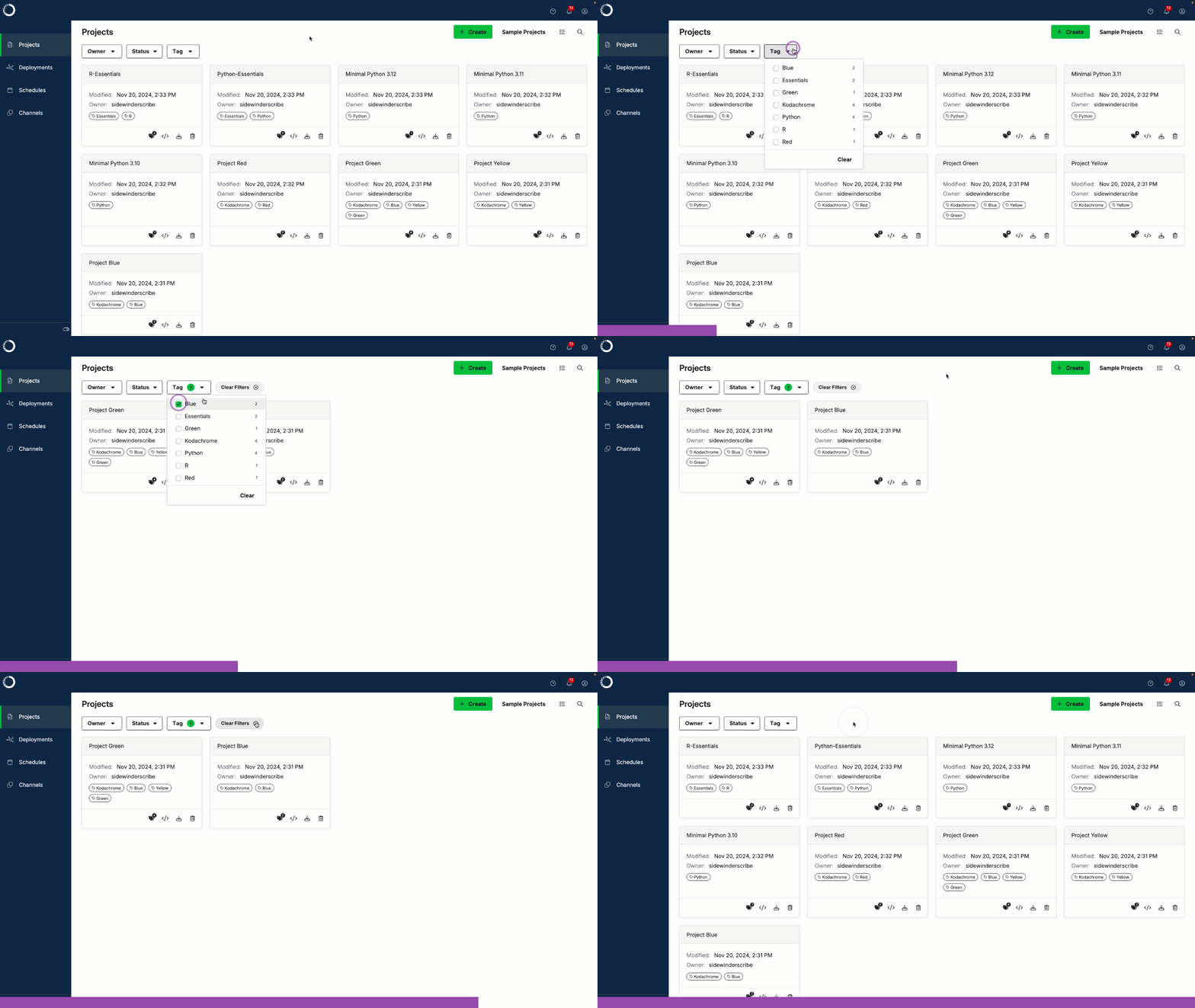
Once you have added tags to your projects, you can use them to filter your projects, which will help you locate them efficiently. From the **Projects** page, open the Tag filter dropdown, then select the tags you need. The project list will filter to display only projects that contain those tags.
You can also add tags to a project from the project’s settings page.
## Managing tags
To manage project tags:
1. From the **Projects** page, click **Tag** to view the project’s tags.
2. Click **Manage Tags** .
3. Add or remove tags as needed.
4. Click **Save Tags**.
## Filtering tagged projects
Once you have added tags to your projects, you can use them to filter your projects, which will help you locate them efficiently. From the **Projects** page, open the Tag filter dropdown, then select the tags you need. The project list will filter to display only projects that contain those tags.