> ## Documentation Index
> Fetch the complete documentation index at: https://anaconda.com/docs/llms.txt
> Use this file to discover all available pages before exploring further.
# Project sessions
In Data Science & AI Workbench, sessions provide you with Integrated Development Environments (IDEs) for project development, enabling you to write code, explore and visualize data, develop and evaluate models, and apply project configurations in a centralized and collaborative environment.
Once you have created or cloned a project, you can immediately begin working with it by “Opening” a session.
## Opening a project session
There are multiple ways to open a session for a project:
1. From the **Projects** page, click **Open session** within any project tile in the grid to open a session for that project.
2. Once the session has been successfully created, click **Return to session** to open an editor session for your project.
1. From the **Projects** page, open the project’s actions menu and select *Open session*.
2. Click **Active session**, or open the project’s actions menu and select *Return to session*.
1. From the **Projects** page, click on the title of any project. The project’s settings page will open.
2. Select **Session** from the left-hand navigation.
3. Click **Open a session**.
You can [change the default editor](./working-with-projects) for your project from the settings menu.
By default, projects in Workbench are created with their own internal Git repository, enabling you to leverage standard Git workflows to manage your project versions and collaborate on projects with others in the platform. For more information, see [Branching and merging](./branching).
* Click **Open session in new tab** to open your project session editor without the Workbench interface showing.
* For help managing environments, packages, environment variables, and commands for your project, see [Project Configurations](./project-config).
* Sessions are not shared. Each user creates a unique session for working with a given project.
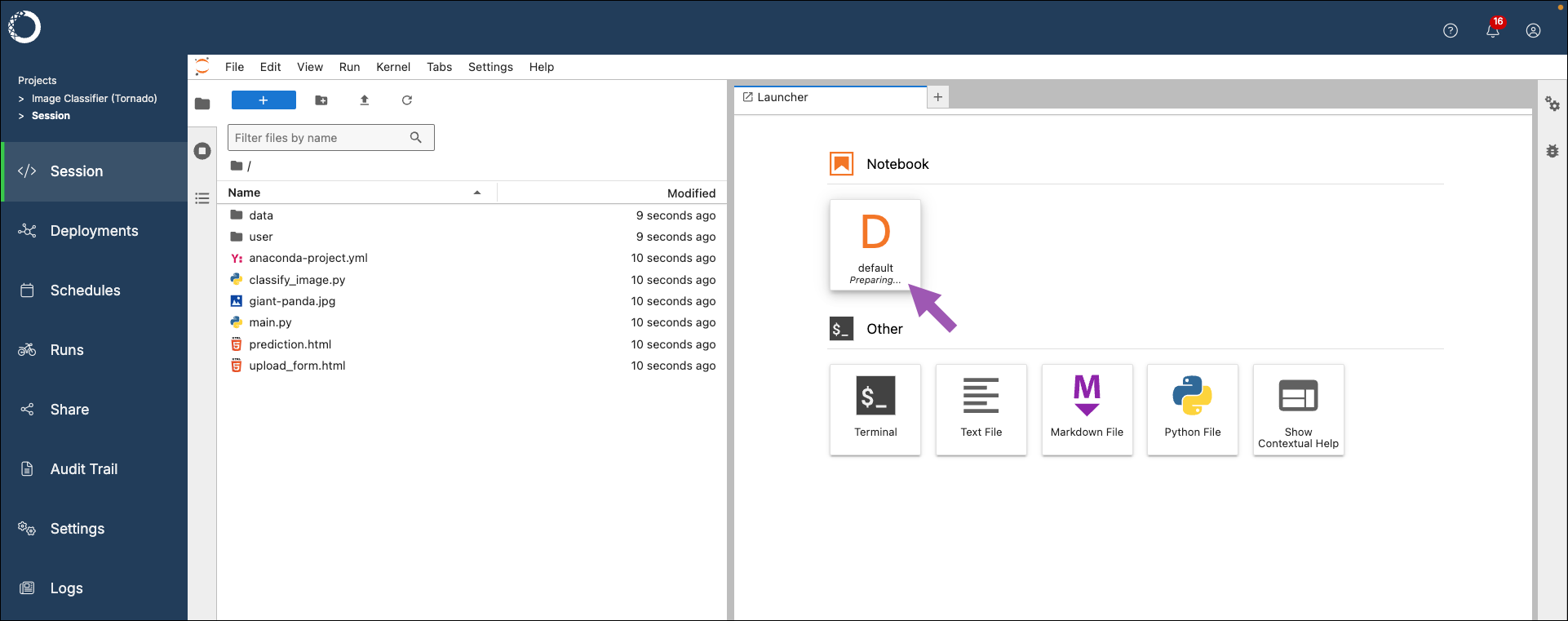
If your session opens before your environment has finished preparing, your environment tile displays the text `Preparing...`. Allow the environment time to complete before attempting to work in a notebook.
 ## Stopping project sessions
Anaconda recommends stopping project sessions when not actively working in them as a best practice to maintain system performance and reduce costs.
1. From a project session, click **Stop session** at the top of the page.
2. Click **Stop**.
## Stopping project sessions
Anaconda recommends stopping project sessions when not actively working in them as a best practice to maintain system performance and reduce costs.
1. From a project session, click **Stop session** at the top of the page.
2. Click **Stop**.