> ## Documentation Index
> Fetch the complete documentation index at: https://anaconda.com/docs/llms.txt
> Use this file to discover all available pages before exploring further.
# Projects
export const Danger = ({children}) => {
return ;
};
In Data Science & AI Workbench, a project is a structured environment for developing, managing, and deploying data science and machine learning applications. This includes relevant packages, channels, scripts, notebooks, files, environment variables, services and commands, and a *core configuration file* named `anaconda-project.yml`. For more information, see [Project configurations](./project-config).
Project components are archived into a `.tar.bz2`, `.tar.gz`, or `.zip` file for portability purposes, allowing you to store the project and share it with others.
## Creating a new project
1. From the **Projects** page click **Create +**, then select *New Project*.
2. Enter a name for your project.
3. Select an environment for your project.
4. Select a resource profile for your project.
5. If necessary, add any users or groups as collaborators.
6. Click **Create**.
## Uploading an existing project
1. From the **Projects** page click **Create +**, then select *Upload Project*.
2. Click **Browse** and upload your project archive file to Workbench.
3. Enter a name for your project.
4. If necessary, add any users or groups as collaborators.
5. Click **Upload**.
## Using sample projects
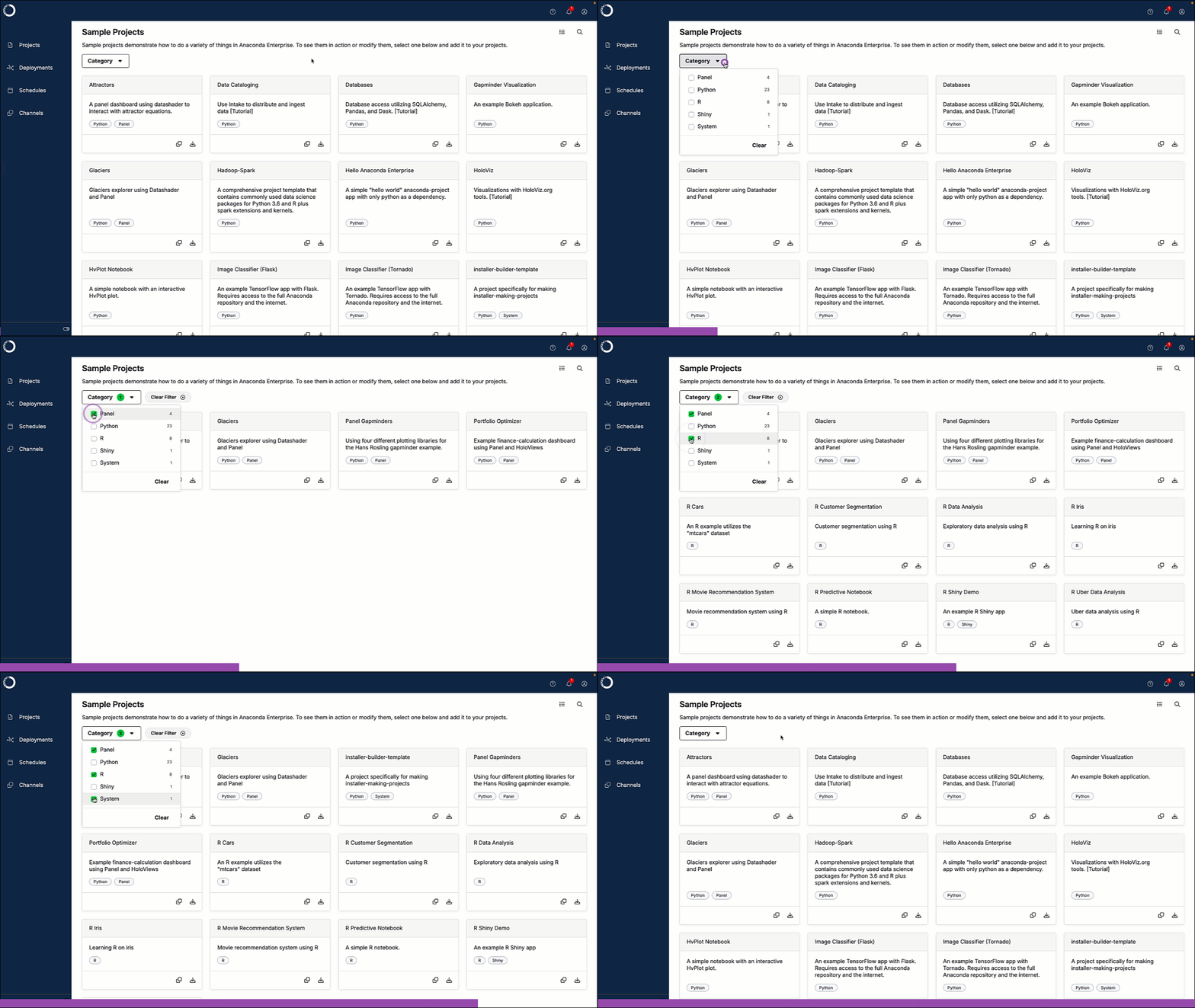
To access the sample project gallery, navigate to the **Projects** page, then click **Sample Projects**. Click **Add to your projects** on any sample project to copy it to the **Projects** page.
Anaconda provides you with a gallery of sample projects that include:
* Several base Anaconda Distribution for Python environments
* Minimal Python environments
* Simplified Jupyter Notebooks for Matplotlib and HvPlot
* Dashboards for the Gapminder dataset, oil and gas, NYC taxi, and attractor equations
* TensorFlow apps for Flask, Tornado, and MINST trained data
* And tutorial projects for:
* Using Intake to distribute and ingest data
* Database access using SQLAlchemy, Pandas, and Dask
* Visualizations with HoloViz.org tools
* Building time-series forecasting models using statsmodels
These projects are intended to aid you with your own projects by demonstrating how to do a variety of things in Workbench.
Use the **Category** dropdown to filter the displayed sample projects.
 ## Deleting a project
1. From the **Projects** page open the project you want to delete.
2. Click **Delete** at the bottom of the project settings page.
3. Click **Delete** again to confirm that you want to delete the project and end any active sessions and deployments from the project.
Deleting a project is irreversible. Project owners and administrators are the
only users that can delete shared projects.
## Deleting a project
1. From the **Projects** page open the project you want to delete.
2. Click **Delete** at the bottom of the project settings page.
3. Click **Delete** again to confirm that you want to delete the project and end any active sessions and deployments from the project.
Deleting a project is irreversible. Project owners and administrators are the
only users that can delete shared projects.