> ## Documentation Index
> Fetch the complete documentation index at: https://anaconda.com/docs/llms.txt
> Use this file to discover all available pages before exploring further.
# Configuring session timeouts
As an Administrator, you can configure session timeouts for Data Science & AI Workbench platform users, to help you adhere to your organization’s security standards or enforce policies.
You’ll use the Administrative Console’s Authentication Center to set the various parameters related to session timeouts:
1. Open the **My Account** dropdown menu and select *Admin Console*.
2. Select **Manage Users** to access the Keycloak user interface (UI).
3. Log in using your Keycloak admin account credentials.
4. Select **Realm Setting** from the left-hand navigation.
5. Click the **Tokens** tab at the top to display the following:
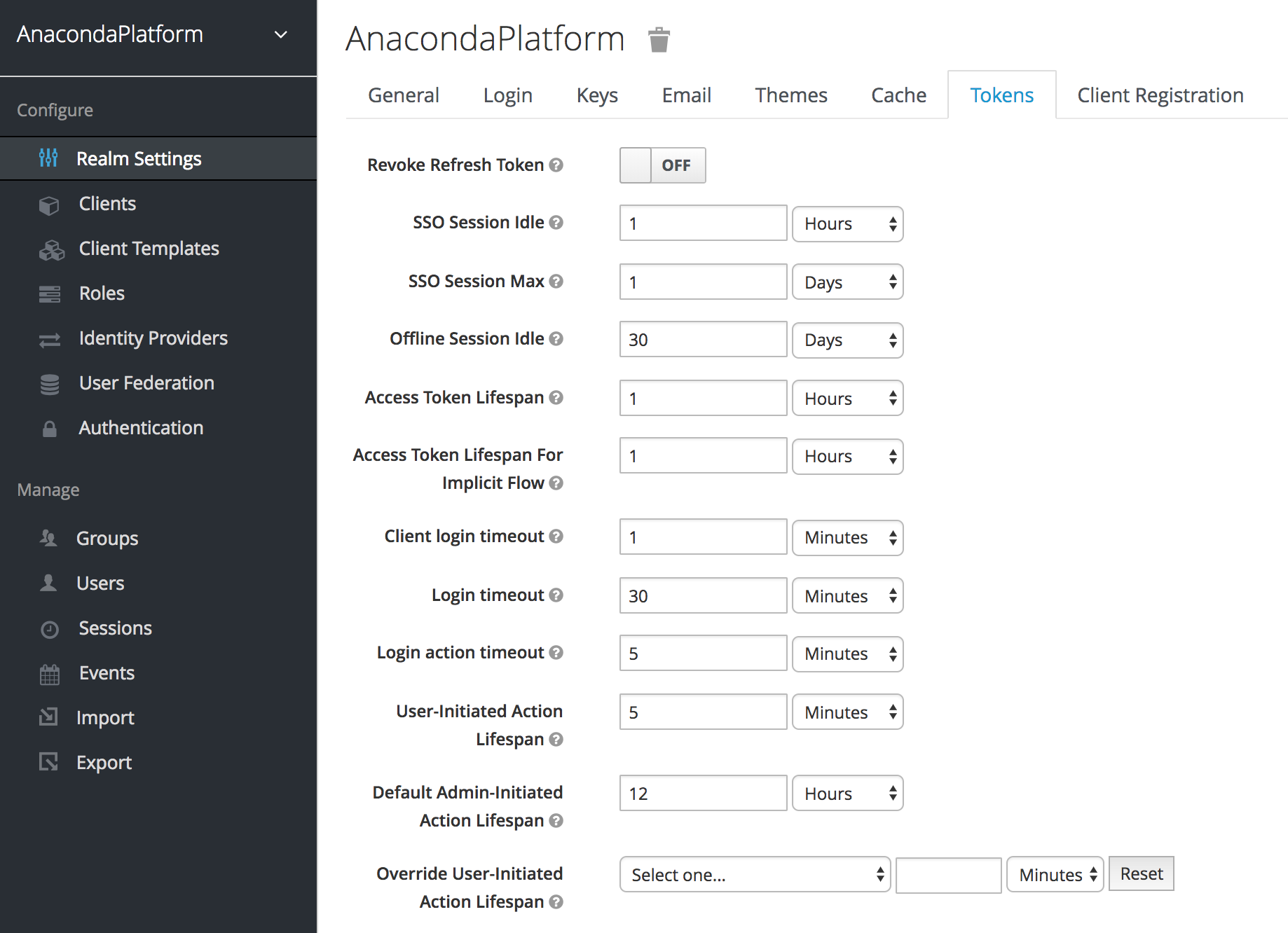 6. Use the available configuration options to specify maximum thresholds for each aspect of user sessions, including the following:
* Time limits for idle browser sessions and single sign on (SSO) tokens
* Lifespans for OpenID access tokens
* Time limits for login-related actions, such as resetting a forgotten password
| Configuration option | Description |
| :-------------------------------------- | :--------------------------------------------------------------------------------------- |
| Revoke Refresh Token | If enabled, limits refresh tokens to one-time use |
| SSO Session Idle | User will be logged out of session if inactive for this length of time |
| SSO Session Max | Maximum time a user session can remain active, regardless of activity |
| Offline Session Idle | Amount of time an offline session can be idle before the access token is revoked |
| Access Token Lifespan | Amount of time an access token will remain valid, before expiring |
| Access Token Lifespan For Implicit Flow | Timeout for access tokens created with Implicit Flow—no refresh token is provided |
| Client login timeout | Maximum time a client can take to complete the authorization process |
| Login timeout | Maximum time a user can take to authenticate before the process restarts |
| Login action timeout | Maximum time a user can spend on any one page in the authentication process |
| User-Initiated Action Lifespan | Maximum time before a user-initiated action (for example, forgot password email) expires |
| Default Admin-Initiated Action Lifespan | Maximum time before an admin-initiated action (for example, issue token to user) expires |
| Override User-Initiated Action Lifespan | Use to optionally configure different timeouts for each user-initiated action |
7. Click **Save** to save your changes to the Workbench platform.
6. Use the available configuration options to specify maximum thresholds for each aspect of user sessions, including the following:
* Time limits for idle browser sessions and single sign on (SSO) tokens
* Lifespans for OpenID access tokens
* Time limits for login-related actions, such as resetting a forgotten password
| Configuration option | Description |
| :-------------------------------------- | :--------------------------------------------------------------------------------------- |
| Revoke Refresh Token | If enabled, limits refresh tokens to one-time use |
| SSO Session Idle | User will be logged out of session if inactive for this length of time |
| SSO Session Max | Maximum time a user session can remain active, regardless of activity |
| Offline Session Idle | Amount of time an offline session can be idle before the access token is revoked |
| Access Token Lifespan | Amount of time an access token will remain valid, before expiring |
| Access Token Lifespan For Implicit Flow | Timeout for access tokens created with Implicit Flow—no refresh token is provided |
| Client login timeout | Maximum time a client can take to complete the authorization process |
| Login timeout | Maximum time a user can take to authenticate before the process restarts |
| Login action timeout | Maximum time a user can spend on any one page in the authentication process |
| User-Initiated Action Lifespan | Maximum time before a user-initiated action (for example, forgot password email) expires |
| Default Admin-Initiated Action Lifespan | Maximum time before an admin-initiated action (for example, issue token to user) expires |
| Override User-Initiated Action Lifespan | Use to optionally configure different timeouts for each user-initiated action |
7. Click **Save** to save your changes to the Workbench platform.