> ## Documentation Index
> Fetch the complete documentation index at: https://anaconda.com/docs/llms.txt
> Use this file to discover all available pages before exploring further.
# Project session management
export const Danger = ({children}) => {
return ;
};
Effective project session management is essential for optimizing resource utilization and ensuring fair access to compute resources in Workbench. As an administrator, you can set thresholds on the number of active sessions a user is allowed to have open simultaneously, preventing any single user from monopolizing resources. Additionally, you can define thresholds for how long sessions are allowed to remain idle—in days and hours—before being automatically terminated by the system. You can also terminate active sessions manually, if necessary.
## Viewing project session settings
To view a list of currently open sessions:
1. Open the **My Account** dropdown menu and select *Admin Console*.
2. Select **Sessions** from the left-hand navigation.
3. Select the **Settings** tab.
Project session settings cannot be configured from the application UI.
## Configuring project session thresholds
Workbench includes either a `values.k3s.yaml` or a `values.byok.*.yaml` (depending on your implementation) file that overrides the default values in the top-level Helm chart. If you are performing your initial configurations, use the example below to add the `idleSessionControl:` and `activeSessionLimit:` sections to the bottom of your file, then continue your environment preparation and installation.
Otherwise, follow the steps for [Setting platform configurations using the Helm chart](./advanced/settings) to add or update the `idleSessionControl:` and `activeSessionLimit:` configurations to the bottom of the `helm_values.yaml` file, as needed for your system setup:
```yaml theme={null}
# Idle session termination control
idleSessionControl:
# -- The granularity of the idle time (measured in integer hours).
# @section -- Idle Session Control
# -- Idle session expiration threshold (measured in days).
# @section -- Idle Session Control
cleanupThreshold: '5 days'
# -- The maximum number of sessions a user may run concurrently.
# @section -- Active Session Control
activeSessionLimit: 15
```
By default, the system is globally configured to limit users to *20 active sessions*, which are allowed to idle for up to *seven days* before being terminated.
Session management can also be customized per [workload resource profile](/docs/data-science/latest/admin/resources/resource-profile), meaning that you can apply different thresholds to each resource profile if necessary. For example, because GPU resources generally cost more than CPU resources, applying a shorter idle time threshold to the GPU-associated resource profiles can lead to significant cost savings while also ensuring that these resources are available for the users who require them. For more information, see the `GPU with limited idle time threshold example` provided in the resource profile examples.
## Viewing active sessions
To view a list of currently open sessions:
1. Open the **My Account** dropdown menu and select *Admin Console*.
2. Select **Sessions** from the left-hand navigation.
## Filtering active sessions
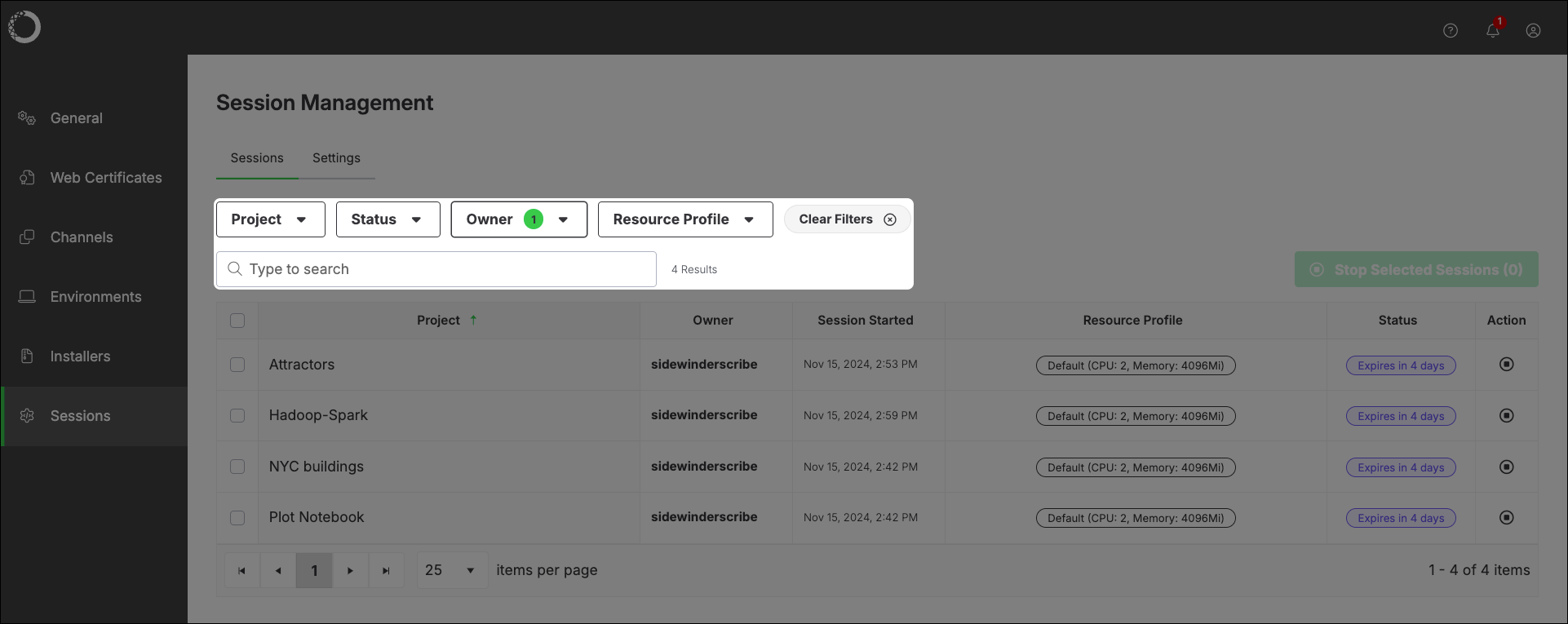
Search for projects by name, or use the filter categories efficiently locate project sessions.
* Click on the table headers to sort the displayed sessions.
* Reselect any filter or click **Clear Filters** to remove them and reset the table.
 ## Stopping sessions
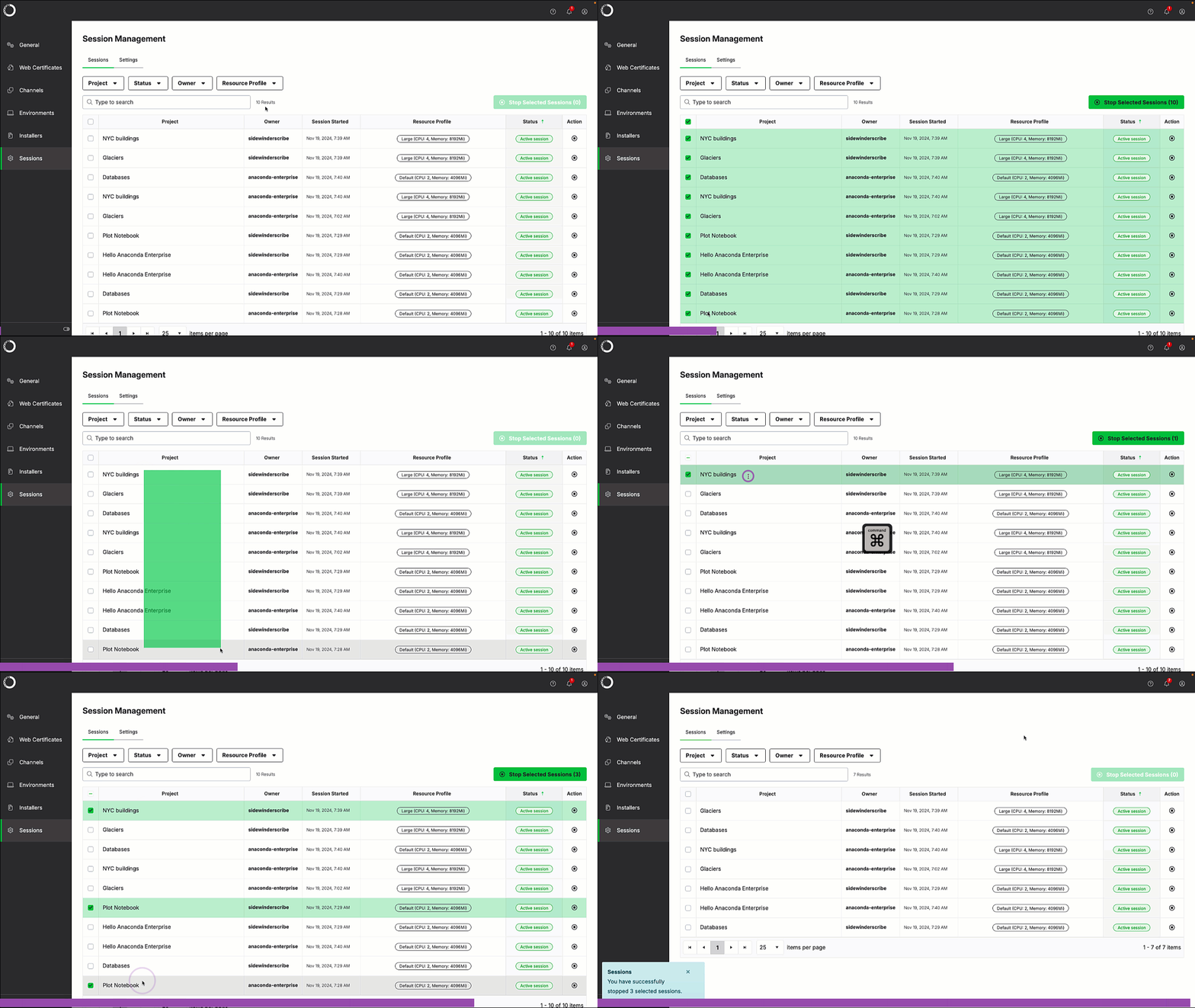
Stopping a project session terminates the pod running that session, releasing its compute resources back to the cluster. Select the sessions you would like to terminate, then click **Stop Selected Sessions**.
## Stopping sessions
Stopping a project session terminates the pod running that session, releasing its compute resources back to the cluster. Select the sessions you would like to terminate, then click **Stop Selected Sessions**.
 If you stop an active project session, anyone using that project will receive a `Directory not found` error and lose all in-progress work.