> ## Documentation Index
> Fetch the complete documentation index at: https://anaconda.com/docs/llms.txt
> Use this file to discover all available pages before exploring further.
# Managing cluster resources
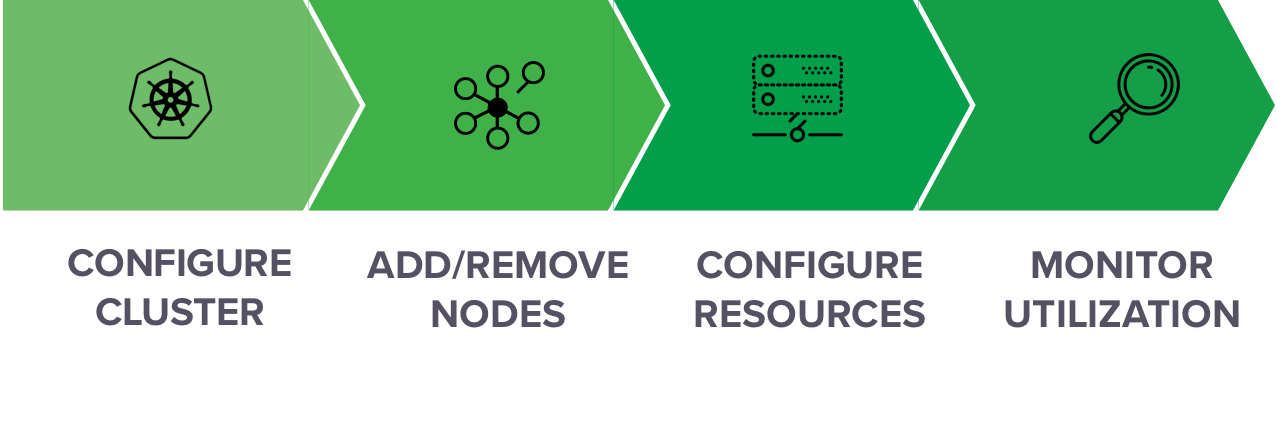
After you’ve [installed an Data Science & AI Workbench cluster](/docs/data-science/latest/install/gravity), you’ll need to continue managing and monitoring the cluster to ensure that it scales with your organization. These on-going tasks include:
* **Adding nodes:** If you outgrow your initial Workbench cluster installation, you can always [add nodes](/docs/data-science/latest/admin/resources/gravity/add-remove-node) to your cluster—including GPUs. Once added, make these nodes available to platform users by [configuring resource profiles](/docs/data-science/latest/admin/resources/resource-profile).
* **Monitoring and managing resources:** To help you manage your organization’s cluster resources more efficiently, Workbench enables you to [monitor which sessions and deployments are running](/docs/data-science/latest/admin/resources/gravity/monitor-sessions-deps) on specific nodes or by specific users. You can also [monitor cluster resource usage](/docs/data-science/latest/admin/resources/gravity/monitor-cluster) in terms of CPU, memory, disk space, network, and GPU utilization.
* **Troubleshooting and debugging:** To help you gain insights into user services and troubleshoot issues, Workbench provides [detailed logs](/docs/data-science/latest/admin/resources/gravity/logging) and debugging information related to the Kubernetes services it uses, as well as all [activity performed by users](/docs/data-science/latest/admin/resources/gravity/activity). See [fault tolerance in Workbench](/docs/data-science/latest/admin/resources/fault-tolerance) for information about what to do if a master node fails.