> ## Documentation Index
> Fetch the complete documentation index at: https://anaconda.com/docs/llms.txt
> Use this file to discover all available pages before exploring further.
# Getting started with Anaconda Notebooks
Launch your first notebook in Anaconda Notebooks in four steps.
Log in at [anaconda.com/app](https://anaconda.com/app).
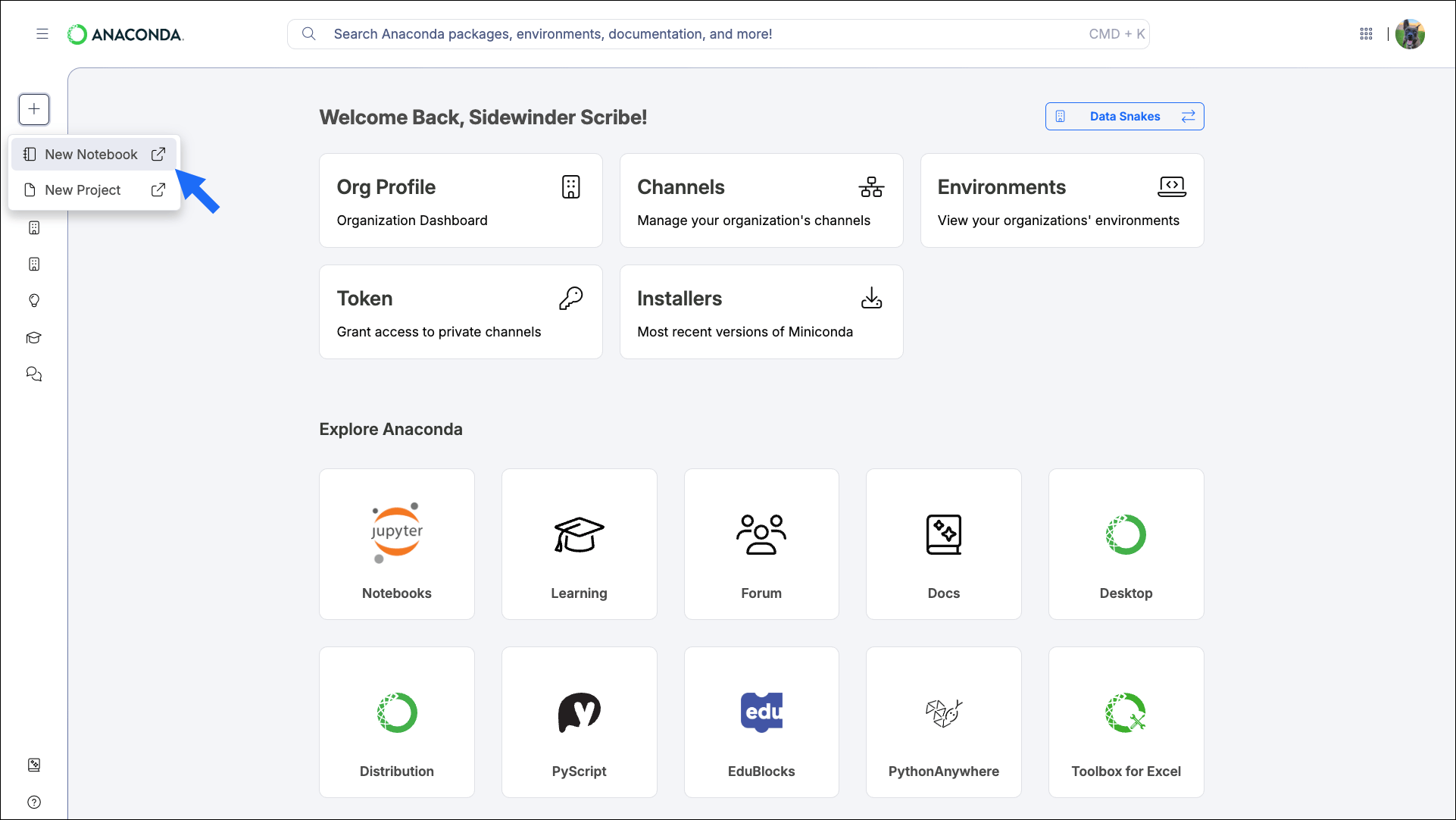
In the upper-left corner, click **Create** and select **New Notebook**. Name your notebook and click **Create Notebook**. A new project is created using your notebook name.
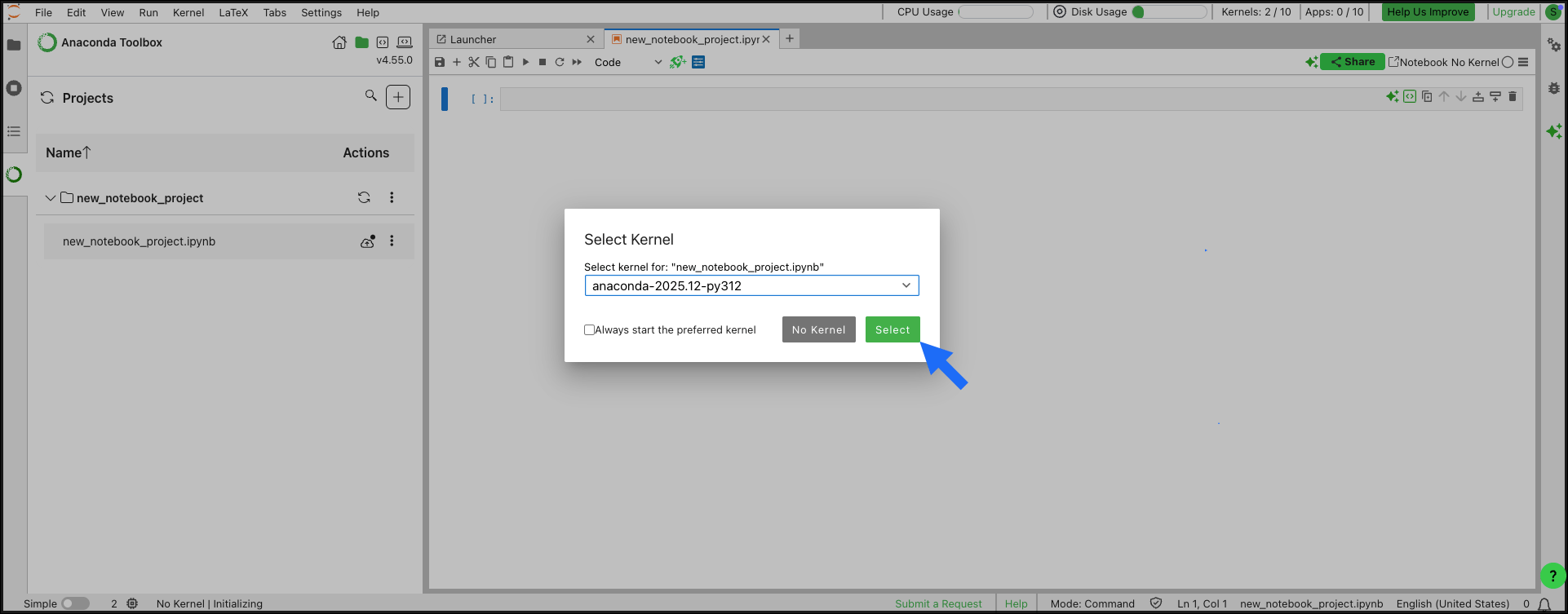
 A kernel runs your code; it includes Python and any conda packages your notebook needs. When the notebook opens, select a kernel from the **Select Kernel** dialog.
 To use your own conda environment as a kernel, see [creating custom runtimes](/anaconda-platform/notebooks/notebook-runtimes#creating-custom-runtimes).
Start writing and running code in your new notebook.
## What's next?
Use Anaconda Toolbox in your notebook to generate code, save snippets, and access the Anaconda Assistant.
Learn about runtimes and how to create custom runtimes for your projects.
Publish a notebook as a Panel app with a custom URL, ready to share.
Manage your notebook storage and understand memory limits across runtimes.
To use your own conda environment as a kernel, see [creating custom runtimes](/anaconda-platform/notebooks/notebook-runtimes#creating-custom-runtimes).
Start writing and running code in your new notebook.
## What's next?
Use Anaconda Toolbox in your notebook to generate code, save snippets, and access the Anaconda Assistant.
Learn about runtimes and how to create custom runtimes for your projects.
Publish a notebook as a Panel app with a custom URL, ready to share.
Manage your notebook storage and understand memory limits across runtimes.