> ## Documentation Index
> Fetch the complete documentation index at: https://anaconda.com/docs/llms.txt
> Use this file to discover all available pages before exploring further.
# Organization management
export const GCell = ({children, className}) =>
{children}
;
export const GTH = ({children, className}) =>
{children}
;
export const GRow = ({children}) => {children}
;
export const GBody = ({children}) => {children}
;
export const GHead = ({children}) => {children}
;
export const GTable = ({children, className, cols}) =>
{children}
;
An organization is a group of Anaconda.com accounts with a managed set of rights and permissions. Creating an organization in Anaconda.com for yourself or your team allows you to:
* Provide a common collaboration space
* Ensure consistent tooling
* Manage access and costs
Anaconda.com users can create and belong to multiple organizations. However, [Enterprise Managed Users](/docs/anaconda-platform/admin/integrations/esso#enterprise-managed-users) are scoped to a single organization and cannot be added to another.
If you're working with an Anaconda representative, they will create and subscribe your organization for you.
## Creating an organization
1. [Sign in to Anaconda.com](https://auth.anaconda.com/ui/login?return_to=https://anaconda.com/app/).
2. Navigate to your [Organizations](https://anaconda.com/app/profile/organizations) page.
3. Click **Create Organization**.
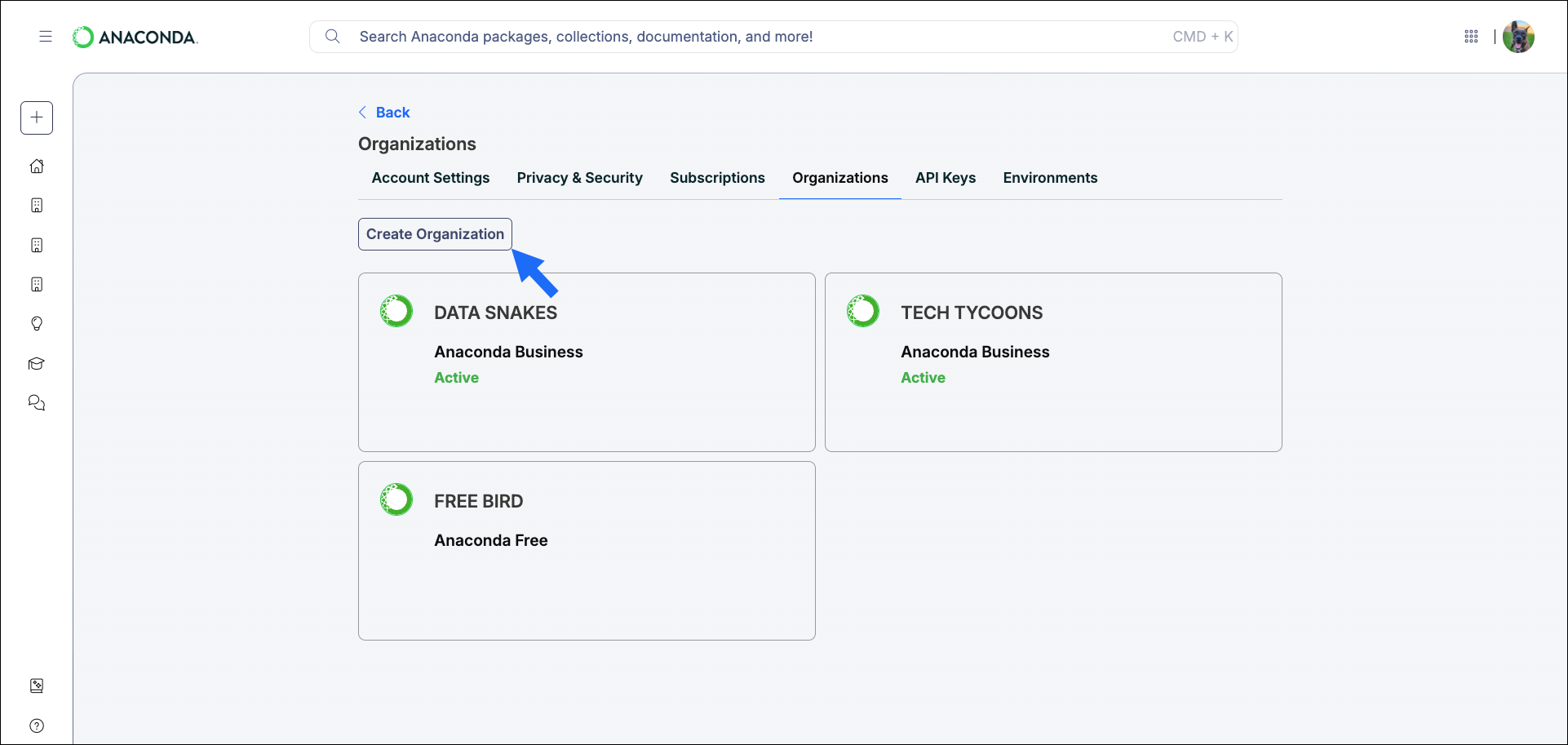 4. Follow the on-screen instructions to set up your organization. Don't worry if you don't have all the necessary information; you can come back and complete your organization's information at a later time.
As the creator, you are the owner and default admin of the organization.
***
Your *Organization Name* is the publicly displayed name of your organization. It can be changed at any time after your organization is created.
***
Your *Organization ID* can be found in your organization's Uniform Resource Locator (URL) identifier: `https://anaconda.com/app/organizations//`.
The Organization's URL must be unique and cannot be changed.
## Subscribing your organization
For information and help with managing subscriptions, see [Subscriptions](/docs/anaconda-platform/admin/subscriptions).
## Organization settings
Organization administrators can control which Anaconda Platform and Anaconda Desktop features are available to their members.
1. From the **Org Profile** page, select **Edit Organization Settings** beside the organization name.
4. Follow the on-screen instructions to set up your organization. Don't worry if you don't have all the necessary information; you can come back and complete your organization's information at a later time.
As the creator, you are the owner and default admin of the organization.
***
Your *Organization Name* is the publicly displayed name of your organization. It can be changed at any time after your organization is created.
***
Your *Organization ID* can be found in your organization's Uniform Resource Locator (URL) identifier: `https://anaconda.com/app/organizations//`.
The Organization's URL must be unique and cannot be changed.
## Subscribing your organization
For information and help with managing subscriptions, see [Subscriptions](/docs/anaconda-platform/admin/subscriptions).
## Organization settings
Organization administrators can control which Anaconda Platform and Anaconda Desktop features are available to their members.
1. From the **Org Profile** page, select **Edit Organization Settings** beside the organization name.
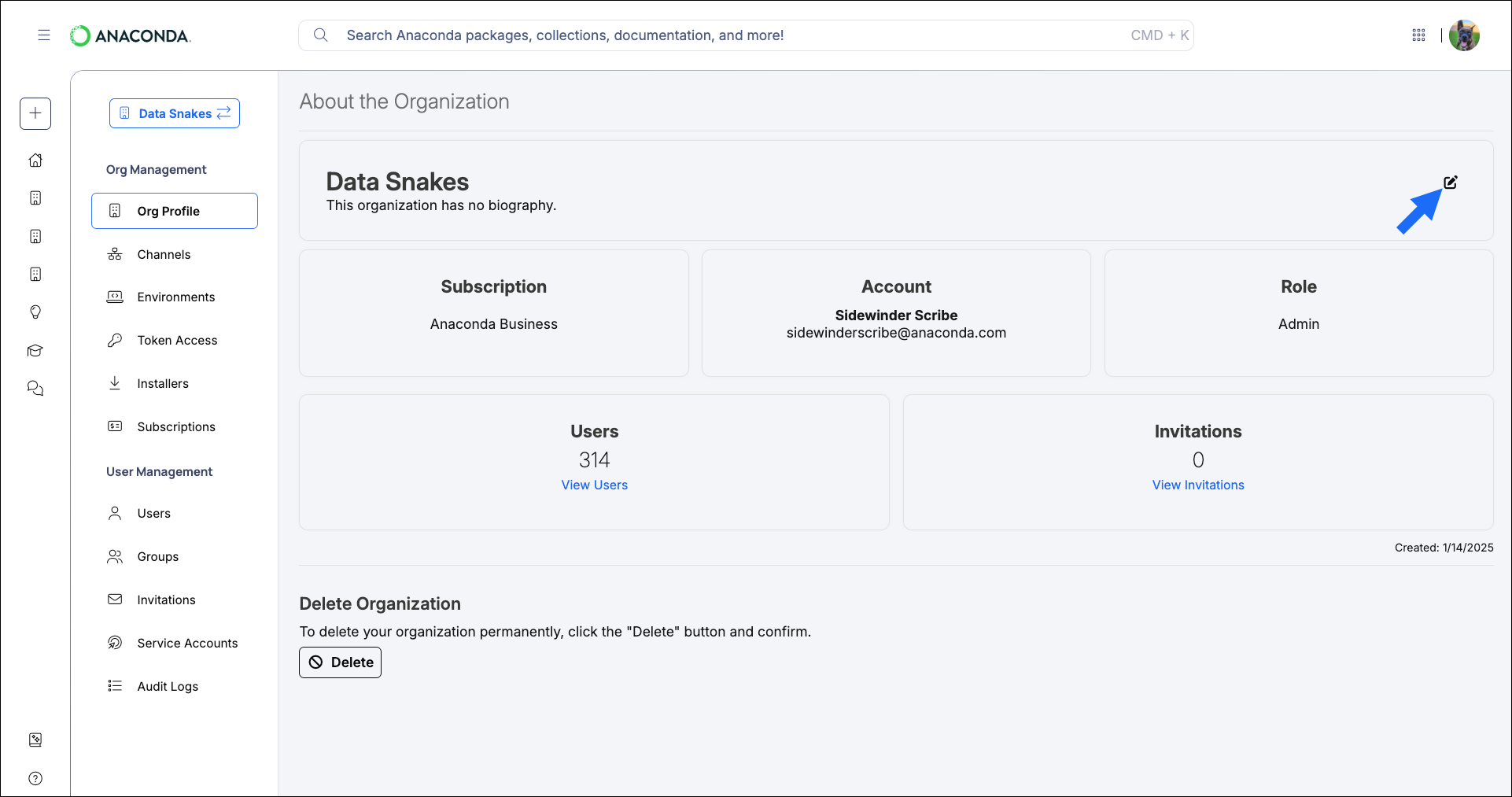 2. Toggle settings `ON` or `OFF` as needed.
3. Click **Save Changes**.
Organization settings are enforced at the account level. If a user belongs to more than one organization, disabling a feature in any one of them removes that user's access to it entirely.
### Available organization settings
Setting
Description
[Agent Studio](/docs/anaconda-desktop/agent-studio/main)
Controls your organization members' access to Anaconda Desktop's Agent Studio feature.
[AI Navigator](/docs/legacy/ai-navigator/main)
Controls your organization members' access to Anaconda AI Navigator.
[Anaconda Assistant](/docs/anaconda-platform/notebooks/anaconda-toolbox/anaconda-assistant)
Controls your organization members' access to the Anaconda AI Assistant in Anaconda Notebooks, Anaconda Desktop, and Agent Studio.
[Anaconda Desktop](/docs/anaconda-desktop/getting-started-desktop)
Controls your organization members' access to Anaconda Desktop.
[Anaconda MCP](/docs/anaconda-desktop/mcp)
Controls your organization members' access to the Anaconda MCP server.
[Cloud Notebooks](/docs/anaconda-platform/notebooks/getting-started)
Controls your organization members' access to Anaconda Notebooks.
[Community Channel](/docs/anaconda-platform/admin/channels#channel-types)
Enables or disables the `community` channel for your organization.
[EduBlocks](https://docs.edublocks.org/)
Controls your organization members' access to EduBlocks.
[Environments](/docs/anaconda-platform/admin/environments)
Enables or disables environment logging and scanning for your organization.
[Forum](https://forum.anaconda.com)
Controls your organization members' access to the Anaconda forum.
[PyScript](https://pyscript.com)
Controls your organization members' access to PyScript.
## Deleting an organization
Administrators that establish their own organizations can delete them at any time. If your organization is managed by Anaconda, contact your Anaconda account representative to delete your organization.
This action is permanent and cannot be undone.
1. On the **Org Profile** page, click **Delete**.
2. Toggle settings `ON` or `OFF` as needed.
3. Click **Save Changes**.
Organization settings are enforced at the account level. If a user belongs to more than one organization, disabling a feature in any one of them removes that user's access to it entirely.
### Available organization settings
Setting
Description
[Agent Studio](/docs/anaconda-desktop/agent-studio/main)
Controls your organization members' access to Anaconda Desktop's Agent Studio feature.
[AI Navigator](/docs/legacy/ai-navigator/main)
Controls your organization members' access to Anaconda AI Navigator.
[Anaconda Assistant](/docs/anaconda-platform/notebooks/anaconda-toolbox/anaconda-assistant)
Controls your organization members' access to the Anaconda AI Assistant in Anaconda Notebooks, Anaconda Desktop, and Agent Studio.
[Anaconda Desktop](/docs/anaconda-desktop/getting-started-desktop)
Controls your organization members' access to Anaconda Desktop.
[Anaconda MCP](/docs/anaconda-desktop/mcp)
Controls your organization members' access to the Anaconda MCP server.
[Cloud Notebooks](/docs/anaconda-platform/notebooks/getting-started)
Controls your organization members' access to Anaconda Notebooks.
[Community Channel](/docs/anaconda-platform/admin/channels#channel-types)
Enables or disables the `community` channel for your organization.
[EduBlocks](https://docs.edublocks.org/)
Controls your organization members' access to EduBlocks.
[Environments](/docs/anaconda-platform/admin/environments)
Enables or disables environment logging and scanning for your organization.
[Forum](https://forum.anaconda.com)
Controls your organization members' access to the Anaconda forum.
[PyScript](https://pyscript.com)
Controls your organization members' access to PyScript.
## Deleting an organization
Administrators that establish their own organizations can delete them at any time. If your organization is managed by Anaconda, contact your Anaconda account representative to delete your organization.
This action is permanent and cannot be undone.
1. On the **Org Profile** page, click **Delete**.
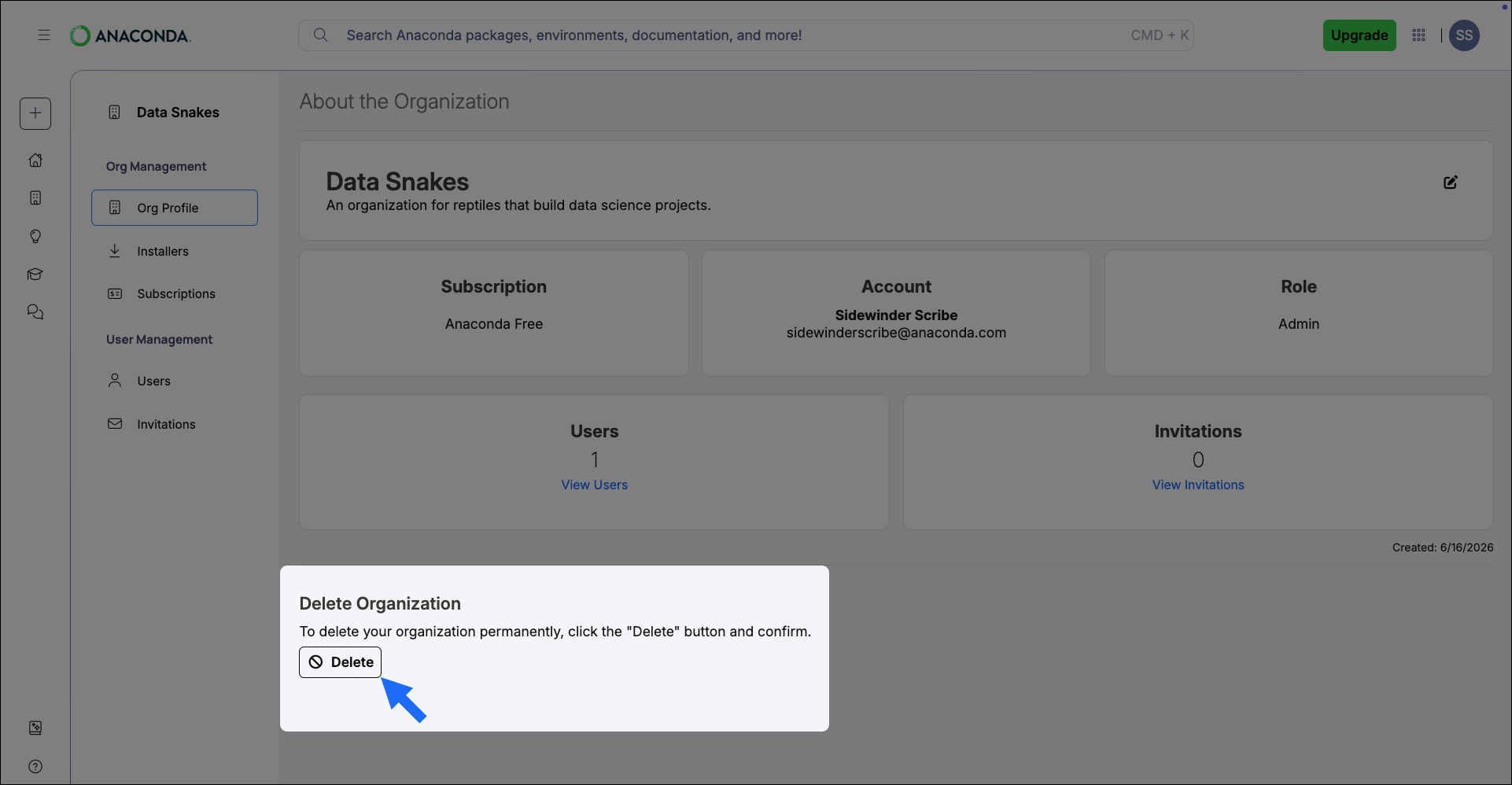 2. Type your organization ID to confirm.
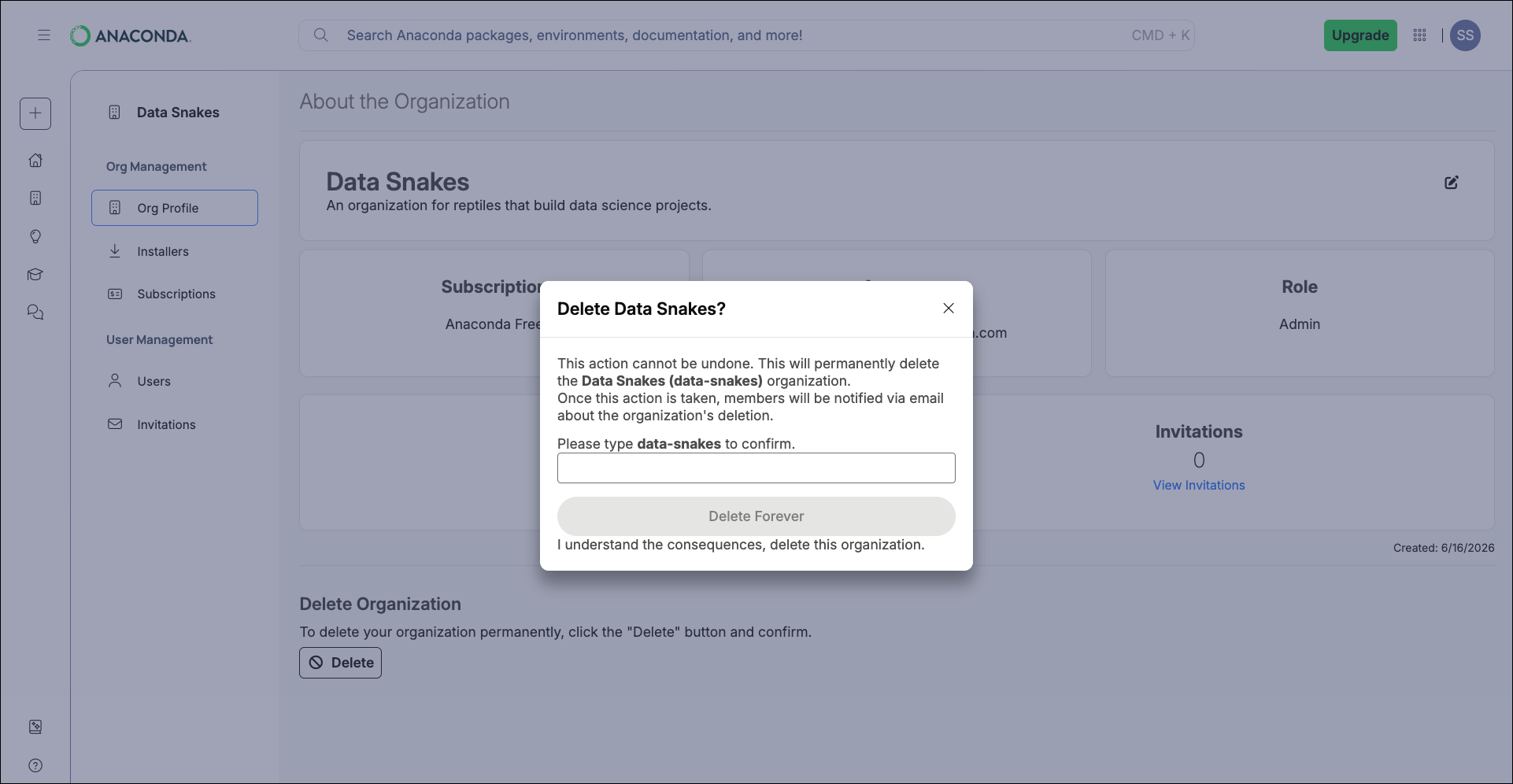 3. Click **Delete Forever**.