> ## Documentation Index
> Fetch the complete documentation index at: https://anaconda.com/docs/llms.txt
> Use this file to discover all available pages before exploring further.
# Settings
export const GCell = ({children, className}) =>
{children}
;
export const GTH = ({children, className}) =>
{children}
;
export const GRow = ({children}) => {children}
;
export const GBody = ({children}) => {children}
;
export const GHead = ({children}) => {children}
;
export const GTable = ({children, className, cols}) =>
{children}
;
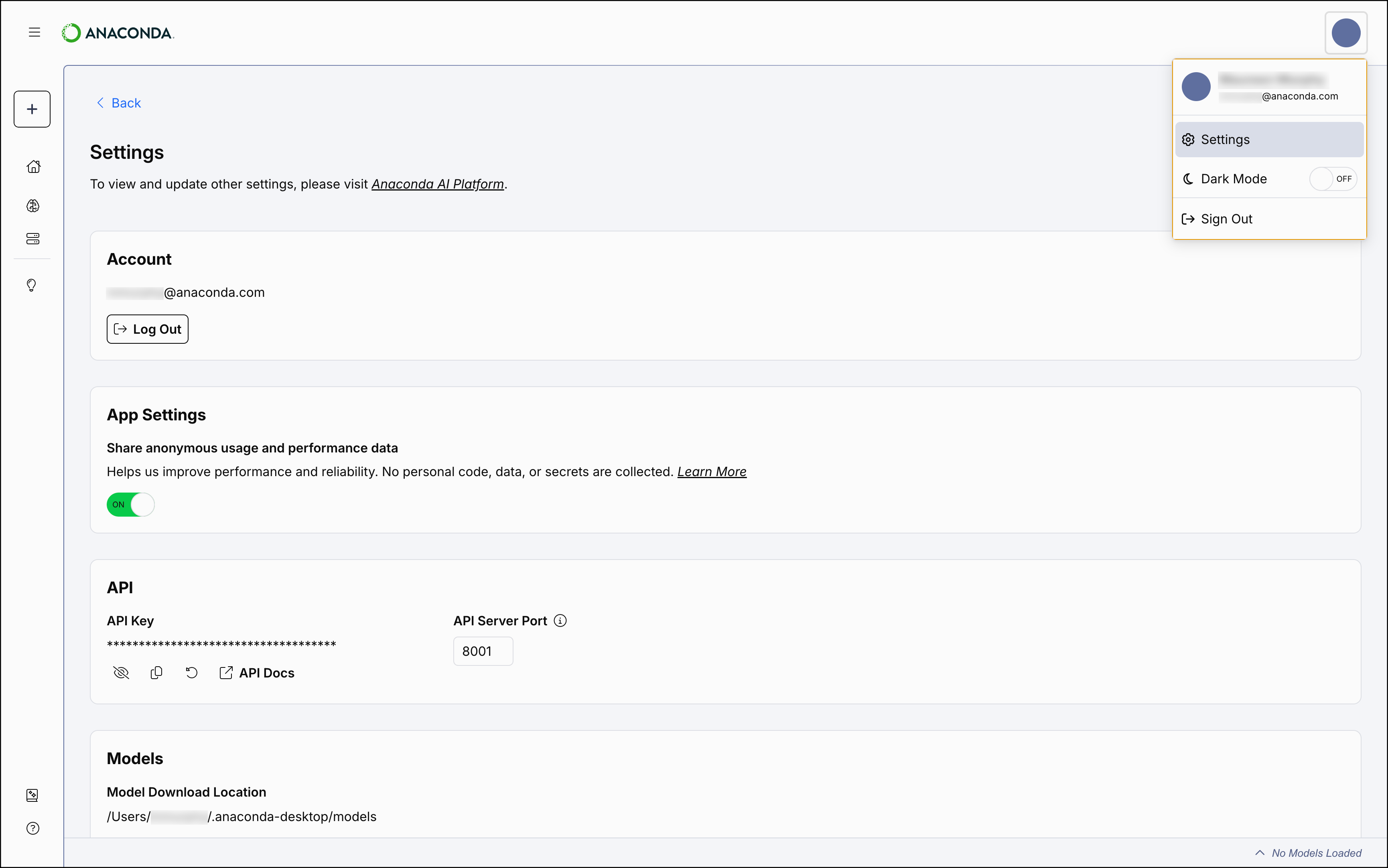
From the **Settings** page, you can:
* Change the location of your downloaded models
* View and update your [Desktop API](/docs/anaconda-desktop/desktop-api/getting-started) information
* Choose to share anonymous data with Anaconda
* Log out of your Anaconda account
To open your user settings:
1. Select the user dropdown menu in the upper-right corner.
2. Select *Settings*.
 ## Enabling beta features
Anaconda Desktop provides early access to experimental features through the **BETA Features** section on the Settings page. When enabled, these features appear in the left-hand navigation under a **BETA** section.
To enable or disable beta features:
1. Select the user dropdown menu in the upper-right corner.
2. Select **Settings**.
3. Scroll down to the **BETA Features** section.
4. Toggle features `ON` or `OFF` as needed.
The **BETA** section in the left-hand navigation only appears when at least one beta feature is enabled. If all beta features are toggled off, the section is hidden.
***
If your Anaconda account belongs to an organization on Anaconda Platform, your organization administrator can restrict access to beta features. When a feature is disabled by your admin, its toggle displays a and cannot be enabled. For more information, see [Organization settings](/docs/anaconda-platform/admin/organizations#organization-settings).
### Available beta features
Feature
Description
[Agent Studio](/docs/anaconda-desktop/agent-studio/main)
Build and manage AI agents.
[MCP](/docs/anaconda-desktop/mcp)
Configure Model Context Protocol servers.
## Enabling beta features
Anaconda Desktop provides early access to experimental features through the **BETA Features** section on the Settings page. When enabled, these features appear in the left-hand navigation under a **BETA** section.
To enable or disable beta features:
1. Select the user dropdown menu in the upper-right corner.
2. Select **Settings**.
3. Scroll down to the **BETA Features** section.
4. Toggle features `ON` or `OFF` as needed.
The **BETA** section in the left-hand navigation only appears when at least one beta feature is enabled. If all beta features are toggled off, the section is hidden.
***
If your Anaconda account belongs to an organization on Anaconda Platform, your organization administrator can restrict access to beta features. When a feature is disabled by your admin, its toggle displays a and cannot be enabled. For more information, see [Organization settings](/docs/anaconda-platform/admin/organizations#organization-settings).
### Available beta features
Feature
Description
[Agent Studio](/docs/anaconda-desktop/agent-studio/main)
Build and manage AI agents.
[MCP](/docs/anaconda-desktop/mcp)
Configure Model Context Protocol servers.