> ## Documentation Index
> Fetch the complete documentation index at: https://anaconda.com/docs/llms.txt
> Use this file to discover all available pages before exploring further.
# Packages
export const Beginner = ({children}) => {
return ;
};
export const GCell = ({children, className}) =>
{children}
;
export const GTH = ({children, className}) =>
{children}
;
export const GRow = ({children}) => {children}
;
export const GBody = ({children}) => {children}
;
export const GHead = ({children}) => {children}
;
export const GTable = ({children, className, cols}) =>
{children}
;
With Anaconda Desktop, you can manage packages for your conda environments in a convenient graphical interface.
Packages are complete, ready-to-use pieces of software that extend the capabilities of a programming environment. The packages you install in Desktop are downloaded from your configured [channels](/docs/anaconda-desktop/channels), most of which are hosted on [Anaconda.org](https://anaconda.org/), Anaconda's public platform for sharing open-source software packages. To learn more about packages and how they work, see [What is a package?](/docs/getting-started/concepts/what-is-a-package)
## Viewing packages
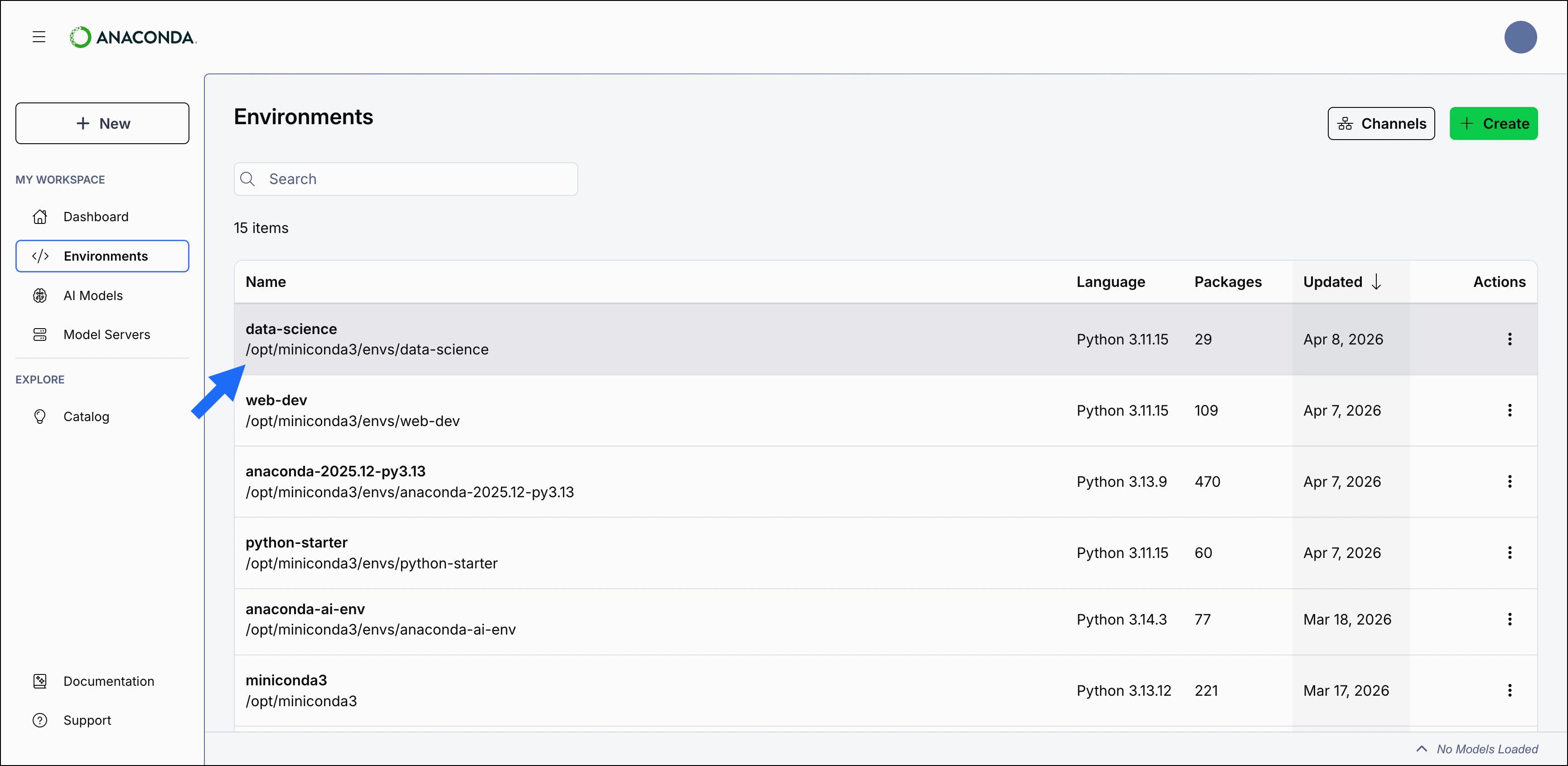
Packages are managed at the environment level. To manage an environment's packages, navigate to the [Environments](/docs/anaconda-desktop/environments) page in the left navigation, then select the environment's name from the table to open its details page. From the environment's details page, you can view the its packages, dependencies, and channels.
 ### Package table overview
User-installed packages appear in black text at the top of the package table. Their dependencies appear below with a **Dependency** label. Dependencies and the Python version are managed automatically to ensure compatibility in Desktop and cannot be modified.
### Package table overview
User-installed packages appear in black text at the top of the package table. Their dependencies appear below with a **Dependency** label. Dependencies and the Python version are managed automatically to ensure compatibility in Desktop and cannot be modified.
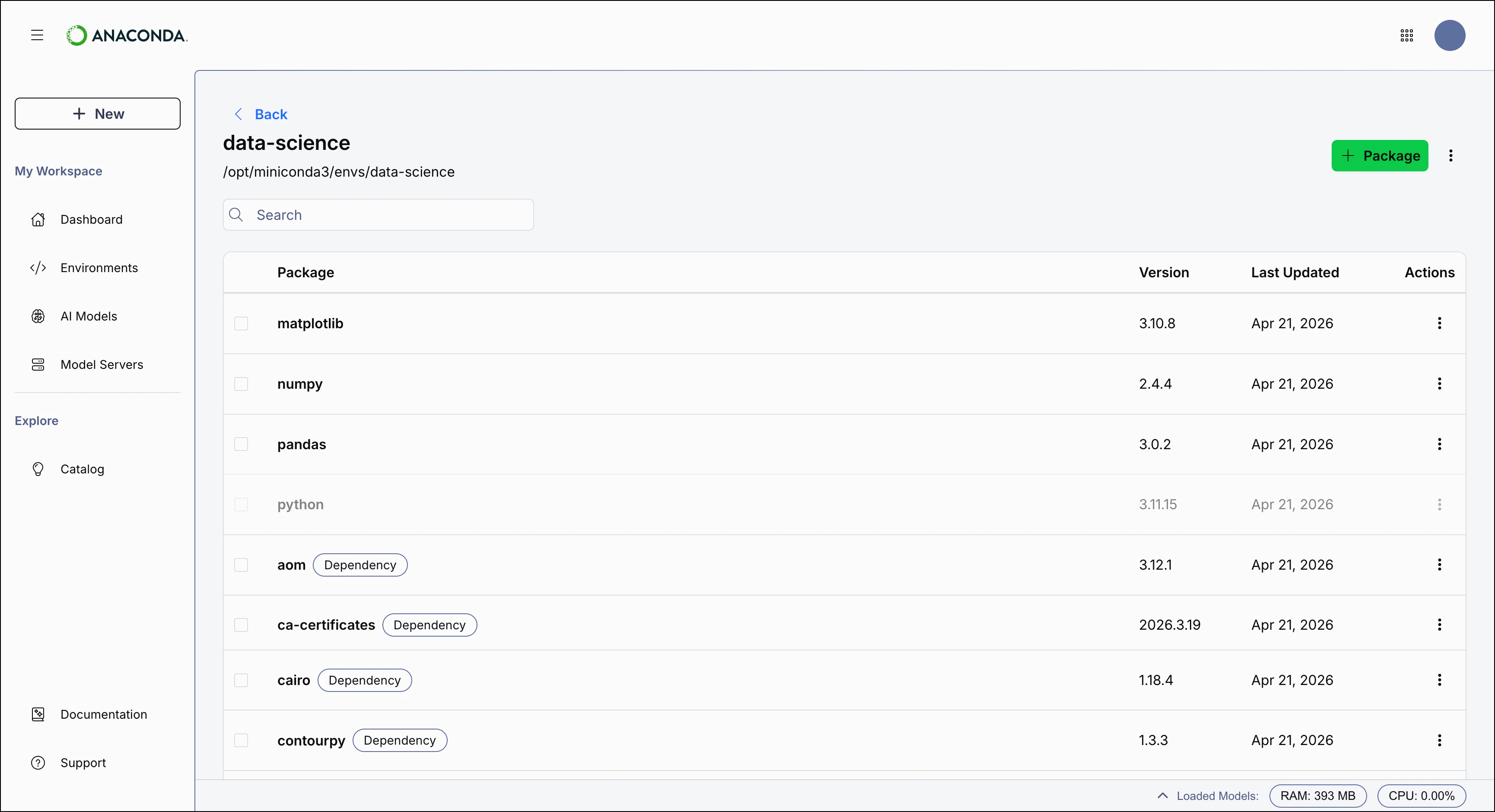 The package table includes the following columns. Select a column header to sort the table by that column.
CVE data is for reference only.
Column
Description
**Package**
Package name.
**Version**
The currently installed version of the package. Updates install the latest compatible version.
**CVEs**
Business or Custom plan only
The package table includes the following columns. Select a column header to sort the table by that column.
CVE data is for reference only.
Column
Description
**Package**
Package name.
**Version**
The currently installed version of the package. Updates install the latest compatible version.
**CVEs**
Business or Custom plan only
The number of active Common Vulnerabilities and Exposures (CVEs) associated with the package.
**Last Updated**
When the package was last updated in this environment.
**Actions**
Menu with options to update or remove the package.
## Searching for packages
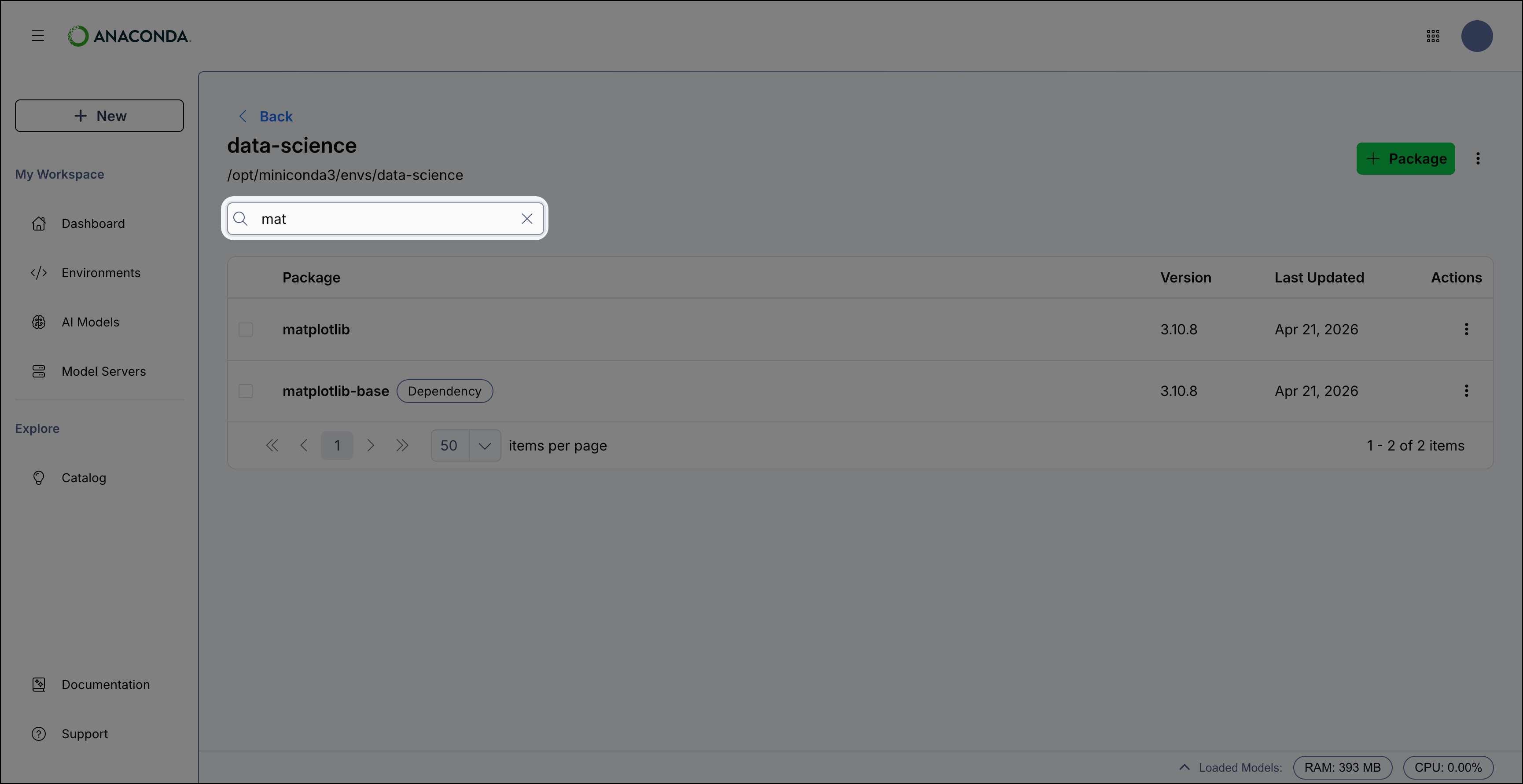
Use the **Search** box to locate a specific package by name. Enter all (or part of) the package's name to filter the list to display only packages that contain the search string.
 If you can't find a package you're looking for, check that the package name is spelled correctly and that the package is available in one of your [channels](/docs/anaconda-desktop/channels). You can also [search Anaconda.org](/docs/anaconda-org/searching-packages) directly to confirm the package exists and see which channel hosts it.
## Installing a package
To install a package:
1. Click **Packages**.
2. Use the **Search** box to find the package you want to install.
3. Select the checkbox beside the package you want to install.
4. Click **Add Package** to install the package.
If you can't find a package you're looking for, check that the package name is spelled correctly and that the package is available in one of your [channels](/docs/anaconda-desktop/channels). You can also [search Anaconda.org](/docs/anaconda-org/searching-packages) directly to confirm the package exists and see which channel hosts it.
## Installing a package
To install a package:
1. Click **Packages**.
2. Use the **Search** box to find the package you want to install.
3. Select the checkbox beside the package you want to install.
4. Click **Add Package** to install the package.
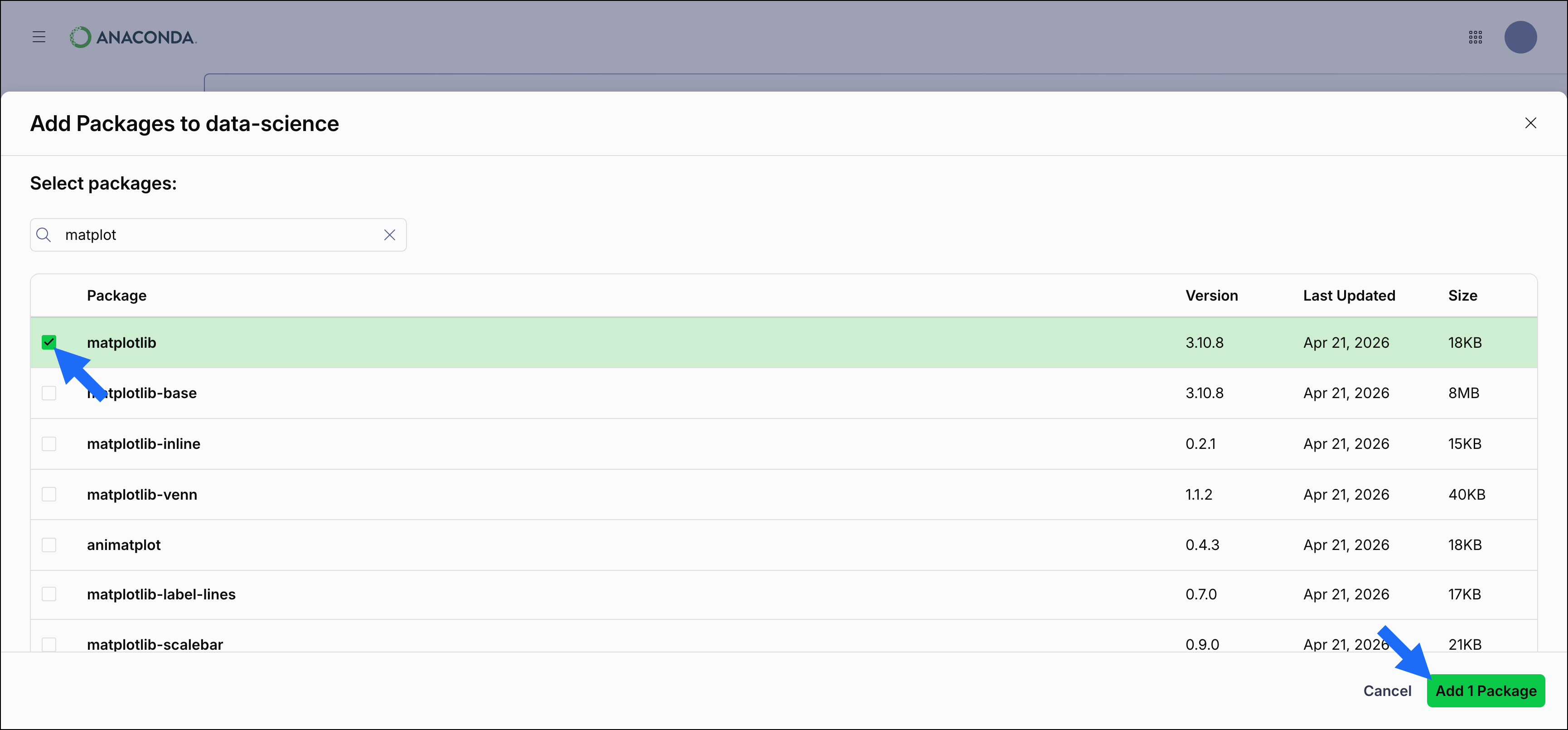 After clicking **Add Package**, a dialog appears that lists the package you want to install and all dependencies of that package that also need to be installed. Click **Apply Changes** to confirm the installation.
The package and its dependencies are installed in the environment.
## Updating a package
To update packages, select the checkbox beside the packages you want to update and click **Update** at the top of the package table.
You can also update a package by clicking **Actions** in the package row and selecting **Update**.
After clicking **Add Package**, a dialog appears that lists the package you want to install and all dependencies of that package that also need to be installed. Click **Apply Changes** to confirm the installation.
The package and its dependencies are installed in the environment.
## Updating a package
To update packages, select the checkbox beside the packages you want to update and click **Update** at the top of the package table.
You can also update a package by clicking **Actions** in the package row and selecting **Update**.
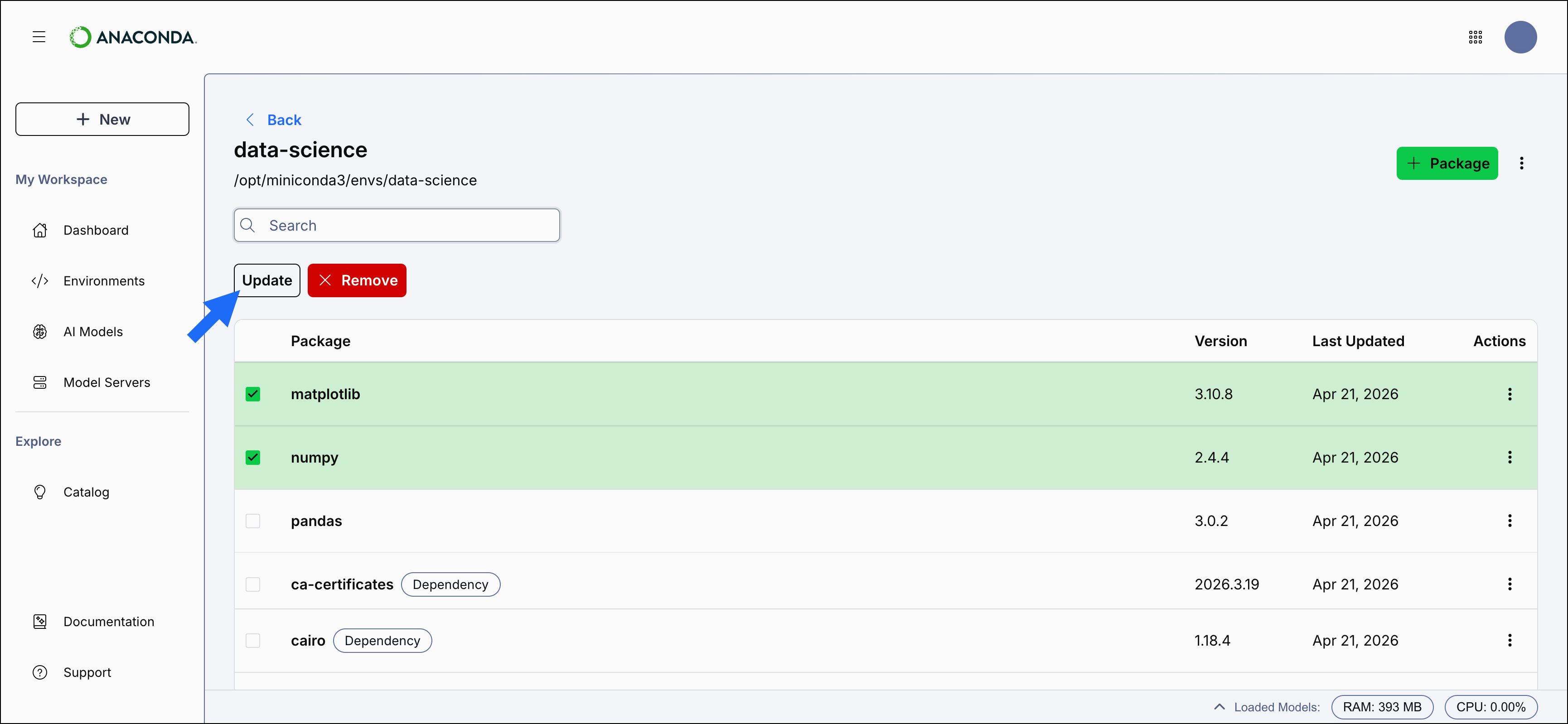 After clicking **Update**, a dialog appears that lists the packages you want to update and all dependencies of those packages that also need to be updated. Click **Apply Changes** to confirm the update.
The packages are updated to the latest compatible versions.
## Removing a package
To remove packages, select the checkbox beside the packages you want to remove and click **Remove** at the top of the package table.
You can also remove a package by clicking **Actions** in the package row and selecting **Remove**.
After clicking **Update**, a dialog appears that lists the packages you want to update and all dependencies of those packages that also need to be updated. Click **Apply Changes** to confirm the update.
The packages are updated to the latest compatible versions.
## Removing a package
To remove packages, select the checkbox beside the packages you want to remove and click **Remove** at the top of the package table.
You can also remove a package by clicking **Actions** in the package row and selecting **Remove**.
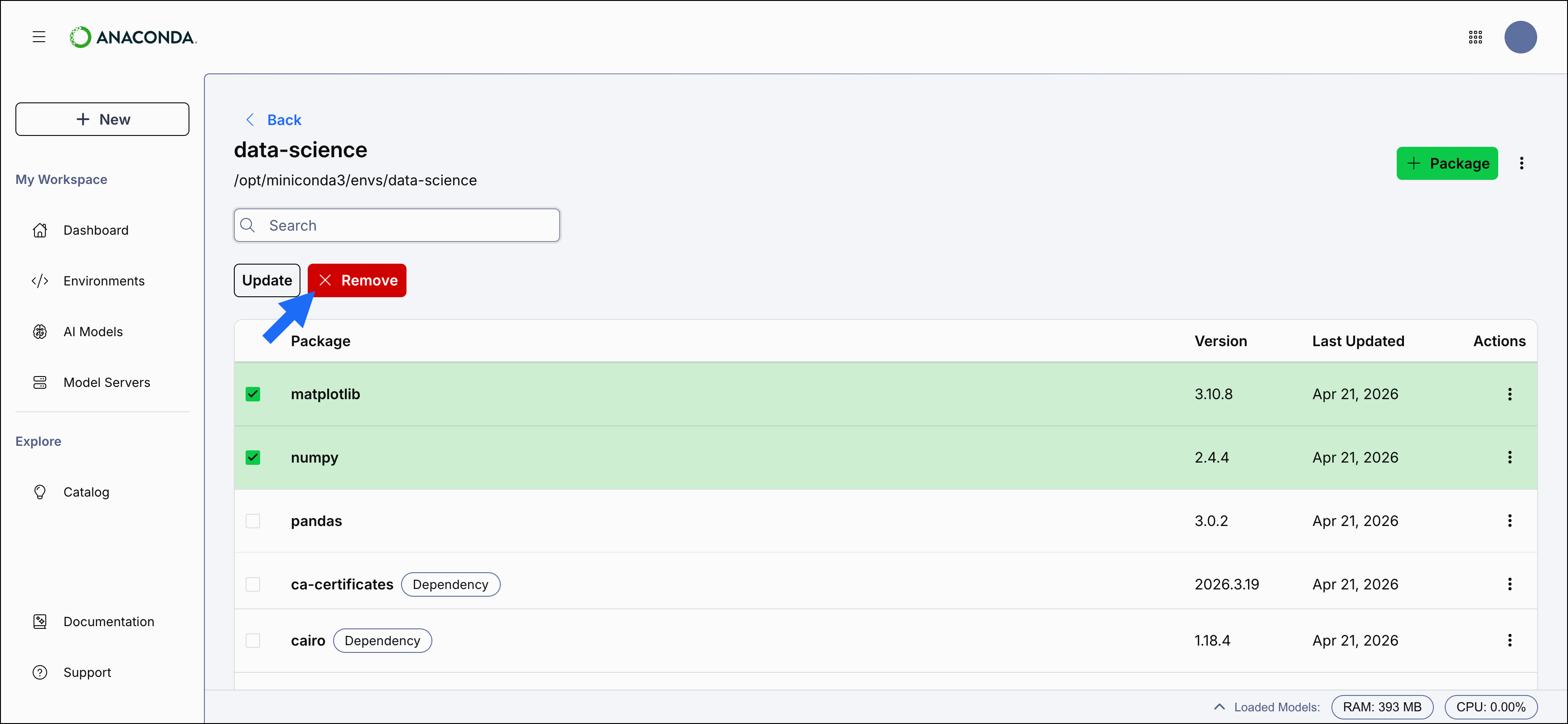 After clicking **Remove**, a dialog appears that lists the packages you want to remove and all dependencies of those packages that also need to be removed. Click **Apply Changes** to confirm the removal.
The packages are removed from the environment.
## Advanced package management
Desktop provides a convenient graphical interface for managing conda environments, channels, and packages. If you're comfortable working with [Anaconda Prompt](/docs/reference/glossary#anaconda-prompt) (Terminal on macOS/ Linux) at the command line, you can access additional, advanced management features with conda. To learn more, see [Package management](/docs/getting-started/working-with-conda/packages/install-packages) in the Working with conda section.
After clicking **Remove**, a dialog appears that lists the packages you want to remove and all dependencies of those packages that also need to be removed. Click **Apply Changes** to confirm the removal.
The packages are removed from the environment.
## Advanced package management
Desktop provides a convenient graphical interface for managing conda environments, channels, and packages. If you're comfortable working with [Anaconda Prompt](/docs/reference/glossary#anaconda-prompt) (Terminal on macOS/ Linux) at the command line, you can access additional, advanced management features with conda. To learn more, see [Package management](/docs/getting-started/working-with-conda/packages/install-packages) in the Working with conda section.