> ## Documentation Index
> Fetch the complete documentation index at: https://anaconda.com/docs/llms.txt
> Use this file to discover all available pages before exploring further.
# Model catalog
export const GCell = ({children, className}) =>
{children}
;
export const GTH = ({children, className}) =>
{children}
;
export const GRow = ({children}) => {children}
;
export const GBody = ({children}) => {children}
;
export const GHead = ({children}) => {children}
;
export const GTable = ({children, className, cols}) =>
{children}
;
export const DefinitionDescription = ({children}) => {children};
export const DefinitionTerm = ({children}) => {children};
export const DefinitionList = ({children}) => {children}
;
## Exploring models
Anaconda hosts a repository of open-source and partner models that you can explore and use to test and develop your applications, accessible from the **Models** tab in the **Catalog**.
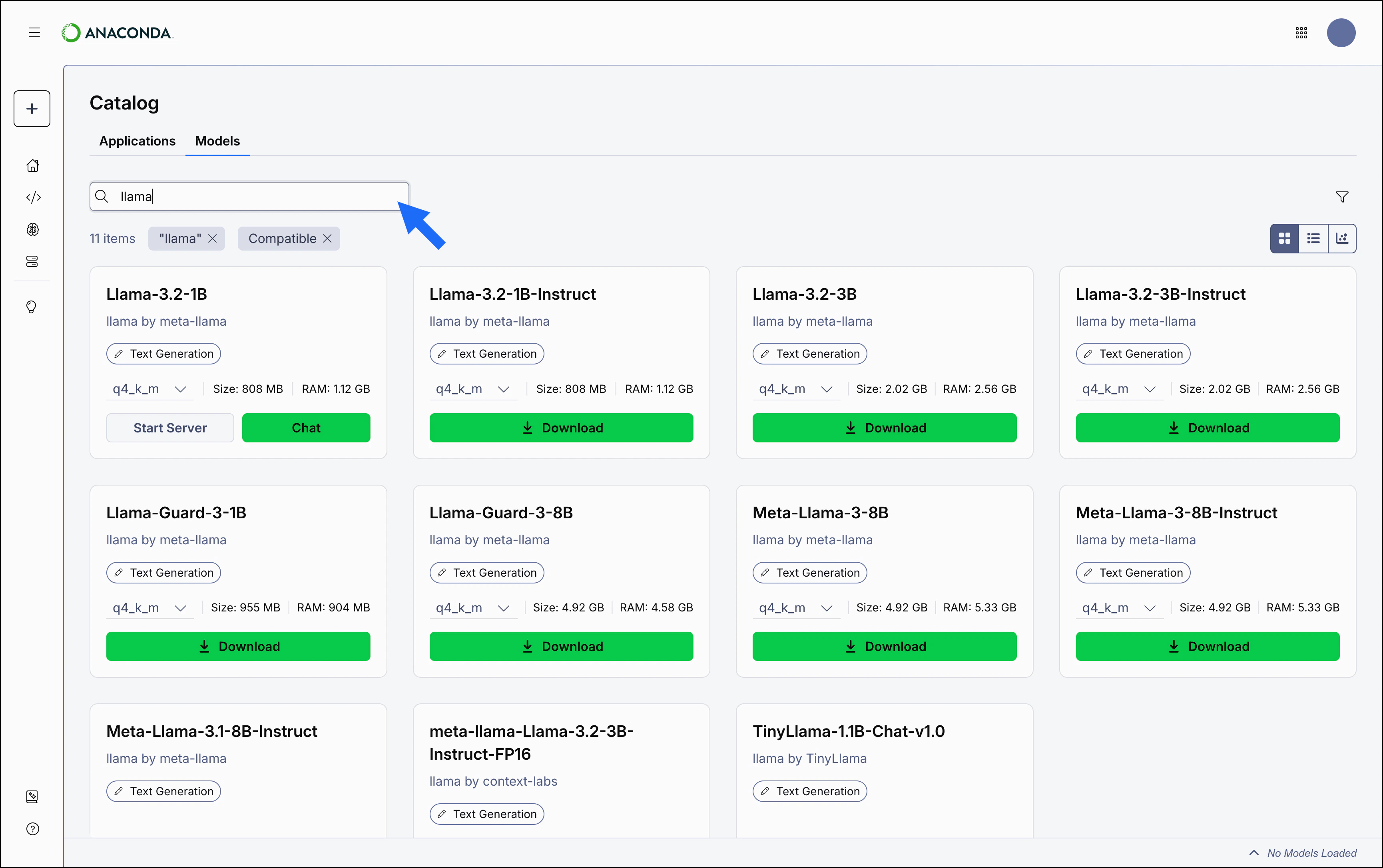
Use the search function to locate models by name.
 Models with a lock icon beside their name have been restricted from use by your administrator.
### Model catalog views
The model catalog can be displayed as a tile grid, a table, or as a comparative chart. Use the icons in the upper-right of the **Model Catalog** page to switch between views.
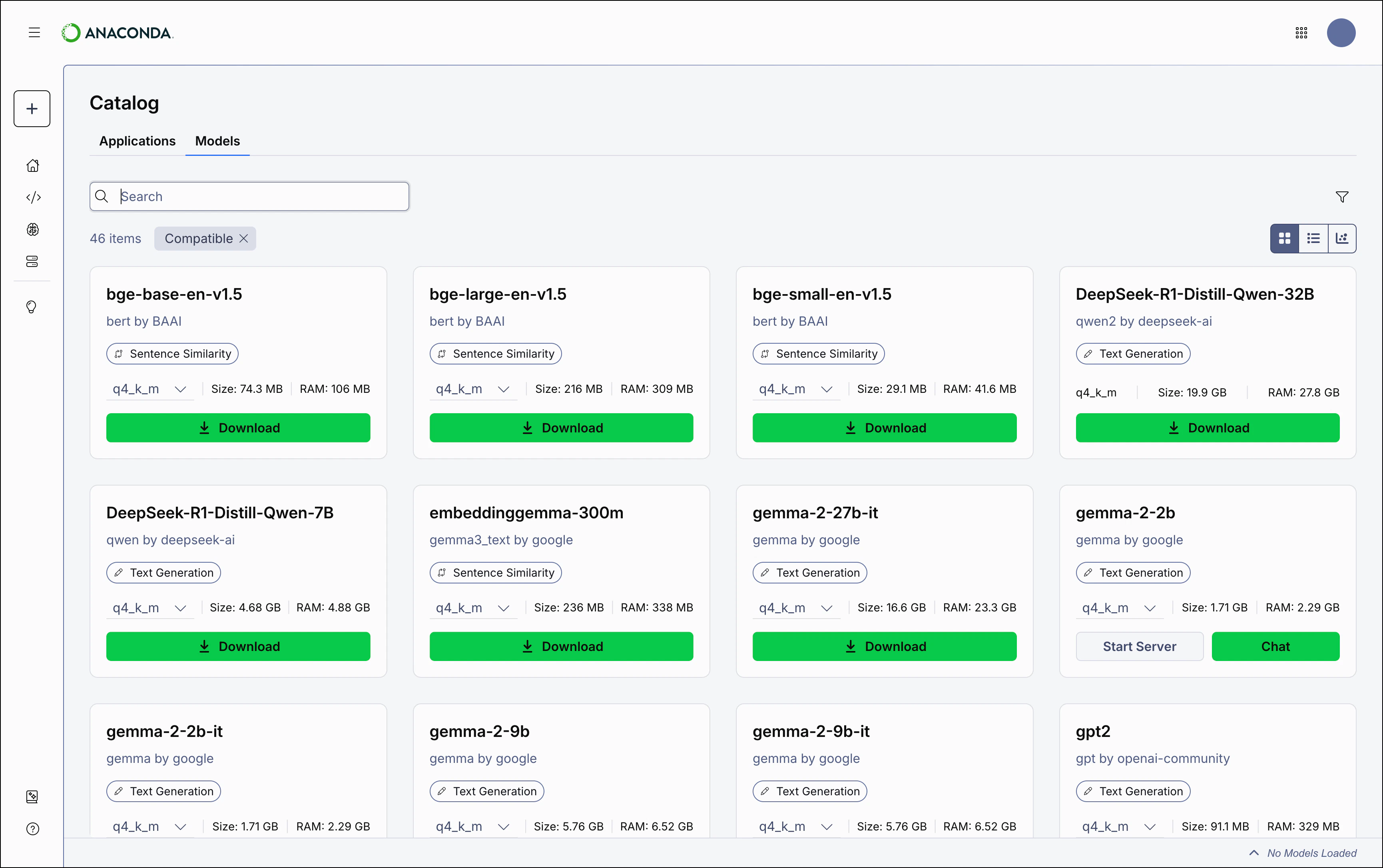
The **Tile** view displays a list of models in a grid, listed alphabetically. Each tile displays the model's name, publisher, model type, a quantization dropdown, and the model's resource requirements. Select any tile to view the [model's details](#viewing-model-details).
Models with a lock icon beside their name have been restricted from use by your administrator.
### Model catalog views
The model catalog can be displayed as a tile grid, a table, or as a comparative chart. Use the icons in the upper-right of the **Model Catalog** page to switch between views.
The **Tile** view displays a list of models in a grid, listed alphabetically. Each tile displays the model's name, publisher, model type, a quantization dropdown, and the model's resource requirements. Select any tile to view the [model's details](#viewing-model-details).
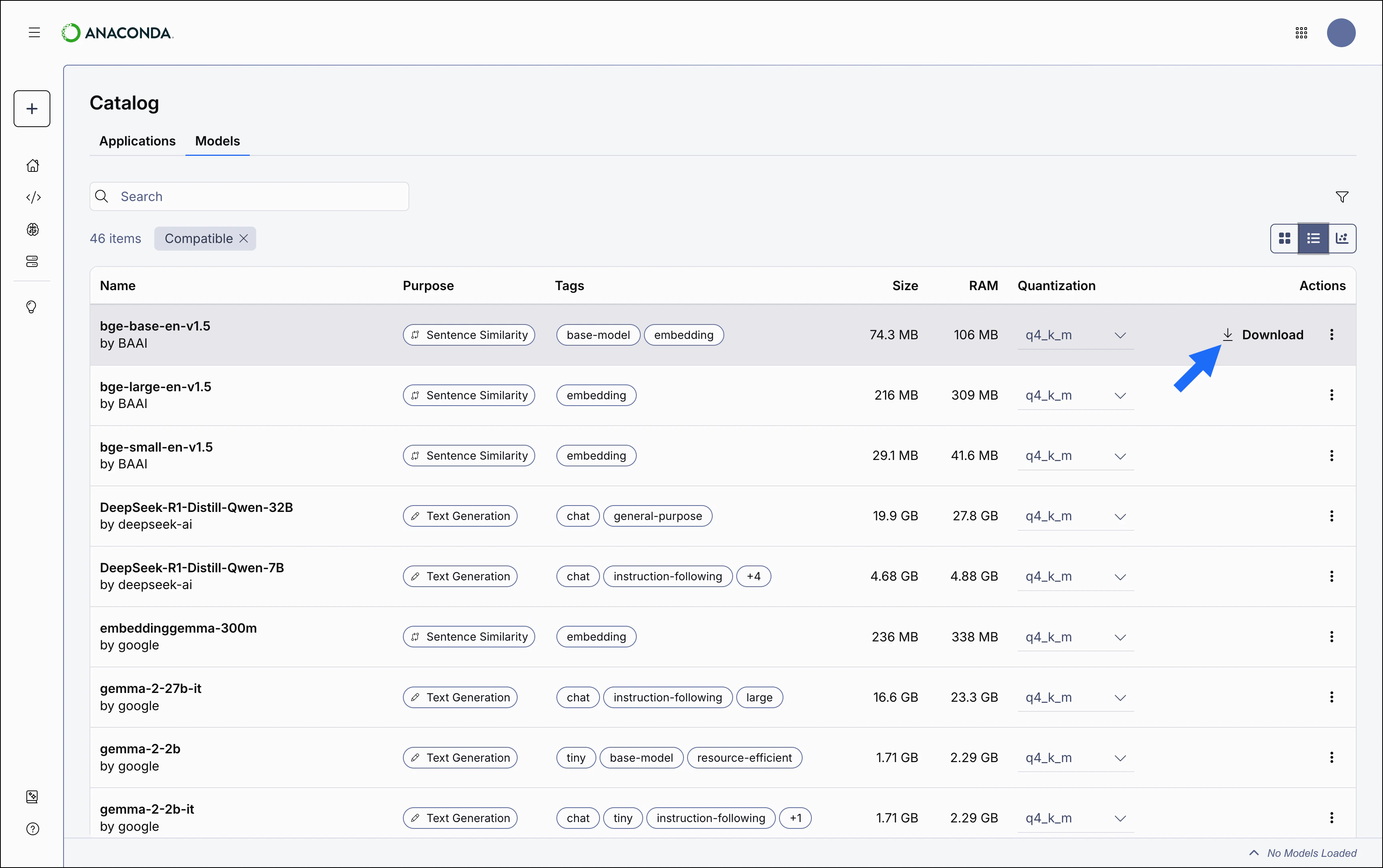
 The **Table** view displays models in a table format. Each row shows the model's name, type, and the disk space and RAM required to run the currently selected quantization. Select any row to view the [model's details](#viewing-model-details). Hover and click **Download** to download the model.
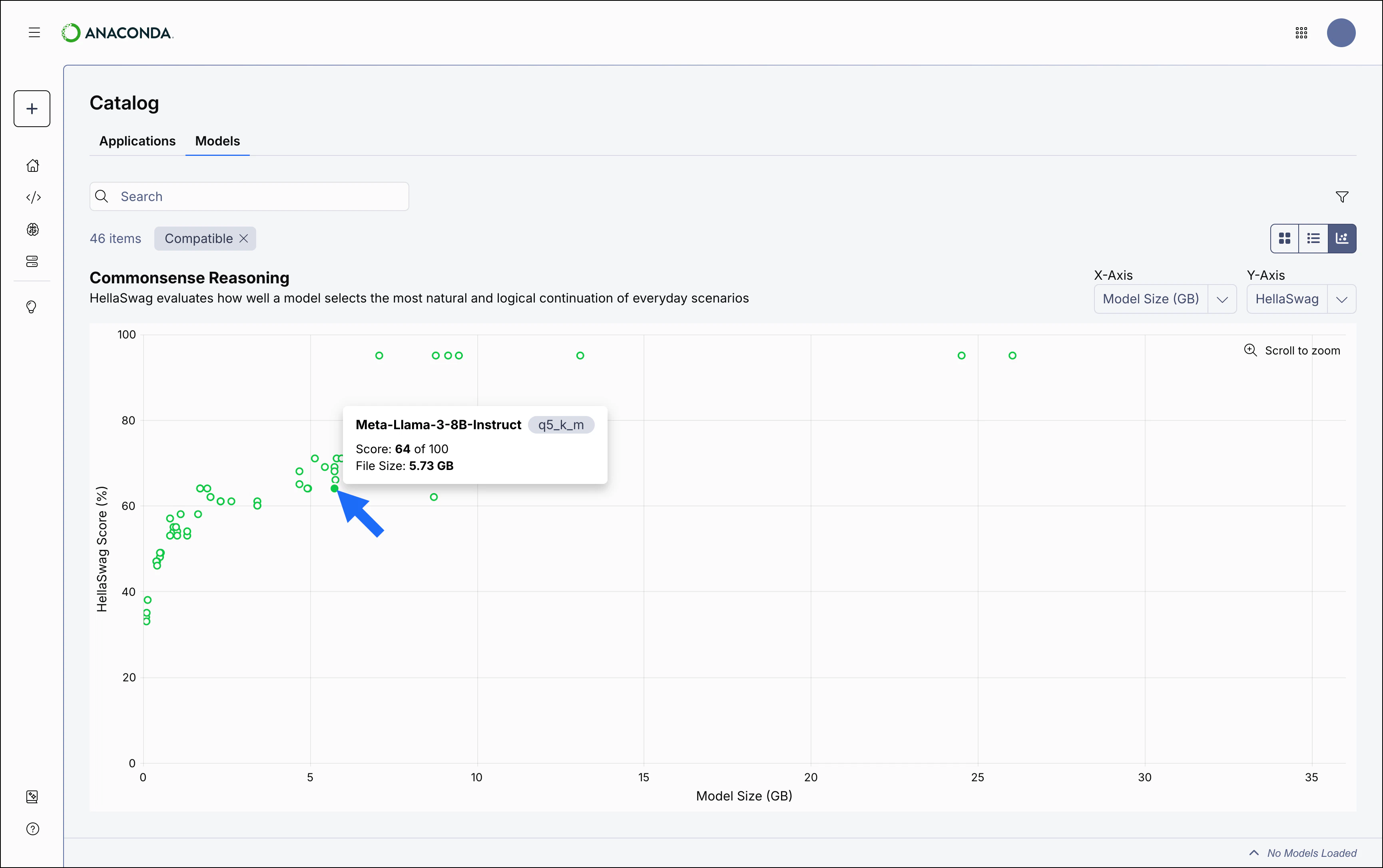
 Use the **Chart** view to visually compare a model's file size or memory requirements against its performance rating for multiple industry-standard evaluation benchmarks to identify the optimal balance between performance and resource requirements.
Each data point in the chart represents a specific quantization level of a model. Hover over a point to view a model's name, quantization level, evaluation score, and file size. Select any point to view the [model's details](#viewing-model-details).
Scroll to zoom in and out of the chart view to make it easier to hover over and select a specific model from a cluster of similarly ranked models. Drag to pan across the chart.
**Y-Axis** options:
Benchmark
Description
Dataset
Documentation
**HellaSwag**
Evaluates how well a model selects the most natural and logical continuation of everyday scenarios.
[View on Hugging Face](https://huggingface.co/datasets/Rowan/hellaswag)
[Research paper](https://arxiv.org/abs/1905.07830)
**WinoGrande**
Evaluates a model's ability to resolve ambiguity by tracking entities across complex linguistic contexts.
[View on Hugging Face](https://huggingface.co/datasets/allenai/winogrande)
[Project site](https://winogrande.allenai.org/)
**TruthfulQA**
Evaluates a model's factual accuracy when answering questions designed to elicit common misconceptions.
[View on Hugging Face](https://huggingface.co/datasets/domenicrosati/TruthfulQA)
[GitHub](https://github.com/sylinrl/TruthfulQA)
**X-Axis** options:
Metric
Description
**Max RAM (GB)**
The maximum amount of RAM the model requires.
**Model Size (GB)**
How much disk space the model requires.
Use the **Chart** view to visually compare a model's file size or memory requirements against its performance rating for multiple industry-standard evaluation benchmarks to identify the optimal balance between performance and resource requirements.
Each data point in the chart represents a specific quantization level of a model. Hover over a point to view a model's name, quantization level, evaluation score, and file size. Select any point to view the [model's details](#viewing-model-details).
Scroll to zoom in and out of the chart view to make it easier to hover over and select a specific model from a cluster of similarly ranked models. Drag to pan across the chart.
**Y-Axis** options:
Benchmark
Description
Dataset
Documentation
**HellaSwag**
Evaluates how well a model selects the most natural and logical continuation of everyday scenarios.
[View on Hugging Face](https://huggingface.co/datasets/Rowan/hellaswag)
[Research paper](https://arxiv.org/abs/1905.07830)
**WinoGrande**
Evaluates a model's ability to resolve ambiguity by tracking entities across complex linguistic contexts.
[View on Hugging Face](https://huggingface.co/datasets/allenai/winogrande)
[Project site](https://winogrande.allenai.org/)
**TruthfulQA**
Evaluates a model's factual accuracy when answering questions designed to elicit common misconceptions.
[View on Hugging Face](https://huggingface.co/datasets/domenicrosati/TruthfulQA)
[GitHub](https://github.com/sylinrl/TruthfulQA)
**X-Axis** options:
Metric
Description
**Max RAM (GB)**
The maximum amount of RAM the model requires.
**Model Size (GB)**
How much disk space the model requires.
 ### Model types and tags
A model's type reflects its training objective and architecture. Anaconda Desktop currently supports the following model types:
`Text Generation`
These models produce coherent, contextually relevant natural language based on user input. Common use cases include content creation, coding assistance, and conversational AI.
`Sentence Similarity`
These models encode text into a vector database (embedding) that captures semantic meaning, enabling efficient comparison and analysis of text based on contextual relationships. Common use cases include semantic search and recommendation systems.
`Image Text to Text`
These models accept both text and image inputs and produce text output. They can be used for tasks such as image captioning, visual question answering, and document understanding. When running as an API server, these models can process image inputs sent directly to the server.
Tags reflect what a model can do beyond its primary purpose. For example, a `Text Generation` model might also support code generation. Notable tags include:
* `Embedding`: The model can generate vector representations of text for use in semantic search, RAG pipelines, and similarity comparisons.
* `Tool Calling`: The model can invoke external tools or APIs to retrieve information or perform actions during inference.
* `Code Generation`: The model can produce, complete, or transform source code across one or more programming languages.
* `Guardrail`: The model is designed to evaluate or filter content, typically used to enforce safety or policy constraints in AI pipelines.
* `Base Model`: The model has not been fine-tuned for a specific task and is intended as a foundation for further training or customization.
* `Instruction Following`: The model has been trained to respond reliably to structured instructions or prompts.
## Understanding quantizations
From the model catalog, you can select which quantization to use for a model. Each quantization is a separate, pre-built version of a model stored as a GGUF (`.gguf`) file. Quantization reduces the precision of a model's weights, converting them from high-precision floating point values to lower bit depths like 8-bit or 4-bit integers. This shrinks file size and RAM requirements at the cost of some output quality.
### Reading quantization names
Anaconda models use a naming convention that encodes the bit depth and quantization method. For example, `q4_k_m` means a 4-bit quantization using the medium-variant K-quant method.
Part
Meaning
Example
`q` + number
Bits per weight. Lower numbers mean smaller files and lower RAM usage, but reduced accuracy.
`q4` = 4 bits,
### Model types and tags
A model's type reflects its training objective and architecture. Anaconda Desktop currently supports the following model types:
`Text Generation`
These models produce coherent, contextually relevant natural language based on user input. Common use cases include content creation, coding assistance, and conversational AI.
`Sentence Similarity`
These models encode text into a vector database (embedding) that captures semantic meaning, enabling efficient comparison and analysis of text based on contextual relationships. Common use cases include semantic search and recommendation systems.
`Image Text to Text`
These models accept both text and image inputs and produce text output. They can be used for tasks such as image captioning, visual question answering, and document understanding. When running as an API server, these models can process image inputs sent directly to the server.
Tags reflect what a model can do beyond its primary purpose. For example, a `Text Generation` model might also support code generation. Notable tags include:
* `Embedding`: The model can generate vector representations of text for use in semantic search, RAG pipelines, and similarity comparisons.
* `Tool Calling`: The model can invoke external tools or APIs to retrieve information or perform actions during inference.
* `Code Generation`: The model can produce, complete, or transform source code across one or more programming languages.
* `Guardrail`: The model is designed to evaluate or filter content, typically used to enforce safety or policy constraints in AI pipelines.
* `Base Model`: The model has not been fine-tuned for a specific task and is intended as a foundation for further training or customization.
* `Instruction Following`: The model has been trained to respond reliably to structured instructions or prompts.
## Understanding quantizations
From the model catalog, you can select which quantization to use for a model. Each quantization is a separate, pre-built version of a model stored as a GGUF (`.gguf`) file. Quantization reduces the precision of a model's weights, converting them from high-precision floating point values to lower bit depths like 8-bit or 4-bit integers. This shrinks file size and RAM requirements at the cost of some output quality.
### Reading quantization names
Anaconda models use a naming convention that encodes the bit depth and quantization method. For example, `q4_k_m` means a 4-bit quantization using the medium-variant K-quant method.
Part
Meaning
Example
`q` + number
Bits per weight. Lower numbers mean smaller files and lower RAM usage, but reduced accuracy.
`q4` = 4 bits,
`q8` = 8 bits
`_k`
K-quant method. Allocates bits more intelligently across model layers to improve quality at a given size compared to the legacy method.
`q4_k`
`_s`, `_m`, `_l`
Size variant within a K-quant level: small, medium, or large. Larger variants use slightly more memory but produce better output quality.
`q4_k_m`
`_0`
Legacy quantization scheme. Generally less efficient than K-quant variants at the same bit depth.
`q8_0`
`f16`
16-bit floating point with no quantization applied. Highest accuracy, but largest file size and RAM requirements.
`f16`
### Choosing a quantization
Select a quantization based on your hardware and accuracy needs:
* **Lower bit depth (`q2`–`q4`)**: Smaller files, lower RAM usage, and faster inference, but noticeably reduced output quality. Best suited for resource-constrained hardware.
* **Mid-range (`q5`–`q6`)**: A practical balance between size and quality that works well on most hardware.
* **Higher bit depth (`q8`, `f16`)**: Near full-precision output quality, but requires significantly more RAM and disk space.
Lower quantization levels are well-suited for development and testing due to their lower memory requirements. Higher quantization levels preserve more model fidelity and are better suited for production use.
## Filtering models
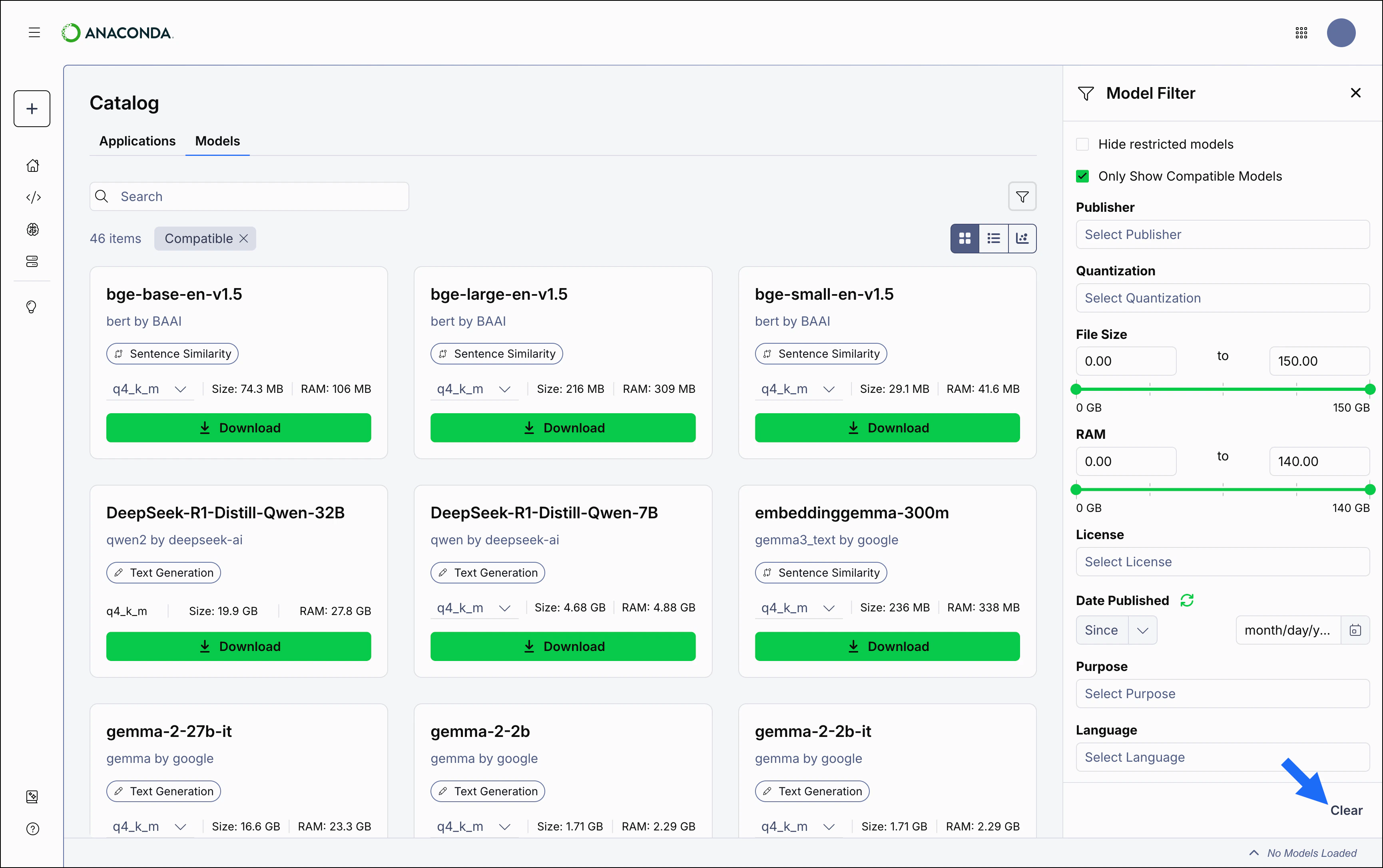
Apply filters to help you find the models that you want to use.
Filters apply to all model views.
To apply a filter:
1. From the **Model Catalog** page, click **Filter**.
2. Add or adjust a filter to narrow down the list of models.
3. Repeat as necessary to list only the models you want.
### Model filters
* **Hide restricted models**: Filters out models that have been restricted from use by your administrator.
* **Only Show Compatible Models**: Filters out models that require more memory than your system's RAM+VRAM can provide. Enabled by default.
* **Publisher**: Filter models by the organization that built them.
* **Quantization**: Filter models by the quantization method used to build them.
* **File Size**: Adjust the slider to filter models by the amount of disk space they require.
* **RAM**: Adjust the slider to filter models by the amount of RAM they require.
* **License**: Filter models based on their usage, modification, and distribution terms.
* **Date Published**: Filter models based on the date they were published to Desktop. Click **Refresh** to reset the currently applied date filter.
* **Purpose**: Filter models based on their associated [model type](#model-types-and-tags).
* **Language**: Filter models by which spoken languages they can understand.
Click the icon beside any filter to remove it, or click **Clear** in the **All Filters** panel to clear all filters at once.
***
Range filters (**File Size** and **RAM**) can be reset by dragging the slider to fill the entire range.
 ## Viewing model details
Select a model to view its details. From here, you can read a brief description of the model and see important information about it, such as its file size at each quantization level, parameter count, the quality you can expect from the model's output, how much resource usage can be expected by the model, and its intended purpose (for use in either development or production).
## Viewing model details
Select a model to view its details. From here, you can read a brief description of the model and see important information about it, such as its file size at each quantization level, parameter count, the quality you can expect from the model's output, how much resource usage can be expected by the model, and its intended purpose (for use in either development or production).
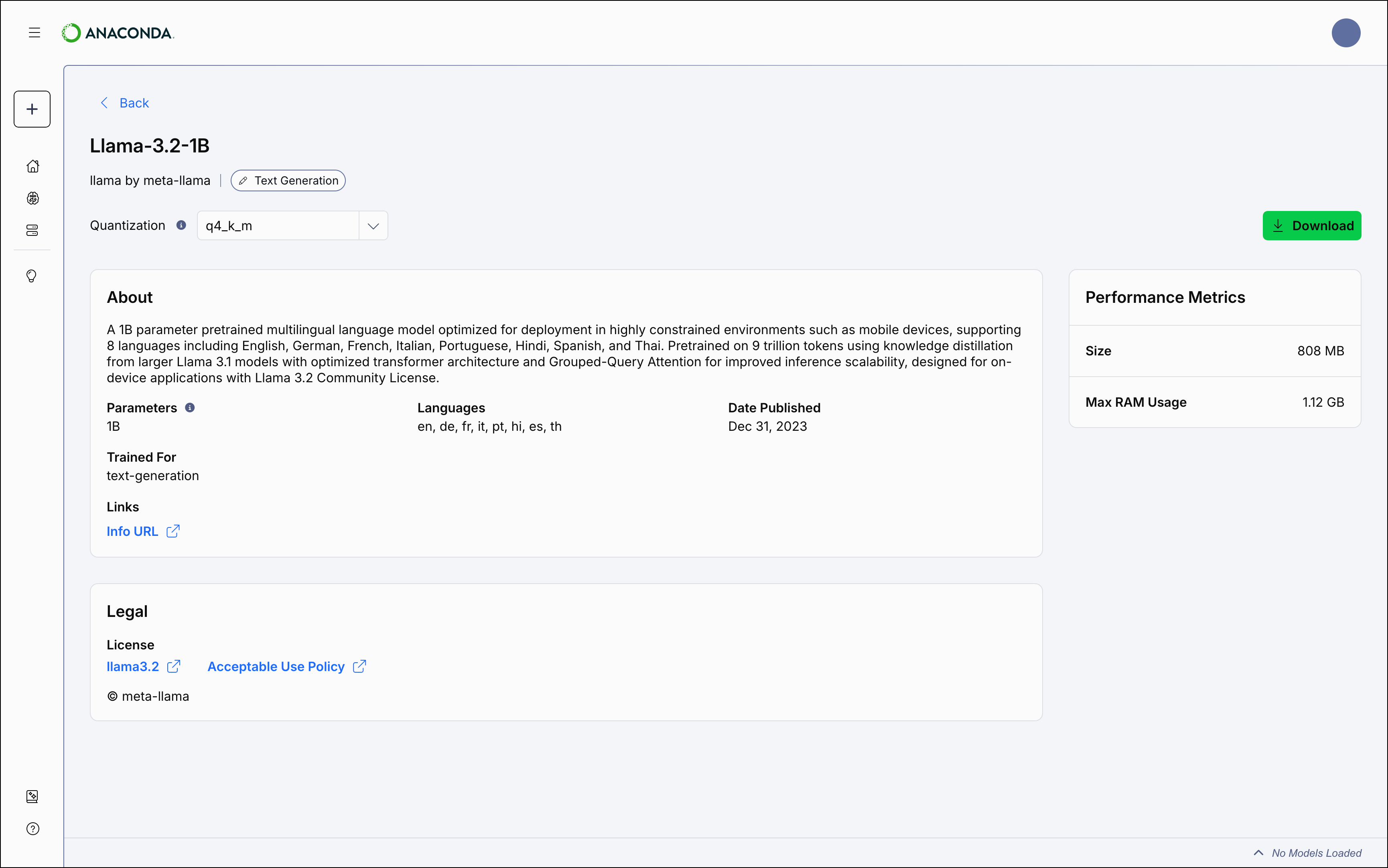 Hover over a tooltip to view detailed information about the various aspects of a model.
***
Click **Info URL** to visit the Huggingface webpage of the organization that built the model.
## Downloading models
Anaconda provides a variety of LLM models for you to work with, constructed at various levels of quantization.
To download a model:
1. Select **Model Catalog** from the left-hand navigation.
2. Locate a model you want to download.
3. Open the **Quantization Method** dropdown and select a file quantization level, then click **Download** to download the model locally.
Hover over a tooltip to view detailed information about the various aspects of a model.
***
Click **Info URL** to visit the Huggingface webpage of the organization that built the model.
## Downloading models
Anaconda provides a variety of LLM models for you to work with, constructed at various levels of quantization.
To download a model:
1. Select **Model Catalog** from the left-hand navigation.
2. Locate a model you want to download.
3. Open the **Quantization Method** dropdown and select a file quantization level, then click **Download** to download the model locally.
 Models that show a **[Start Server](/docs/anaconda-desktop/servers)** or **[Chat](/docs/anaconda-desktop/chat)** button on their tile indicate that you have downloaded that quantization level.
By default, models are downloaded to the `models` folder in the Anaconda Desktop directory. To change the download location:
1. Select the user dropdown menu in the upper-right corner.
2. Select *Settings*.
3. Navigate to the **Models** section, then click **Change Location**.
4. Use the file explorer to select where you'd like to download your models.
## Managing downloads
Manage your downloads using the **pause**, **play**, or **cancel** buttons beside the progress bar at the bottom of the model's tile.
You can also manage your downloads from the **AI Models** page.
***
Downloads automatically pause if you exit the application for any reason.
## Deleting models
To delete models that you have downloaded, navigate to the **AI Models** page, click **Actions** beside the model, then select **Delete**.
Models cannot be deleted while they're loaded into the API server. On the **Model Servers** page, click **Stop Server** to unload a model.
Models that show a **[Start Server](/docs/anaconda-desktop/servers)** or **[Chat](/docs/anaconda-desktop/chat)** button on their tile indicate that you have downloaded that quantization level.
By default, models are downloaded to the `models` folder in the Anaconda Desktop directory. To change the download location:
1. Select the user dropdown menu in the upper-right corner.
2. Select *Settings*.
3. Navigate to the **Models** section, then click **Change Location**.
4. Use the file explorer to select where you'd like to download your models.
## Managing downloads
Manage your downloads using the **pause**, **play**, or **cancel** buttons beside the progress bar at the bottom of the model's tile.
You can also manage your downloads from the **AI Models** page.
***
Downloads automatically pause if you exit the application for any reason.
## Deleting models
To delete models that you have downloaded, navigate to the **AI Models** page, click **Actions** beside the model, then select **Delete**.
Models cannot be deleted while they're loaded into the API server. On the **Model Servers** page, click **Stop Server** to unload a model.