> ## Documentation Index
> Fetch the complete documentation index at: https://anaconda.com/docs/llms.txt
> Use this file to discover all available pages before exploring further.
# Channels
export const Beginner = ({children}) => {
return ;
};
export const TroubleshootSolution = ({children}) => <>
Solution
{children}
;
export const TroubleshootCause = ({children}) =>
Cause
{children}
;
export const TroubleshootTitle = ({children}) => <>
{children}
;
export const Troubleshoot = ({children}) => ;
Anaconda Desktop lets you view and prioritize channels to manage your package installations.
Most channels on Anaconda.org are completely free to use. However, Anaconda does provide mirrors of three [default channels](/docs/getting-started/working-with-conda/channels#configuring-defaults) that are subject to Anaconda's [Terms of Service](https://anaconda.com/legal): main, msys2 (Windows only), and r (deprecated).
Channels are locations where `conda` looks for packages to install in your environment. When you install a package, `conda` searches your configured channels to find and install the package and its dependencies. Most channels, including Anaconda's default channels and community channels like conda-forge, are hosted on [Anaconda.org](https://anaconda.org/). Desktop's channel management lets you control which of these channels your environments use. To learn more about channels, see [What is a channel?](/docs/getting-started/concepts/what-is-a-channel)
## Viewing channels
You can access channel management from multiple locations:
Although you can access channel management from multiple locations, any changes you make apply to all environments, not just the one you're currently working in.
On the **Environments** page, click **Channels**:
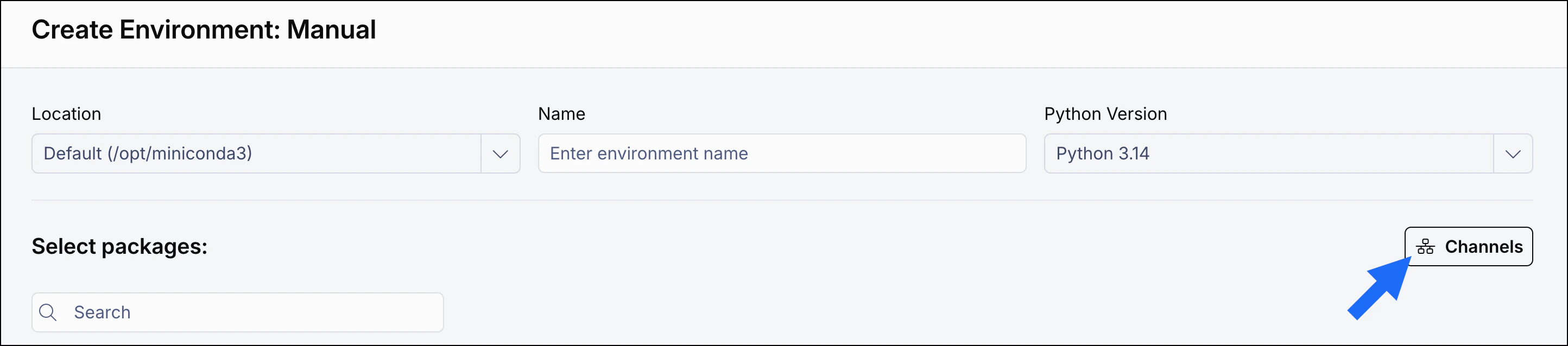
 On the **Create Environment: Manual** page, click **Channels**:
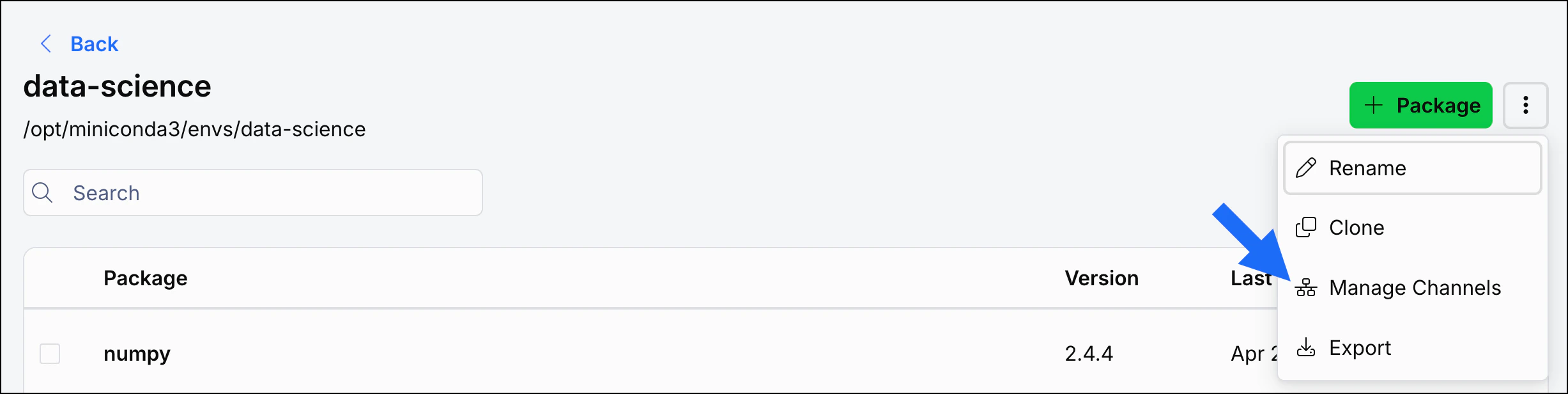
 On an environment's details page, click **Actions**, then select **Manage Channels**:
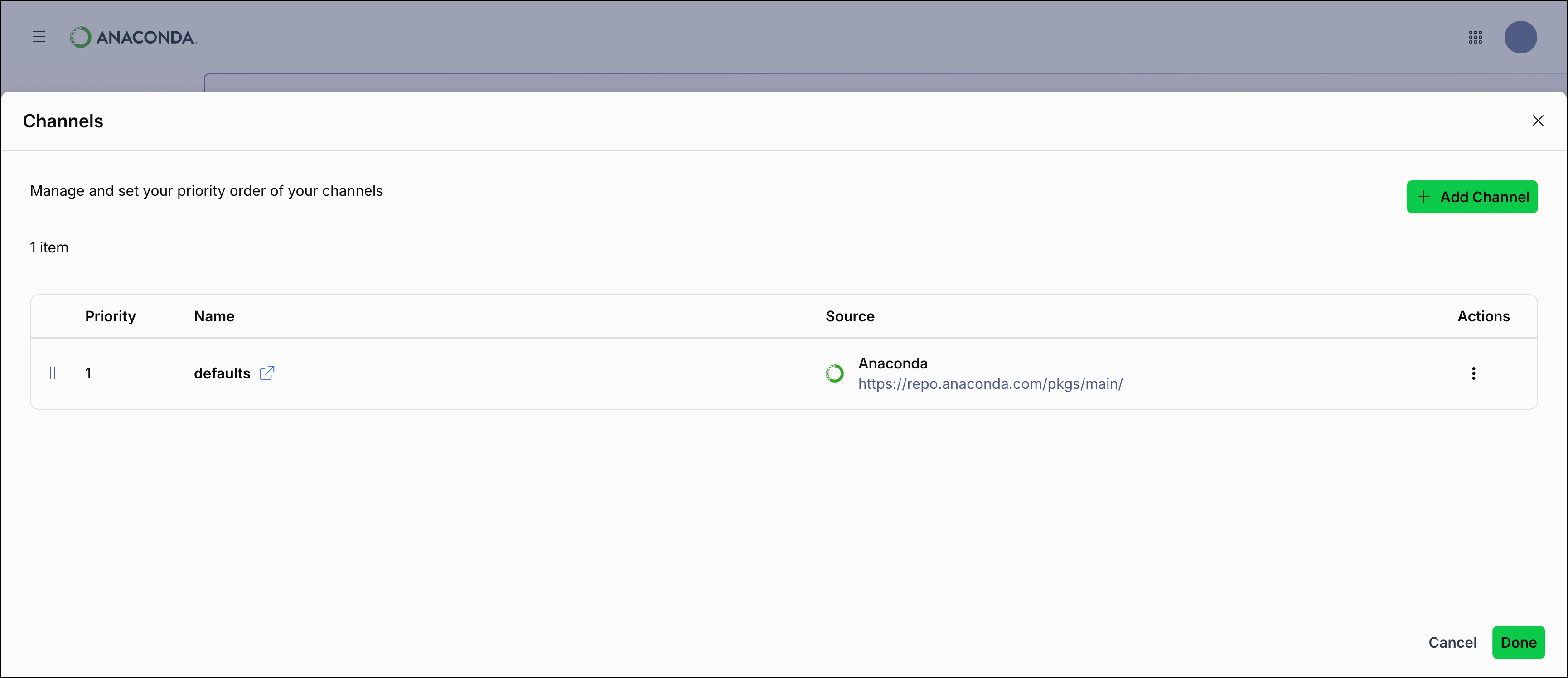
 Clicking **Channels** will open the **Channels** page, which displays a list of your channels.
 ## Adding a channel
From the **Channels** page, click **Add Channel** to add a new channel to the bottom of your channels list.
When managing channels in Desktop, you can refer to a channel either by its full URL or by its name. For example, let's say you want to look for packages on the "conda-forge" channel of Anaconda.org. Either of these channel variations will look for packages in the same place:
* **By name**: `conda-forge`
* **By URL**: `https://conda.anaconda.org/conda-forge`
If you belong to an organization in Anaconda Platform, you must supply your access token inside the channel URL to authenticate yourself and prove you are allowed to access the channels: `https://repo.anaconda.cloud/t//repo//`. For more information, see [Authenticating to Anaconda](/docs/anaconda-platform/getting-started-with-anaconda-platform#issuing-and-setting-your-token) in the Anaconda Platform guide.
## Setting channel priority
[Channel priority](/docs/getting-started/concepts/what-is-a-channel#channel-priority) can be established by adjusting the order of the channels listed in the table.
You can establish channel priority in multiple ways:
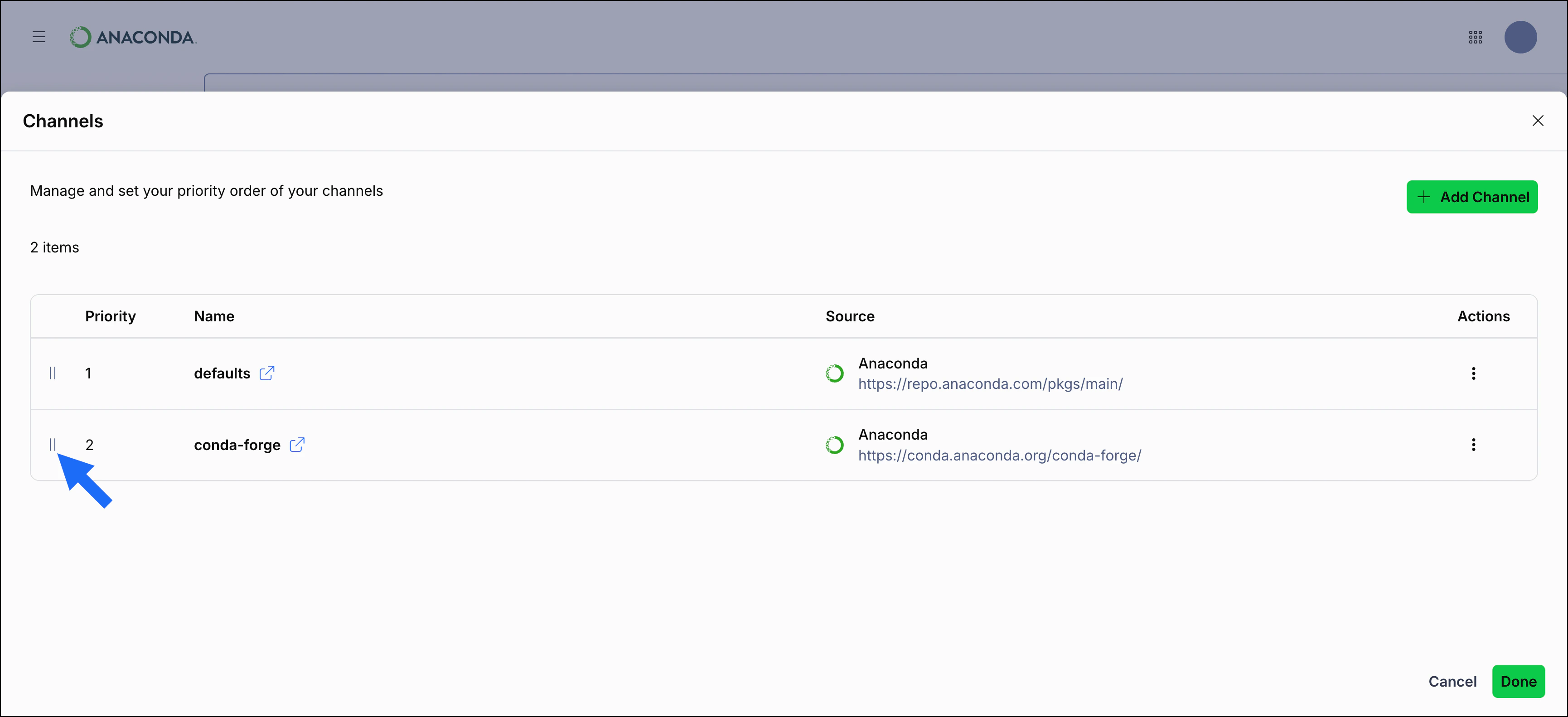
Select beside a channel to drag it to a new position.
## Adding a channel
From the **Channels** page, click **Add Channel** to add a new channel to the bottom of your channels list.
When managing channels in Desktop, you can refer to a channel either by its full URL or by its name. For example, let's say you want to look for packages on the "conda-forge" channel of Anaconda.org. Either of these channel variations will look for packages in the same place:
* **By name**: `conda-forge`
* **By URL**: `https://conda.anaconda.org/conda-forge`
If you belong to an organization in Anaconda Platform, you must supply your access token inside the channel URL to authenticate yourself and prove you are allowed to access the channels: `https://repo.anaconda.cloud/t//repo//`. For more information, see [Authenticating to Anaconda](/docs/anaconda-platform/getting-started-with-anaconda-platform#issuing-and-setting-your-token) in the Anaconda Platform guide.
## Setting channel priority
[Channel priority](/docs/getting-started/concepts/what-is-a-channel#channel-priority) can be established by adjusting the order of the channels listed in the table.
You can establish channel priority in multiple ways:
Select beside a channel to drag it to a new position.
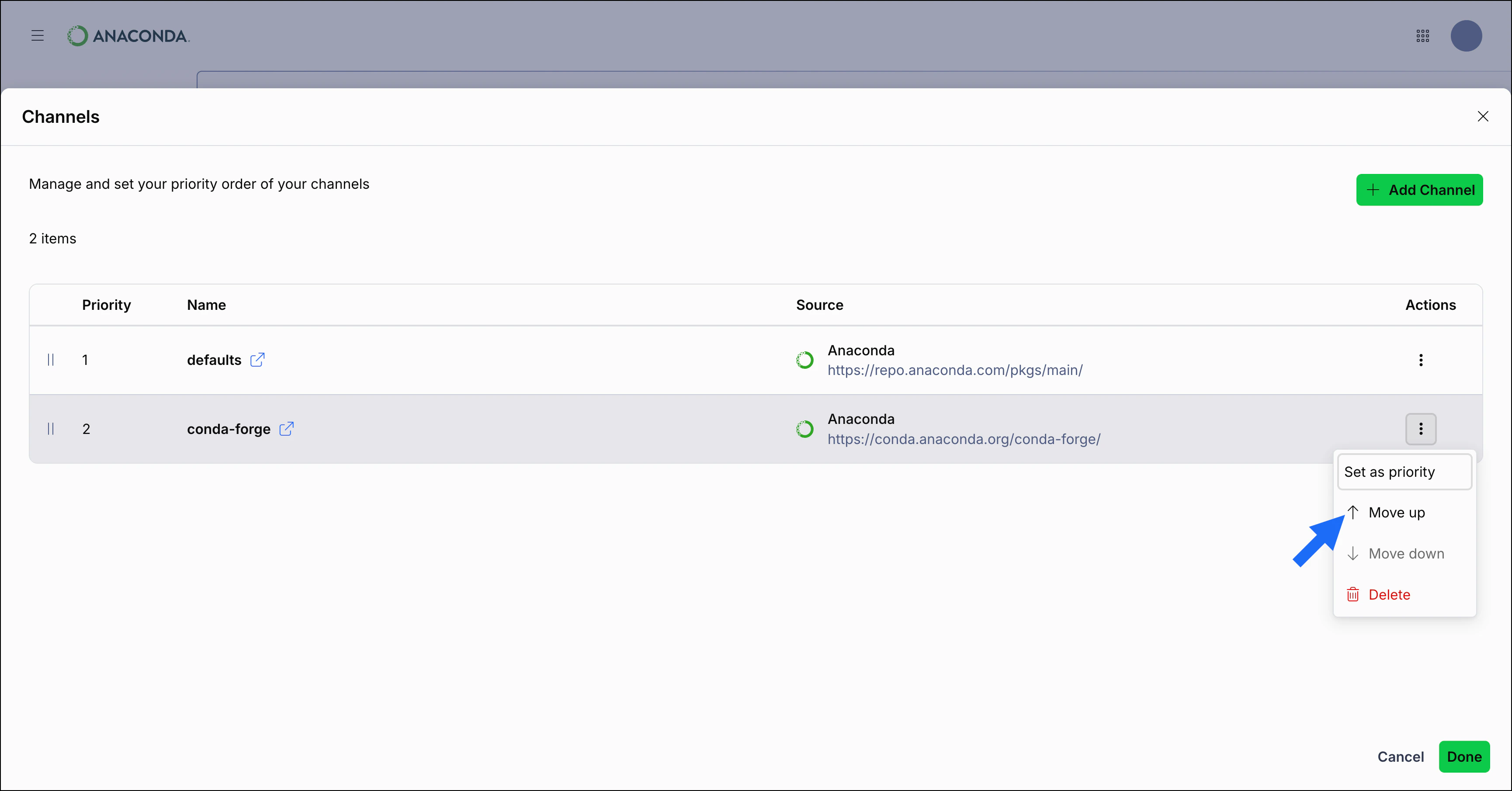
 Click **Actions** on a channel row, then select **Move up** or **Move down** to adjust the channel priority.
Selecting **Set as priority** moves the channel to the top of the list.
Click **Actions** on a channel row, then select **Move up** or **Move down** to adjust the channel priority.
Selecting **Set as priority** moves the channel to the top of the list.
 ## Deleting a channel
To delete a channel, click **Actions** on a channel row, then select **Delete**.
## Deleting a channel
To delete a channel, click **Actions** on a channel row, then select **Delete**.
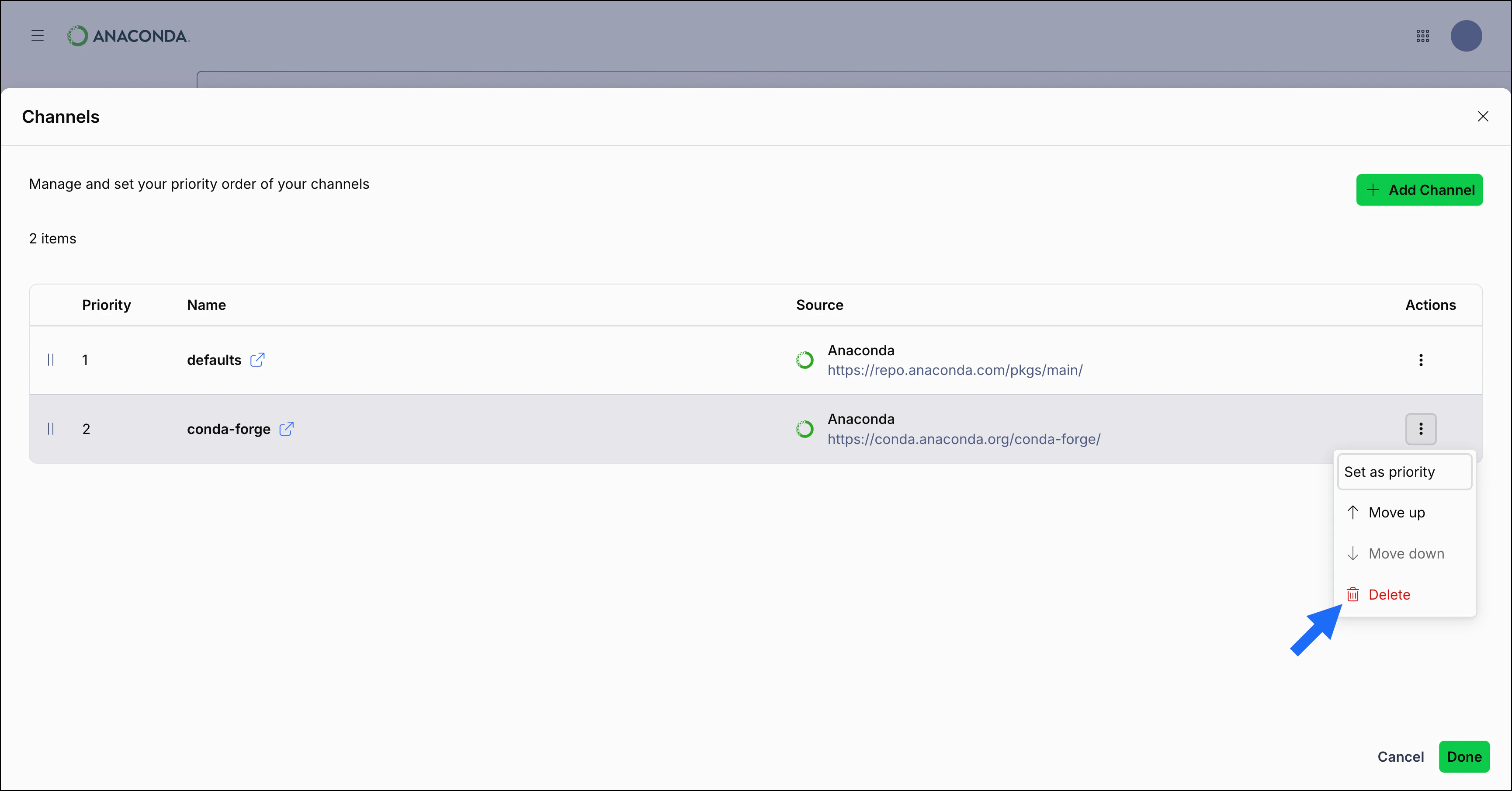 Click **Delete** again to confirm you want to delete the channel.
## Additional resources
* For guidance on browsing the channels and packages hosted on Anaconda.org, see [Searching for packages](/docs/anaconda-org/searching-packages).
* For an introduction to channels, see [What is a channel?](/docs/getting-started/concepts/what-is-a-channel)
* For detailed instructions on viewing, configuring, and managing channels, see [Channels](/docs/getting-started/working-with-conda/channels).
* For more information about how channels are structured and how conda uses them, see the [official conda channels documentation](https://docs.conda.io/projects/conda/en/stable/user-guide/concepts/channels.html).
* For more information on editing your `.condarc` file, see [Using the .condarc conda configuration file](https://docs.conda.io/projects/conda/en/stable/user-guide/configuration/use-condarc.html) and [Settings](https://docs.conda.io/projects/conda/en/stable/user-guide/configuration/settings.html) in the conda documentation.
Click **Delete** again to confirm you want to delete the channel.
## Additional resources
* For guidance on browsing the channels and packages hosted on Anaconda.org, see [Searching for packages](/docs/anaconda-org/searching-packages).
* For an introduction to channels, see [What is a channel?](/docs/getting-started/concepts/what-is-a-channel)
* For detailed instructions on viewing, configuring, and managing channels, see [Channels](/docs/getting-started/working-with-conda/channels).
* For more information about how channels are structured and how conda uses them, see the [official conda channels documentation](https://docs.conda.io/projects/conda/en/stable/user-guide/concepts/channels.html).
* For more information on editing your `.condarc` file, see [Using the .condarc conda configuration file](https://docs.conda.io/projects/conda/en/stable/user-guide/configuration/use-condarc.html) and [Settings](https://docs.conda.io/projects/conda/en/stable/user-guide/configuration/settings.html) in the conda documentation.