> ## Documentation Index
> Fetch the complete documentation index at: https://anaconda.com/docs/llms.txt
> Use this file to discover all available pages before exploring further.
# Application catalog
export const GCell = ({children, className}) =>
{children}
;
export const GTH = ({children, className}) =>
{children}
;
export const GRow = ({children}) => {children}
;
export const GBody = ({children}) => {children}
;
export const GHead = ({children}) => {children}
;
export const GTable = ({children, className, cols}) =>
{children}
;
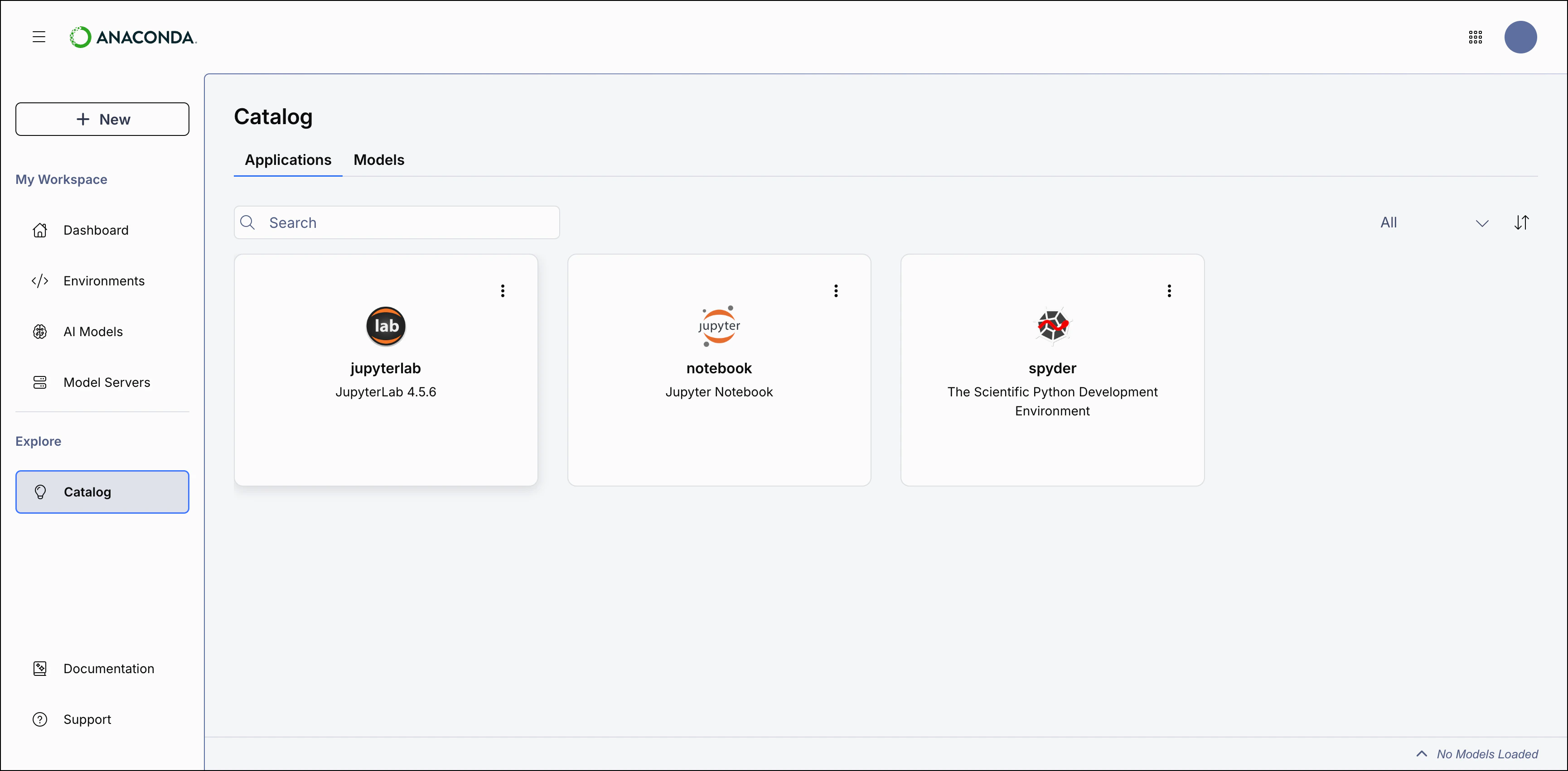
The Application Catalog is a collection of applications that can be installed into your [environments](/docs/anaconda-desktop/environments) and launched from Anaconda Desktop.
To view the Application Catalog, select **Catalog** in the left-hand navigation, then click the **Applications** tab:
 ## Available applications
The following applications are available in Anaconda Desktop:
Application
Description
[**JupyterLab**](https://jupyterlab.readthedocs.io/en/stable/)
Modern web-based interface for Jupyter notebooks with advanced features like file browser, terminal, and extensible architecture.
[**Jupyter Notebook**](https://jupyter.readthedocs.org/en/latest/)
Classic notebook interface for interactive computing with support for Python, R, and other programming languages.
[**Spyder**](https://www.spyder-ide.org/)
Scientific Python Integrated Development Environment (IDE) with advanced editing, debugging, and profiling capabilities.
[**VS Code**](https://code.visualstudio.com/)
Lightweight but powerful source code editor. Desktop detects whether VS Code is installed on your system and makes it available to launch.
[**PyCharm**](https://www.jetbrains.com/pycharm/)
Python IDE from JetBrains with intelligent code assistance and debugging tools. Desktop detects whether PyCharm is installed on your system and makes it available to launch.
## Application-environment relationship
You must install applications into [environments](/docs/anaconda-desktop/environments) before you can launch them from Desktop. Separating applications into environments lets you run different versions of the same application for different projects, or configure applications differently depending on your needs.
Applications in Anaconda Desktop are conda packages, which means you can also [install them as packages](/docs/anaconda-desktop/packages#installing-a-package) into an existing environment.
When you install an application for the first time from the Application Catalog or Dashboard, Anaconda Desktop automatically creates a new environment containing that application and all its dependencies. If the application is already installed in other environments, you can choose which environment to launch it from.
## Viewing applications
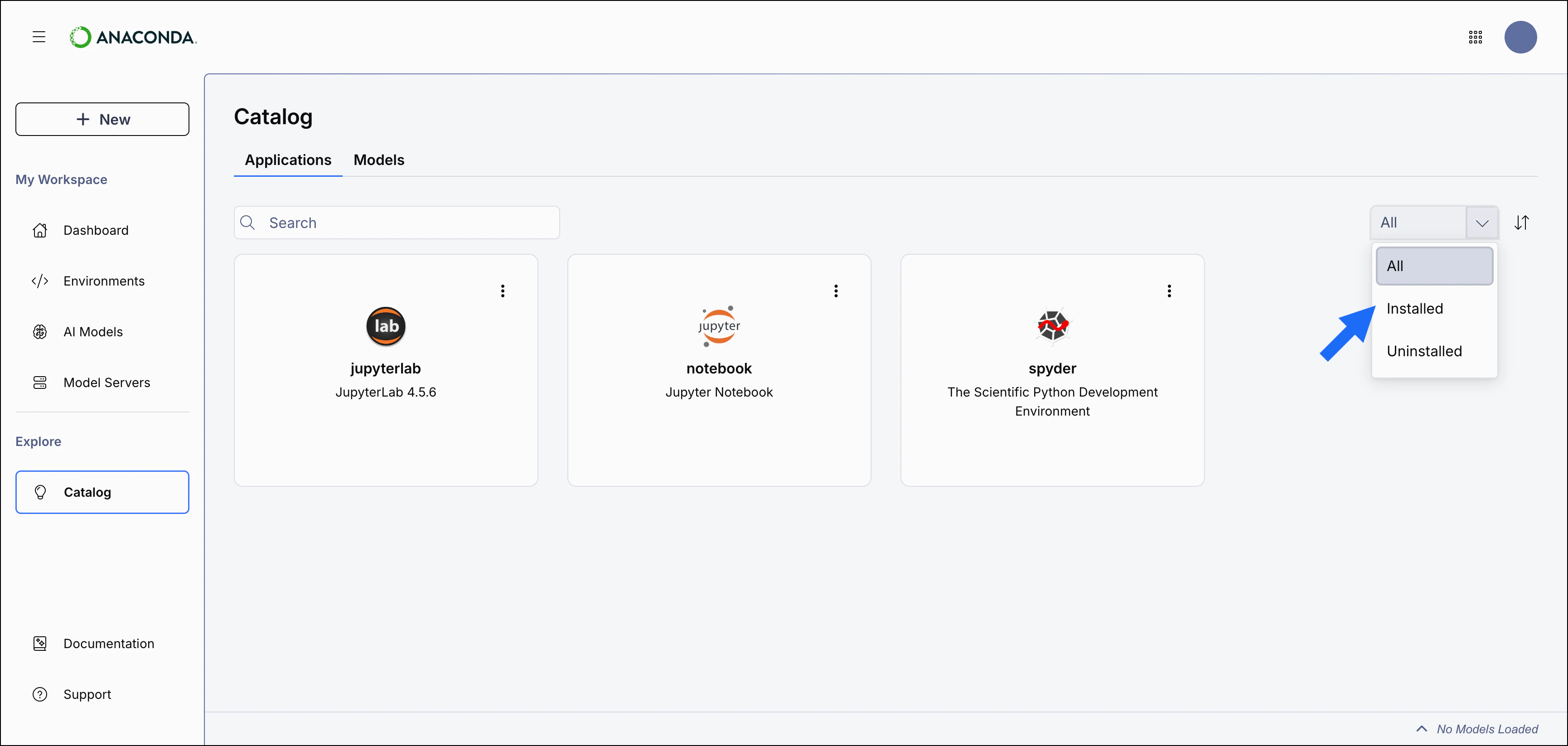
The **Applications** tab displays a list of all available applications in the Application Catalog. Use the dropdown to switch between **Installed** and **Uninstalled** applications:
## Available applications
The following applications are available in Anaconda Desktop:
Application
Description
[**JupyterLab**](https://jupyterlab.readthedocs.io/en/stable/)
Modern web-based interface for Jupyter notebooks with advanced features like file browser, terminal, and extensible architecture.
[**Jupyter Notebook**](https://jupyter.readthedocs.org/en/latest/)
Classic notebook interface for interactive computing with support for Python, R, and other programming languages.
[**Spyder**](https://www.spyder-ide.org/)
Scientific Python Integrated Development Environment (IDE) with advanced editing, debugging, and profiling capabilities.
[**VS Code**](https://code.visualstudio.com/)
Lightweight but powerful source code editor. Desktop detects whether VS Code is installed on your system and makes it available to launch.
[**PyCharm**](https://www.jetbrains.com/pycharm/)
Python IDE from JetBrains with intelligent code assistance and debugging tools. Desktop detects whether PyCharm is installed on your system and makes it available to launch.
## Application-environment relationship
You must install applications into [environments](/docs/anaconda-desktop/environments) before you can launch them from Desktop. Separating applications into environments lets you run different versions of the same application for different projects, or configure applications differently depending on your needs.
Applications in Anaconda Desktop are conda packages, which means you can also [install them as packages](/docs/anaconda-desktop/packages#installing-a-package) into an existing environment.
When you install an application for the first time from the Application Catalog or Dashboard, Anaconda Desktop automatically creates a new environment containing that application and all its dependencies. If the application is already installed in other environments, you can choose which environment to launch it from.
## Viewing applications
The **Applications** tab displays a list of all available applications in the Application Catalog. Use the dropdown to switch between **Installed** and **Uninstalled** applications:
 ## Installing an application
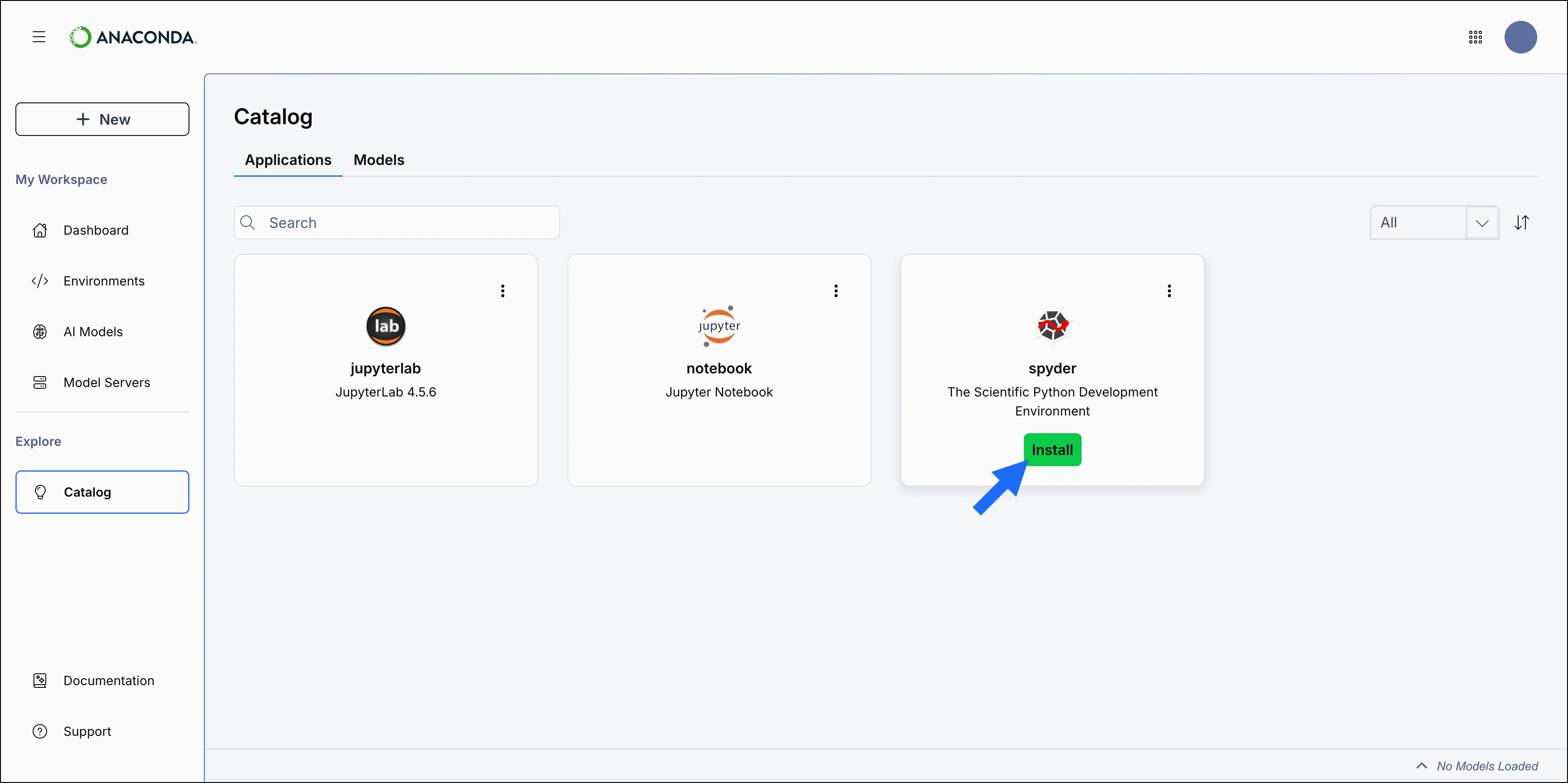
From the Application Catalog, click **Install** on an application's card to install it in a dedicated environment. The newly created environment is automatically set as the default environment for the application. The default environment is used to launch the application when you select its card.
## Installing an application
From the Application Catalog, click **Install** on an application's card to install it in a dedicated environment. The newly created environment is automatically set as the default environment for the application. The default environment is used to launch the application when you select its card.
 ## Launching an application
To launch an application:
* Select anywhere on an installed application's card to launch the application from its default environment.
* To choose a different environment, click the **Actions** button, select **Select Environment** to choose the environment, then click **Launch**.
Select the **Set as default environment** checkbox to use the selected environment as the default environment for the application.
## Updating an application
An **Update** button is displayed for applications that have updates available. To update the application:
1. Click **Update** on the application's card. Alternatively, select **Update** in the **Actions** menu.
2. Select the environment to update the application in.
3. Click **Update** again to confirm.
The application and its dependencies are updated to the latest compatible versions.
## Uninstalling an application
To uninstall an application:
1. Click the **Actions** button.
2. Select **Uninstall**.
## Launching an application
To launch an application:
* Select anywhere on an installed application's card to launch the application from its default environment.
* To choose a different environment, click the **Actions** button, select **Select Environment** to choose the environment, then click **Launch**.
Select the **Set as default environment** checkbox to use the selected environment as the default environment for the application.
## Updating an application
An **Update** button is displayed for applications that have updates available. To update the application:
1. Click **Update** on the application's card. Alternatively, select **Update** in the **Actions** menu.
2. Select the environment to update the application in.
3. Click **Update** again to confirm.
The application and its dependencies are updated to the latest compatible versions.
## Uninstalling an application
To uninstall an application:
1. Click the **Actions** button.
2. Select **Uninstall**.
 If the application is installed in multiple environments, you'll be prompted to select the environment to uninstall the application from.
3. Click **Uninstall** again to confirm.
The application and its dependencies are removed from the environment.
An uninstalled application can be reinstalled by selecting it from the **Uninstalled** dropdown view.
If the application is installed in multiple environments, you'll be prompted to select the environment to uninstall the application from.
3. Click **Uninstall** again to confirm.
The application and its dependencies are removed from the environment.
An uninstalled application can be reinstalled by selecting it from the **Uninstalled** dropdown view.